Variables
Save a value once, such as your company name, and use it in any block or prompt, or have PromptMason ask for it each time you copy.
A variable is a value with a name that you write once and use in many blocks and prompts. You write it in your text as the name in double curly braces, for example {{company name}}, and PromptMason puts the value in when you copy or run the text.
There are two kinds:
- Fixed: always the same value, filled in for you. For example, your company name.
- Ask me each time: you type the value each time you copy something that uses it. For example, the topic of today’s email. It can have a default value that’s filled in for you, which you can change before copying. It can also offer a list of values to pick from (see Offer a list of choices).
Variables are a feature you can show or hide. If you don’t see Variables in the sidebar, click Settings in the sidebar, then Features, and turn on Variables. Turning it off hides the screen, the name suggestions and the warnings, but variables you’ve already written are still filled in.
Create a variable
-
Click Variables in the sidebar.
-
Click New variable.
-
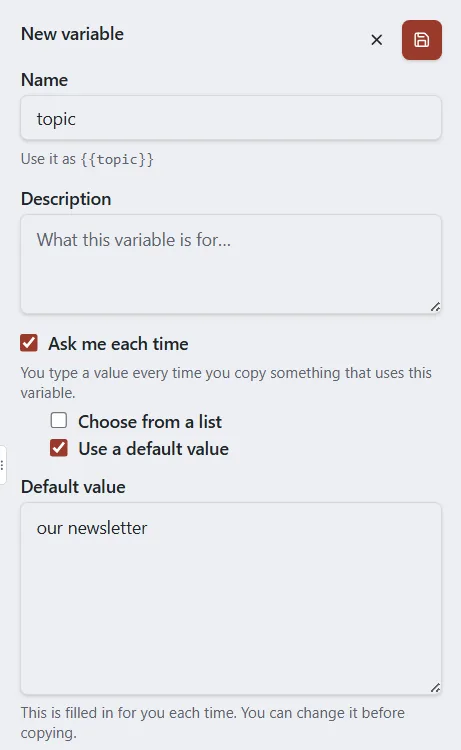
Under Name, type the variable’s name, for example
company name. The line under the box shows how to write it, such as Use it as {{company name}}. -
Under Description, you can say what the variable is for. This is optional.
-
Choose the kind:
-
For a fixed variable, leave Ask me each time unticked and type the value under Value.
-
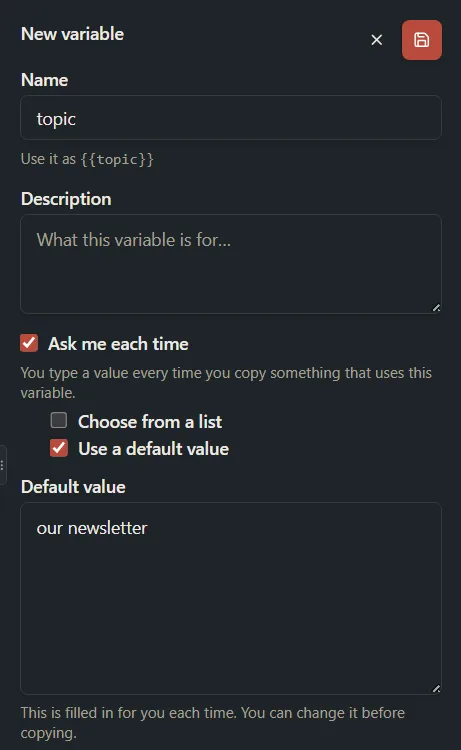
For a variable that asks each time, tick Ask me each time. To give it a value that’s filled in for you, also tick Use a default value and type it under Default value.
-
For a variable that asks each time and offers a list of values, tick Ask me each time, then tick Choose from a list (see Offer a list of choices).
-
-
Click Save (the disk icon at the top right of the pane).
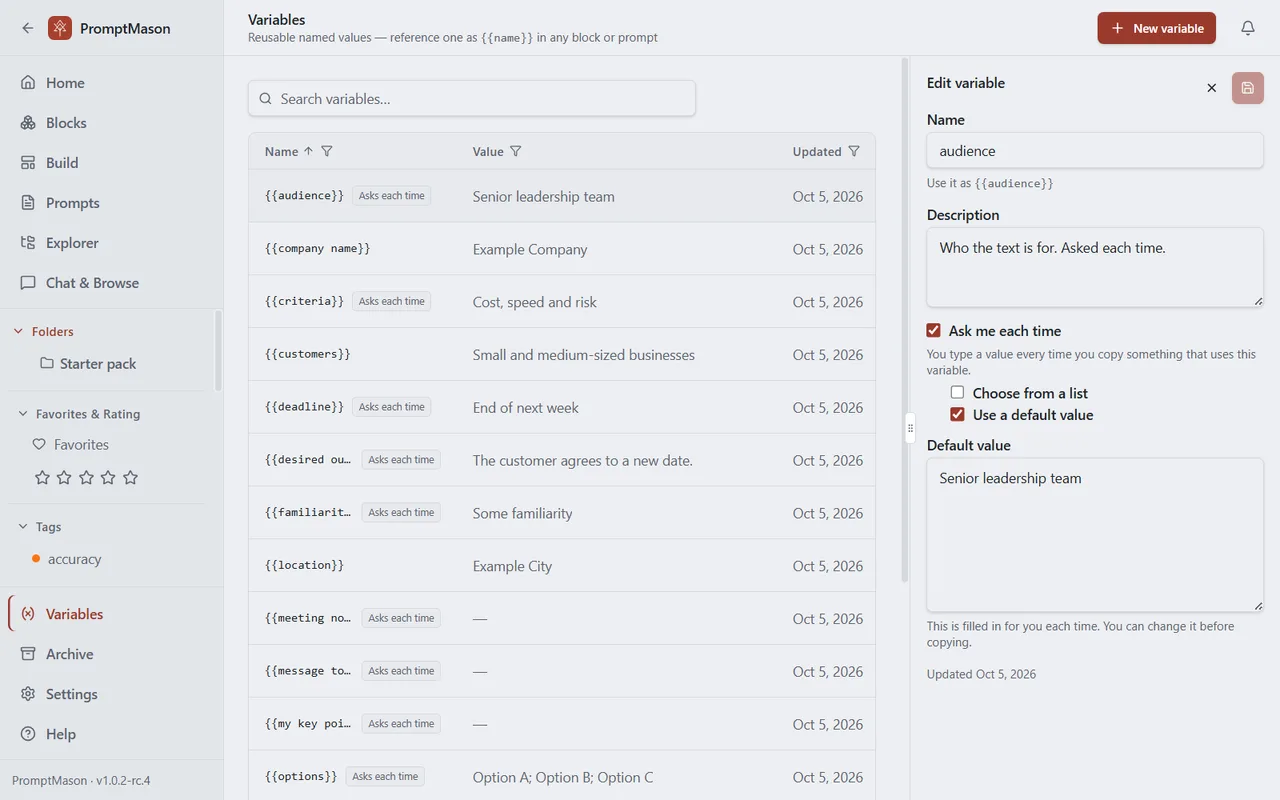
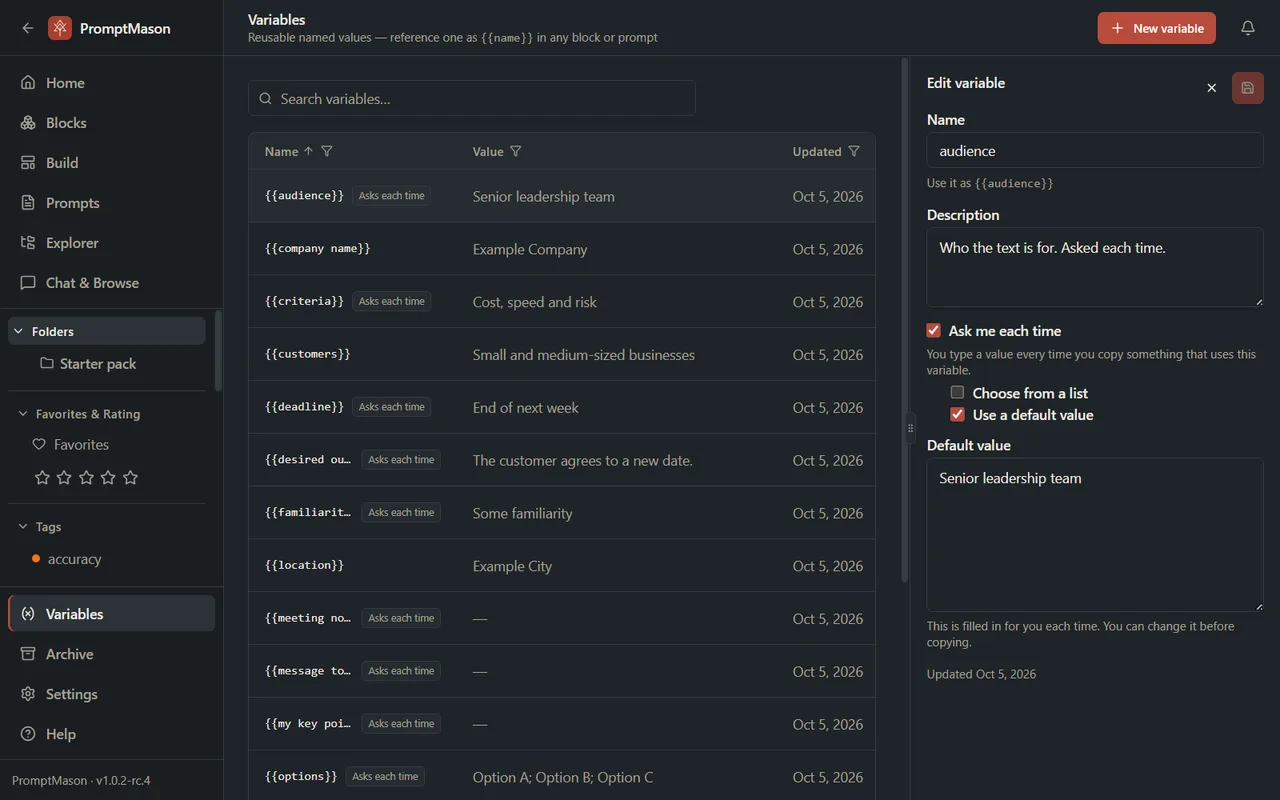
The variable shows in the list, with its name written as {{name}}. Variables that ask each time are marked Asks each time.
Names can have spaces, but not { or }. Two variables in the same library can’t have the same name, and capitals don’t count: Company Name and company name are the same name.
You can also press Ctrl+N on the Variables screen to start a new variable. To stop without saving, click the X (Cancel) at the top right of the pane. The new variable is thrown away without asking.
Offer a list of choices
A variable that asks each time can offer a list of values to pick from, such as the tones Formal, Friendly and Playful. This saves typing, and a drop-down keeps answers to the values you allow.
- Click Variables in the sidebar, then click the variable, or click New variable.
- Tick Ask me each time, then tick Choose from a list. The list opens under it with one row. If you had typed a default value, it’s in that row.
- Under List values, type a value in the row. Press Enter to start the next row.
- To add a row, click Add value. To move a value, use the up and down arrows beside it. To remove one, click the X beside it.
- Under Default value, choose which value is picked for you each time. The choices are the values in your list, and No default.
- To allow only the values in your list, tick Only allow values from the list. Leave it unticked to let people pick a value or type their own.
- Click Save (the disk icon at the top right of the pane).
A list can hold up to 100 values. Blank values and repeats aren’t saved, and a note under the list says so. A list needs at least one value.
When you copy something that uses the variable, Fill in your values shows the choices:
- Only allow values from the list ticked: the box is a drop-down. Click it, or press Space or an arrow key, and choose a value. You can’t use a value that isn’t in the list.
- Only allow values from the list unticked: the box is a text box with a button that opens the list. Click a value to use it, or type your own. Typing narrows the list to matching values. Esc closes the list, not the window.
Either way, the box starts on the value you used last time if the list allows it, and otherwise on the default.
To go back to a plain text box, untick Choose from a list. The default you picked from the list becomes the typed default, and the list’s values are kept in case you tick it again.
AI agents connected to PromptMason see the choices too, and offer them to you when they fill in a prompt. See MCP tools: what an AI agent can do.
Use a variable in a block or prompt
Write the name in double curly braces anywhere in the text of a block or a static prompt: {{company name}}. Capitals, and spaces right inside the braces, don’t matter, so {{ Company Name }} works too.
To pick a variable instead of typing its name:
-
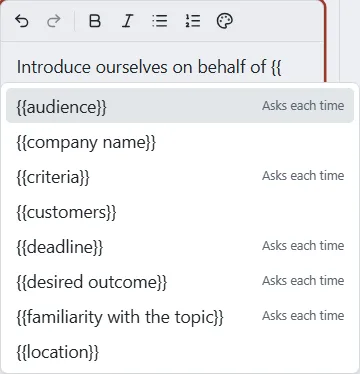
In the text editor, type
{{. -
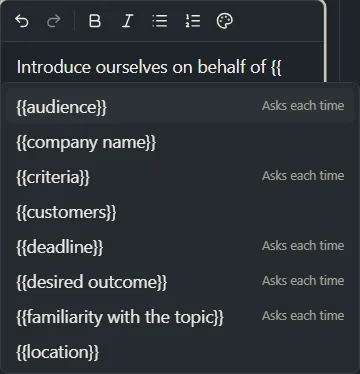
A list of your variables opens. Keep typing to narrow it down. Variables that ask each time are marked Asks each time.
-
Use the up and down arrow keys to choose one, and press Enter. Esc closes the list.
The list shows while the Variables feature is on.
Where values are filled in
- Previews. On the Blocks, Prompts and Build screens, the preview shows fixed values filled in. A variable that asks each time shows its default value, or its name in square brackets (for example
[topic]) if it has none. - Copying. Fixed values are filled in. For variables that ask each time, the Fill in your values window opens first. See Copy and use a prompt.
- Chat and the Chrome extension. Values are filled in the same way when you run or copy a prompt there.
Values are never saved into your text: the block or prompt keeps {{company name}}, so changing the variable’s value changes every block and prompt that uses it. Saving a prompt with Save as Static also keeps {{company name}} as written.
Markdown documents are the exception. They’re never processed, so {{company name}} in a document stays as written. See Markdown documents and Skills.
Variables inside variables
A fixed variable’s value can use other variables. For example, a variable signature with the value {{my name}}, {{company name}} fills in both.
If that value uses a variable that asks each time, you’re asked for it when you copy, the same as if it were written in the block.
If two variables use each other (for example, a uses {{b}} and b uses {{a}}), PromptMason can’t fill them in. The text shows [Circular reference: a] instead. Change one of the values so they don’t point at each other.
When a variable isn’t found
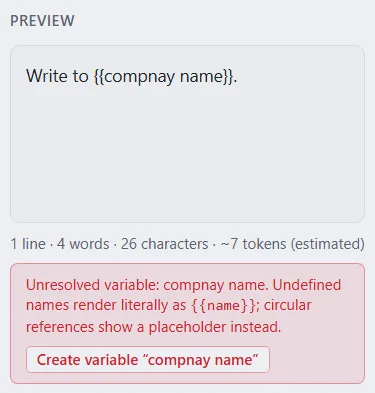
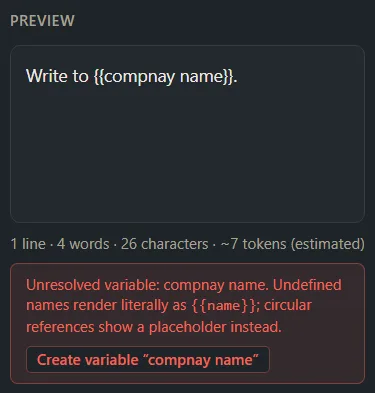
If your text uses a name that no variable has, for example because of a typing mistake, the text keeps {{name}} as written and the preview shows a warning such as Unresolved variable: compnay name.
To fix it, do one of these:
- Correct the name in the block or prompt.
- Click Create variable “name” in the warning. This opens the Variables screen with a new variable that already has that name. Fill in the rest and click Save. The variable is made in the same library as the block or prompt.
- Create a variable with that name on the Variables screen.
A name that is a circular reference has no Create variable button, because the variable already exists.
Find everything with an unresolved variable
To list the blocks and prompts that use a name no variable has:
- Open Blocks, Prompts or Explorer and click Unresolved variables in the toolbar, next to the view, sort and column buttons. A number beside it counts the blocks and prompts that match. The screen then lists only the items with an unresolved variable, under a bar that reads Filtered to:.
- Open an item and use the warning’s Create variable “name” button, or correct the name.
You can also start from the Variables screen. When at least one block or prompt uses a variable that doesn’t exist, a line above the list says so, for example 12 blocks and prompts use variables that don’t exist yet. Click Show them to open Explorer with the filter on.
An item drops off the list once all its variables are found. To see everything again, click the X on the Has unresolved variables chip, click Unresolved variables in the toolbar again, or click Clear filters in the toolbar. The filter shows while the Variables feature is on. Markdown documents never count, because their text isn’t processed.
Find where a variable is used
- Click Variables in the sidebar.
- Right-click the variable and choose Used by.
- A window titled Used by — name lists the blocks, prompts and Markdown documents that use it, in groups. Click one to open it.
A Dynamic prompt that gets the variable from one of its blocks shows Through and the block’s name. An archived item is marked Archived, and clicking it opens it in the Archive. An item from another library shows that library’s name. If nothing uses the variable, the window says No blocks or prompts use this variable.
Use this before you rename or delete a variable, to see which blocks and prompts will show the Unresolved variable warning.
Remembered values
When you copy something with a variable that asks each time, PromptMason remembers the last five values you typed for that variable. Next time, the box starts with the last one, and the others show as buttons under it. A variable that allows only values from its list ignores remembered values that aren’t in the list. A variable with an open list shows only the remembered values that aren’t already in the list. Remembered values stay on this PC and are shared by every block and prompt that uses the variable.
- To forget one variable’s values: in the Fill in your values window, click Clear next to its name.
- To stop remembering values: click Settings in the sidebar, then Privacy & security, and turn off Remember values on this computer. Turning it off forgets them straight away.
Change a variable
-
Click Variables in the sidebar.
-
Click the variable in the list. It opens in the pane on the right.
-
Change what you need.
-
Click Save (the disk icon).
To find a variable, type in the Search variables… box: it searches names, values and descriptions. Click a column heading to sort by it.
If you switch a variable to Ask me each time without a default, its value is kept, and comes back if you switch it to fixed again.
If you rename a variable, blocks and prompts that use the old name aren’t changed. They show the Unresolved variable warning until you change {{old name}} to the new name in each of them.
If you click another variable or leave the screen with unsaved changes, PromptMason asks Discard your changes? Click Keep Editing to go back and save, or Discard Changes.
Delete a variable
- Click Variables in the sidebar.
- Click the trash icon at the end of the variable’s row.
- Click Delete.
Deleting a variable can’t be undone: it doesn’t go to Recently deleted. Blocks and prompts that use it keep {{name}} as written and show the Unresolved variable warning, so you can see where it was used.
Messages
| Message | What to do |
|---|---|
| Name can’t be empty or contain { or }. | Type a name, without curly braces. |
| A variable named “…” already exists | Choose another name, or change the variable you already have. Capitals don’t count when names are compared. |
| Add at least one value to the list. | Type a value in the first row under List values, or untick Choose from a list. |
| Blank and repeated values aren’t saved. | Nothing to fix. The empty and repeated rows are left out when you save. |
| A list can hold up to 100 values. | Remove a value you don’t need before you add another. |
| Your library is paused. | You can’t create or change variables while your library is paused. You can still delete them. See When your library is paused. |
Want a hand?
Copy this prompt into Claude, ChatGPT or another AI assistant, and it walks you through it step by step.
I want to use variables in PromptMason so my prompts fill in my company name automatically and ask me for the topic each time. Walk me through setting them up and using them in a block.
Copy adds a short note about PromptMason and this guide's steps, so the assistant has what it needs.
I want to use variables in PromptMason so my prompts fill in my company name automatically and ask me for the topic each time. Walk me through setting them up and using them in a block. About PromptMason: a Windows desktop app for building AI prompts from reusable blocks. A person writes blocks (reusable pieces of prompt text), builds prompts from them on the Build screen (or keeps a Markdown document, such as a Skill), and copies a prompt into an AI tool, runs it in PromptMason’s own Chat, or lets a connected AI agent use it through PromptMason’s built-in MCP server (the Chrome extension copies prompts on any website). AI assist, Evaluate and Chat use a local model that runs on the person’s PC, or their own AI provider. The guides are also on PromptMason’s Help screen, and Chat can answer “how do I” questions from them. Libraries hold the blocks and prompts; a person can sync their personal library to their other PCs and share team libraries, both through a folder in cloud storage they already have (OneDrive, Google Drive or Dropbox). Everything synced is encrypted and every edit is signed and checked. A recovery kit (a file plus a code) is the spare copy of the person’s keys, for when every PC is lost. The official guide for this is "Variables": https://promptmason.ai/docs/variables Its full text follows, between the lines. Use it as the source of truth, and if anything I see differs from it, tell me rather than guessing. --- A variable is a value with a name that you write once and use in many blocks and prompts. You write it in your text as the name in double curly braces, for example `{{company name}}`, and PromptMason puts the value in when you copy or run the text. There are two kinds: - **Fixed:** always the same value, filled in for you. For example, your company name. - **Ask me each time:** you type the value each time you copy something that uses it. For example, the topic of today's email. It can have a default value that's filled in for you, which you can change before copying. It can also offer a list of values to pick from (see [Offer a list of choices](#offer-a-list-of-choices)). Variables are a feature you can show or hide. If you don't see **Variables** in the sidebar, click **Settings** in the sidebar, then **Features**, and turn on **Variables**. Turning it off hides the screen, the name suggestions and the warnings, but variables you've already written are still filled in. ## Create a variable 1. Click **Variables** in the sidebar. 2. Click **New variable**. 3. Under **Name**, type the variable's name, for example `company name`. The line under the box shows how to write it, such as **Use it as {{company name}}**. 4. Under **Description**, you can say what the variable is for. This is optional. 5. Choose the kind: - For a fixed variable, leave **Ask me each time** unticked and type the value under **Value**. - For a variable that asks each time, tick **Ask me each time**. To give it a value that's filled in for you, also tick **Use a default value** and type it under **Default value**. - For a variable that asks each time and offers a list of values, tick **Ask me each time**, then tick **Choose from a list** (see [Offer a list of choices](#offer-a-list-of-choices)). 6. Click **Save** (the disk icon at the top right of the pane). The variable shows in the list, with its name written as `{{name}}`. Variables that ask each time are marked **Asks each time**. Names can have spaces, but not `{` or `}`. Two variables in the same library can't have the same name, and capitals don't count: `Company Name` and `company name` are the same name. You can also press Ctrl+N on the **Variables** screen to start a new variable. To stop without saving, click the **X** (**Cancel**) at the top right of the pane. The new variable is thrown away without asking. ## Offer a list of choices A variable that asks each time can offer a list of values to pick from, such as the tones **Formal**, **Friendly** and **Playful**. This saves typing, and a drop-down keeps answers to the values you allow. 1. Click **Variables** in the sidebar, then click the variable, or click **New variable**. 2. Tick **Ask me each time**, then tick **Choose from a list**. The list opens under it with one row. If you had typed a default value, it's in that row. 3. Under **List values**, type a value in the row. Press Enter to start the next row. 4. To add a row, click **Add value**. To move a value, use the up and down arrows beside it. To remove one, click the **X** beside it. 5. Under **Default value**, choose which value is picked for you each time. The choices are the values in your list, and **No default**. 6. To allow only the values in your list, tick **Only allow values from the list**. Leave it unticked to let people pick a value or type their own. 7. Click **Save** (the disk icon at the top right of the pane). A list can hold up to 100 values. Blank values and repeats aren't saved, and a note under the list says so. A list needs at least one value. When you copy something that uses the variable, **Fill in your values** shows the choices: - **Only allow values from the list** ticked: the box is a drop-down. Click it, or press Space or an arrow key, and choose a value. You can't use a value that isn't in the list. - **Only allow values from the list** unticked: the box is a text box with a button that opens the list. Click a value to use it, or type your own. Typing narrows the list to matching values. Esc closes the list, not the window. Either way, the box starts on the value you used last time if the list allows it, and otherwise on the default. To go back to a plain text box, untick **Choose from a list**. The default you picked from the list becomes the typed default, and the list's values are kept in case you tick it again. AI agents connected to PromptMason see the choices too, and offer them to you when they fill in a prompt. See [MCP tools: what an AI agent can do](https://promptmason.ai/docs/agent-tools). ## Use a variable in a block or prompt Write the name in double curly braces anywhere in the text of a block or a static prompt: `{{company name}}`. Capitals, and spaces right inside the braces, don't matter, so `{{ Company Name }}` works too. To pick a variable instead of typing its name: 1. In the text editor, type `{{`. 2. A list of your variables opens. Keep typing to narrow it down. Variables that ask each time are marked **Asks each time**. 3. Use the up and down arrow keys to choose one, and press Enter. Esc closes the list. The list shows while the Variables feature is on. ## Where values are filled in - **Previews.** On the Blocks, Prompts and Build screens, the preview shows fixed values filled in. A variable that asks each time shows its default value, or its name in square brackets (for example `[topic]`) if it has none. - **Copying.** Fixed values are filled in. For variables that ask each time, the **Fill in your values** window opens first. See [Copy and use a prompt](https://promptmason.ai/docs/use-prompts#fill-in-your-values). - **Chat and the Chrome extension.** Values are filled in the same way when you run or copy a prompt there. Values are never saved into your text: the block or prompt keeps `{{company name}}`, so changing the variable's value changes every block and prompt that uses it. Saving a prompt with **Save as Static** also keeps `{{company name}}` as written. Markdown documents are the exception. They're never processed, so `{{company name}}` in a document stays as written. See [Markdown documents and Skills](https://promptmason.ai/docs/markdown-documents). ## Variables inside variables A fixed variable's value can use other variables. For example, a variable `signature` with the value `{{my name}}, {{company name}}` fills in both. If that value uses a variable that asks each time, you're asked for it when you copy, the same as if it were written in the block. If two variables use each other (for example, `a` uses `{{b}}` and `b` uses `{{a}}`), PromptMason can't fill them in. The text shows `[Circular reference: a]` instead. Change one of the values so they don't point at each other. ## When a variable isn't found If your text uses a name that no variable has, for example because of a typing mistake, the text keeps `{{name}}` as written and the preview shows a warning such as **Unresolved variable: compnay name.** To fix it, do one of these: - Correct the name in the block or prompt. - Click **Create variable “name”** in the warning. This opens the **Variables** screen with a new variable that already has that name. Fill in the rest and click **Save**. The variable is made in the same library as the block or prompt. - Create a variable with that name on the **Variables** screen. A name that is a circular reference has no **Create variable** button, because the variable already exists. ### Find everything with an unresolved variable To list the blocks and prompts that use a name no variable has: 1. Open **Blocks**, **Prompts** or **Explorer** and click **Unresolved variables** in the toolbar, next to the view, sort and column buttons. A number beside it counts the blocks and prompts that match. The screen then lists only the items with an unresolved variable, under a bar that reads **Filtered to:**. 2. Open an item and use the warning's **Create variable “name”** button, or correct the name. You can also start from the **Variables** screen. When at least one block or prompt uses a variable that doesn't exist, a line above the list says so, for example **12 blocks and prompts use variables that don't exist yet.** Click **Show them** to open **Explorer** with the filter on. An item drops off the list once all its variables are found. To see everything again, click the **X** on the **Has unresolved variables** chip, click **Unresolved variables** in the toolbar again, or click **Clear filters** in the toolbar. The filter shows while the Variables feature is on. Markdown documents never count, because their text isn't processed. ## Find where a variable is used 1. Click **Variables** in the sidebar. 2. Right-click the variable and choose **Used by**. 3. A window titled **Used by — name** lists the blocks, prompts and Markdown documents that use it, in groups. Click one to open it. A Dynamic prompt that gets the variable from one of its blocks shows **Through** and the block's name. An archived item is marked **Archived**, and clicking it opens it in the Archive. An item from another library shows that library's name. If nothing uses the variable, the window says **No blocks or prompts use this variable.** Use this before you rename or delete a variable, to see which blocks and prompts will show the **Unresolved variable** warning. ## Remembered values When you copy something with a variable that asks each time, PromptMason remembers the last five values you typed for that variable. Next time, the box starts with the last one, and the others show as buttons under it. A variable that allows only values from its list ignores remembered values that aren't in the list. A variable with an open list shows only the remembered values that aren't already in the list. Remembered values stay on this PC and are shared by every block and prompt that uses the variable. - To forget one variable's values: in the **Fill in your values** window, click **Clear** next to its name. - To stop remembering values: click **Settings** in the sidebar, then **Privacy & security**, and turn off **Remember values on this computer**. Turning it off forgets them straight away. ## Change a variable 1. Click **Variables** in the sidebar. 2. Click the variable in the list. It opens in the pane on the right. 3. Change what you need. 4. Click **Save** (the disk icon). To find a variable, type in the **Search variables…** box: it searches names, values and descriptions. Click a column heading to sort by it. If you switch a variable to **Ask me each time** without a default, its value is kept, and comes back if you switch it to fixed again. If you rename a variable, blocks and prompts that use the old name aren't changed. They show the **Unresolved variable** warning until you change `{{old name}}` to the new name in each of them. If you click another variable or leave the screen with unsaved changes, PromptMason asks **Discard your changes?** Click **Keep Editing** to go back and save, or **Discard Changes**. ## Delete a variable 1. Click **Variables** in the sidebar. 2. Click the trash icon at the end of the variable's row. 3. Click **Delete**. Deleting a variable can't be undone: it doesn't go to **Recently deleted**. Blocks and prompts that use it keep `{{name}}` as written and show the **Unresolved variable** warning, so you can see where it was used. ## Messages | Message | What to do | |---|---| | **Name can't be empty or contain { or }.** | Type a name, without curly braces. | | **A variable named "…" already exists** | Choose another name, or change the variable you already have. Capitals don't count when names are compared. | | **Add at least one value to the list.** | Type a value in the first row under **List values**, or untick **Choose from a list**. | | **Blank and repeated values aren't saved.** | Nothing to fix. The empty and repeated rows are left out when you save. | | **A list can hold up to 100 values.** | Remove a value you don't need before you add another. | | **Your library is paused.** | You can't create or change variables while your library is paused. You can still delete them. See [When your library is paused](https://promptmason.ai/docs/paused-library). | --- How to help me: - Go one step at a time. After each step, ask what I see on screen before giving the next one. - Use the exact words on PromptMason’s buttons and screens, as the guide does. - Never ask me for my recovery code, my recovery kit file, a password or my invite line, and never ask me to paste them here. - Start by asking which step I’m on, or what I see now.