Approve a PC
Approve someone joining a team library, or a member's new PC, by comparing the approval code.
Every PC that joins a team library is approved by the library’s primary owner, on their approving PC (see The primary owner). For someone new, you compare an approval code with them first: a code made from their PC’s keys, shown on their screen and on yours. If the codes match, the PC you’re approving is the one in front of them.
PCs are shown as their code’s first four characters and the PC’s name, for example “38C5 - Alex’s laptop”. The full code is shown wherever two codes are compared.
Someone new
-
Click the bell in the top-right corner to open Notifications.
-
Under To do, find Someone asked to join and click Review.
-
The Someone asked to join [library] window asks: “Is this an existing member’s new PC? Ask them to approve it from their other PC, or use Reset identity if they’ve lost everything.”
-
If it’s a member’s new PC, click Decline, and ask them to ask again and choose Yes, this is another of my PCs. They then confirm it from their other PC (how). That way they keep their name, role and History instead of being listed twice.
-
If it’s a member who lost every PC, click Reset identity and follow Lost or stolen PC or kit.
-
Otherwise, click No, it’s someone new. The window becomes Add a new member.
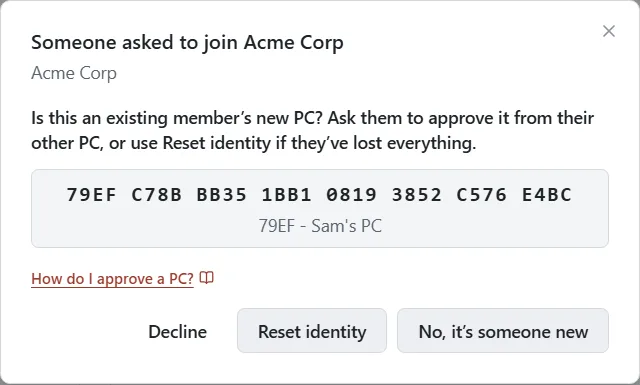
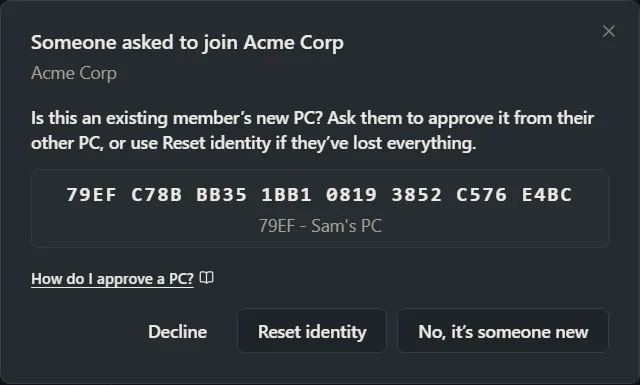
-
-
Call the person, on a number or chat you already know is theirs, not one that came with the request.
-
Ask them to read out the code on their screen. Check it matches the code in the window, every character.
-
Under Their name, check or type their name as your team knows them. This is the name everyone in the library sees on their edits.
-
Under Role, pick one: Editor: uses and changes what’s in it (the default), Reader: uses what’s in it, or Owner: also exports, backs up and restores deleted items. Team libraries explains each.
-
Click Add as a new member.
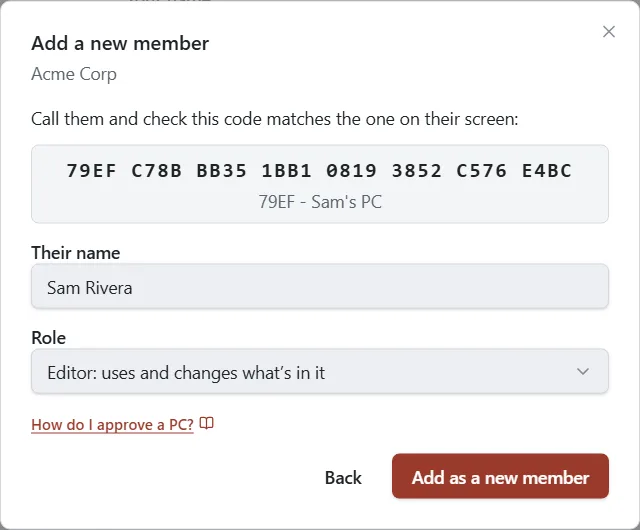
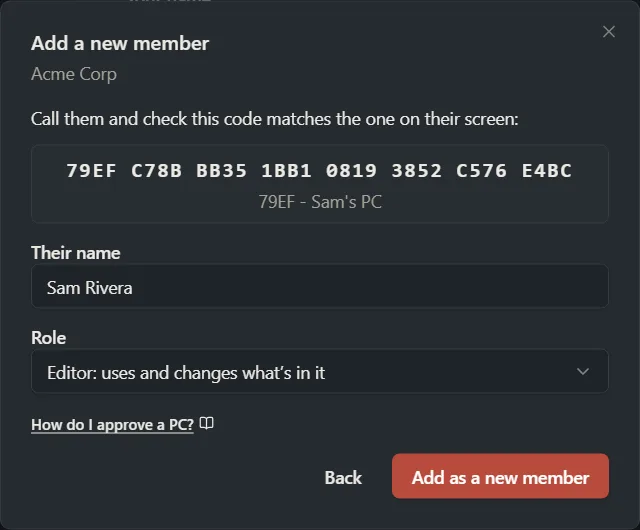
Their PC picks up the approval and starts syncing everything in the library, including past versions.
If the codes don’t match, or you can’t reach the person, click Back, then Decline. The request is removed and their PC is told.
A member’s new PC
When a member adds another of their PCs, one of their existing PCs confirms it first with This is my PC (unless the new PC already holds their keys). Then you see A member’s new PC asked to join:
-
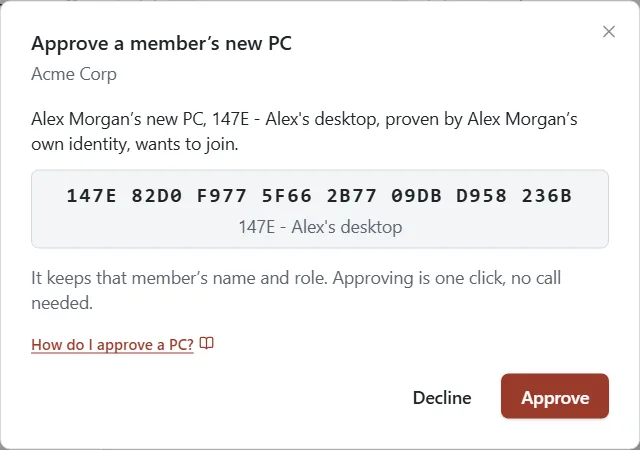
Click Review. The Approve a member’s new PC window opens.
-
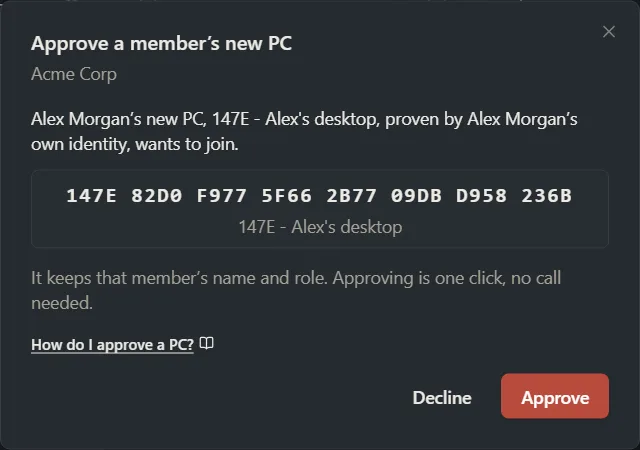
The window says whose PC it is, for example “Alex Morgan’s new PC, 21A6 - Alex’s desktop, vouched for by 38C5 - Alex’s laptop, wants to join.” If the PC already holds Alex Morgan’s keys, it says “proven by Alex Morgan’s own identity” instead. “Vouched for” means that PC confirmed the new one with This is my PC.
-
Click Approve.
No call is needed: it keeps that member’s name and role. If the member doesn’t expect a new PC, click Decline and check with them.
A PC is waiting to be confirmed means a PC says it belongs to someone already in the library, and none of their PCs has confirmed it yet.
- If it’s your own new PC, click Review, check the code matches the one on its screen, and click This is my PC. That confirms it’s yours and approves it in one click. No call is needed.
- If it’s someone else’s, wait for them to click This is my PC on their other PC. It then shows as A member’s new PC asked to join.
A member made a new recovery kit
When a member replaces their keys (after a stolen kit, or after one of their PCs was removed), you see A member made a new recovery kit. Click Review, then Approve. It’s one click because the request came from one of their own approved PCs. If the window adds “One of their PCs was removed while it still held their keys”, approving also locks that removed PC out for good. If you didn’t expect the request, click Decline and check with the member. Your recovery kit explains kits.
If you’re not on your approving PC
The window says “Approve this from 38C5 - Alex’s laptop, the PC that approves changes to who is in Acme Corp.” Go to that PC and approve it there. If that PC is lost or broken, see The primary owner.
Other things you may see
A request to join didn’t check out shows one of two messages. Either way, click Ignore it, which removes the request from the folder:
- “A request with a certificate that didn’t check out was ignored.” The request file isn’t one a real PromptMason PC made for this library.
- “Two people vouched for the same PC. Remove one of the vouchers to continue.” Two members each said the PC is theirs. After you click Ignore it, ask the right person to ask again. Only their own PC confirms it.
If you’re the one joining
Your screen shows Your approval code. You can close it: the code stays in Settings → Libraries & sharing until you’re approved. Read it out to the primary owner when they call. If you see Your request was declined, the primary owner declined it or it left the folder. Click OK and ask them about it.
Want a hand?
Copy this prompt into Claude, ChatGPT or another AI assistant, and it walks you through it step by step.
Someone asked to join my team library in PromptMason. Walk me through checking it's really them and approving their PC.
Copy adds a short note about PromptMason and this guide's steps, so the assistant has what it needs.
Someone asked to join my team library in PromptMason. Walk me through checking it's really them and approving their PC. About PromptMason: a Windows desktop app for building AI prompts from reusable blocks. A person writes blocks (reusable pieces of prompt text), builds prompts from them on the Build screen (or keeps a Markdown document, such as a Skill), and copies a prompt into an AI tool, runs it in PromptMason’s own Chat, or lets a connected AI agent use it through PromptMason’s built-in MCP server (the Chrome extension copies prompts on any website). AI assist, Evaluate and Chat use a local model that runs on the person’s PC, or their own AI provider. The guides are also on PromptMason’s Help screen, and Chat can answer “how do I” questions from them. Libraries hold the blocks and prompts; a person can sync their personal library to their other PCs and share team libraries, both through a folder in cloud storage they already have (OneDrive, Google Drive or Dropbox). Everything synced is encrypted and every edit is signed and checked. A recovery kit (a file plus a code) is the spare copy of the person’s keys, for when every PC is lost. The official guide for this is "Approve a PC": https://promptmason.ai/docs/approve-device Its full text follows, between the lines. Use it as the source of truth, and if anything I see differs from it, tell me rather than guessing. --- Every PC that joins a team library is approved by the library's primary owner, on their approving PC (see [The primary owner](https://promptmason.ai/docs/primary-owner)). For someone new, you compare an **approval code** with them first: a code made from their PC's keys, shown on their screen and on yours. If the codes match, the PC you're approving is the one in front of them. PCs are shown as their code's first four characters and the PC's name, for example "38C5 - Alex's laptop". The full code is shown wherever two codes are compared. ## Someone new 1. Click the bell in the top-right corner to open Notifications. 2. Under **To do**, find **Someone asked to join** and click **Review**. 3. The **Someone asked to join [library]** window asks: "Is this an existing member’s new PC? Ask them to approve it from their other PC, or use Reset identity if they’ve lost everything." - If it's a member's new PC, click **Decline**, and ask them to ask again and choose **Yes, this is another of my PCs**. They then confirm it from their other PC ([how](https://promptmason.ai/docs/second-pc#a-team-library)). That way they keep their name, role and History instead of being listed twice. - If it's a member who lost every PC, click **Reset identity** and follow [Lost or stolen PC or kit](https://promptmason.ai/docs/lost-device#you-lost-every-pc-and-your-kit). - Otherwise, click **No, it’s someone new**. The window becomes **Add a new member**. 4. Call the person, on a number or chat you already know is theirs, not one that came with the request. 5. Ask them to read out the code on their screen. Check it matches the code in the window, every character. 6. Under **Their name**, check or type their name as your team knows them. This is the name everyone in the library sees on their edits. 7. Under **Role**, pick one: **Editor: uses and changes what’s in it** (the default), **Reader: uses what’s in it**, or **Owner: also exports, backs up and restores deleted items**. [Team libraries](https://promptmason.ai/docs/team-libraries#roles) explains each. 8. Click **Add as a new member**. Their PC picks up the approval and starts syncing everything in the library, including past versions. If the codes don't match, or you can't reach the person, click **Back**, then **Decline**. The request is removed and their PC is told. ## A member's new PC When a member adds another of their PCs, one of their existing PCs confirms it first with **This is my PC** (unless the new PC already holds their keys). Then you see **A member’s new PC asked to join**: 1. Click **Review**. The **Approve a member’s new PC** window opens. 2. The window says whose PC it is, for example "Alex Morgan’s new PC, 21A6 - Alex's desktop, vouched for by 38C5 - Alex's laptop, wants to join." If the PC already holds Alex Morgan's keys, it says "proven by Alex Morgan’s own identity" instead. "Vouched for" means that PC confirmed the new one with **This is my PC**. 3. Click **Approve**. No call is needed: it keeps that member's name and role. If the member doesn't expect a new PC, click **Decline** and check with them. **A PC is waiting to be confirmed** means a PC says it belongs to someone already in the library, and none of their PCs has confirmed it yet. - If it's your own new PC, click **Review**, check the code matches the one on its screen, and click **This is my PC**. That confirms it's yours and approves it in one click. No call is needed. - If it's someone else's, wait for them to click **This is my PC** on their other PC. It then shows as **A member’s new PC asked to join**. ## A member made a new recovery kit When a member replaces their keys (after a stolen kit, or after one of their PCs was removed), you see **A member made a new recovery kit**. Click **Review**, then **Approve**. It's one click because the request came from one of their own approved PCs. If the window adds "One of their PCs was removed while it still held their keys", approving also locks that removed PC out for good. If you didn't expect the request, click **Decline** and check with the member. [Your recovery kit](https://promptmason.ai/docs/recovery-kit) explains kits. ## If you're not on your approving PC The window says "Approve this from 38C5 - Alex's laptop, the PC that approves changes to who is in Acme Corp." Go to that PC and approve it there. If that PC is lost or broken, see [The primary owner](https://promptmason.ai/docs/primary-owner#if-your-approving-pc-is-lost-or-broken). ## Other things you may see **A request to join didn’t check out** shows one of two messages. Either way, click **Ignore it**, which removes the request from the folder: - "A request with a certificate that didn’t check out was ignored." The request file isn't one a real PromptMason PC made for this library. - "Two people vouched for the same PC. Remove one of the vouchers to continue." Two members each said the PC is theirs. After you click **Ignore it**, ask the right person to ask again. Only their own PC confirms it. ## If you're the one joining Your screen shows **Your approval code**. You can close it: the code stays in **Settings → Libraries & sharing** until you're approved. Read it out to the primary owner when they call. If you see **Your request was declined**, the primary owner declined it or it left the folder. Click **OK** and ask them about it. --- How to help me: - Go one step at a time. After each step, ask what I see on screen before giving the next one. - Use the exact words on PromptMason’s buttons and screens, as the guide does. - Never ask me for my recovery code, my recovery kit file, a password or my invite line, and never ask me to paste them here. - Start by asking which step I’m on, or what I see now.