Control what connected apps can do
Choose Full access, Read-only or Off for AI agents and the Chrome extension, set what AI apps can do in a team library, and manage the tokens they use.
Connected apps are other apps on this PC that use your PromptMason library: AI agents such as Claude Desktop, Cursor and Claude Code, and the PromptMason Chrome extension. You decide what they may do in Settings → AI & connected apps. PromptMason’s own window always has full access.
Choose what connected apps can do
-
Click Settings in the sidebar, then AI & connected apps.
-
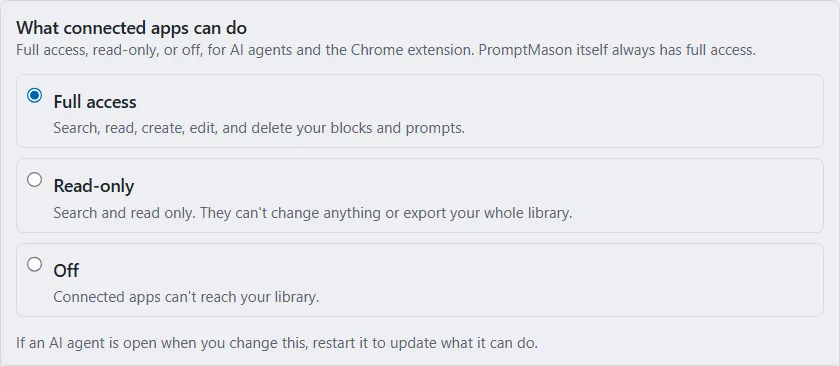
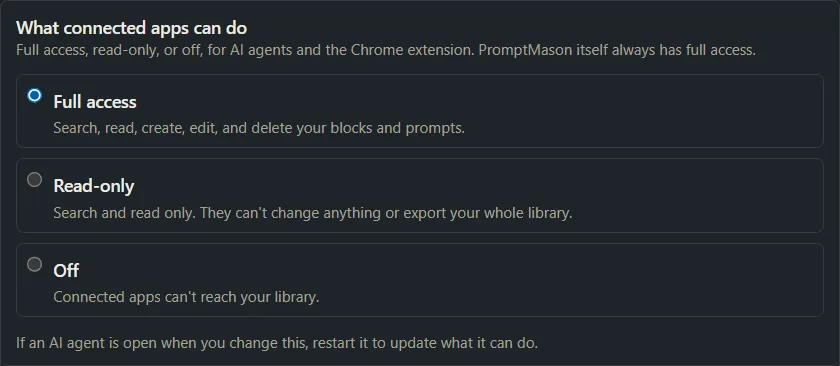
In the Connected apps card, find What connected apps can do.
-
Choose one of the options:
| Option | What PromptMason says |
|---|---|
| Full access | “Search, read, create, edit, and delete your blocks and prompts.” This is the default. |
| Read-only | “Search and read only. They can’t change anything or export your whole library.” |
| Off | “Connected apps can’t reach your library.” |
PromptMason saves your choice straight away. If it can’t, it shows a message under the options, for example “Could not save the setting.” Choose the option again.
The library tools in Chat follow this setting too: with Off, Chat can’t use your library, and with Read-only it can read but not change it. With Full access, Chat asks you before each change (see Approve or refuse a change). This doesn’t change how AI agents work.
Restart any open AI agent
An AI agent learns which PromptMason tools it has when it starts. If an agent is open when you change this setting, close it completely and open it again. PromptMason shows the same reminder: “If an AI agent is open when you change this, restart it to update what it can do.”
How each option affects AI agents
- Full access: the agent can search and read everything; create, change and delete blocks, prompts, folders, variables and comments; archive blocks and prompts and take them out of the archive; add and delete expected output; and add or remove tags. See MCP tools: what an AI agent can do.
- Read-only: an agent started while this is set can only search and read. If an agent that was started under Full access tries a change, PromptMason refuses it with “PromptMason is read-only for connected apps. To allow changes, choose Full access in PromptMason under Settings → AI & connected apps.”
- Off: an agent started while this is set has no PromptMason tools at all. One that was already running gets “PromptMason is turned off for connected apps. Turn it on in PromptMason under Settings → AI & connected apps.” The Add and Copy command buttons under Connect an AI agent are turned off.
How each option affects the Chrome extension
- Full access: you can browse, preview and copy, and also add favorites and ratings from the popup.
- Read-only: you can browse, preview and copy. Changing a favorite or a rating shows “The desktop app is in read-only mode, so this can’t be changed from the browser. To allow changes, choose Full access in the desktop app under Settings → AI & connected apps.” Values you type into Fill in your values are still remembered.
- Off: the popup shows “PromptMason is turned off for connected apps. Turn it on in the desktop app under Settings → AI & connected apps to see your blocks and prompts here.”
The extension doesn’t need restarting: it checks each time you open the popup. See The Chrome extension.
Set what AI apps can do in a team library
Each team library has its own setting for AI apps (AI agents and Chat). Only the library’s primary owner can change it, and it applies on every member’s PC.
-
Click Settings in the sidebar, then Libraries & sharing.
-
Under Libraries, click Manage next to the team library.
-
Under Name and AI apps, open What AI apps can do in [library name] and choose:
- Read only (recommended): AI agents can search and read it. This is the default for a team library.
- Read and change: AI agents can also add and change items in it.
- Nothing: AI apps can’t see it: AI agents don’t see the library at all.
-
To limit how much an AI agent can change, type a number in Most changes an AI app can make per hour and click Save. The default is 1,000.
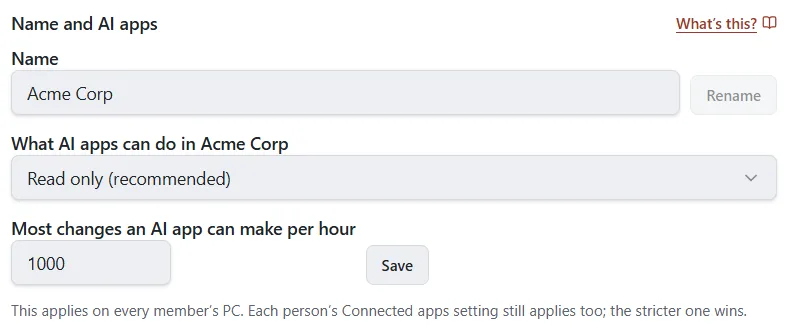
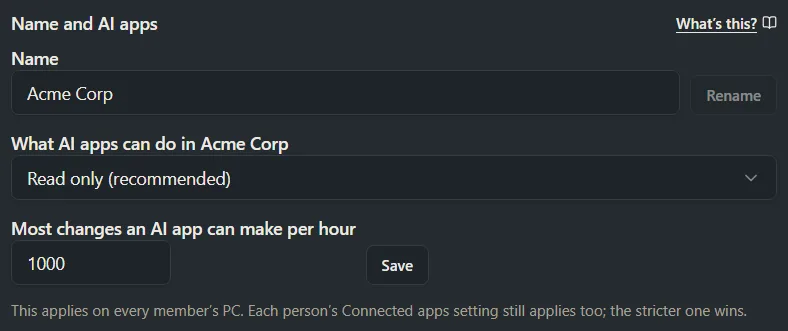
The note under these controls says: “This applies on every member’s PC. Each person’s Connected apps setting still applies too; the stricter one wins.” For example, if the library allows Read and change but your own setting is Read-only, your AI agent can only read it.
Other members see the current setting as a line such as “AI apps: read only, up to 1,000 changes an hour. Only the primary owner changes this.”
This team library setting applies to AI agents and Chat, not to the Chrome extension. It also doesn’t limit a member’s own AI assist or Evaluate: each member chooses their own provider, and those send text to it as described in What AI features send, and where. Your personal library has no such setting: there, What connected apps can do decides, with no hourly limit.
In a team library, a change an AI agent made is marked via AI app next to the person’s name.
The API token for an agent you set up yourself
Every AI agent uses one API token, a long secret code that proves to PromptMason it’s allowed in. Agents you add with Connect an AI agent read it on their own, so you don’t need to do anything with it.
You find it under Set up another AI agent by hand, in Settings → AI & connected apps. PromptMason says: “AI agents added with Connect above use this token automatically. Give it only to an agent you set up yourself, and keep it private.”
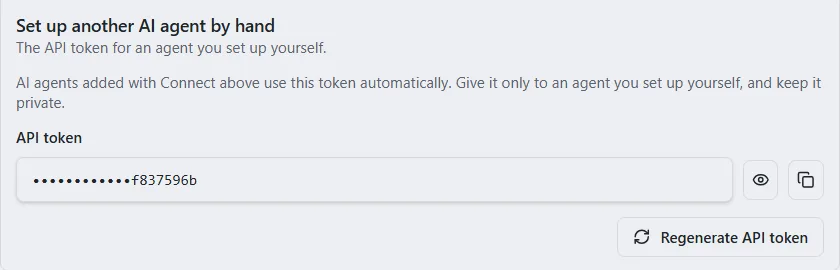
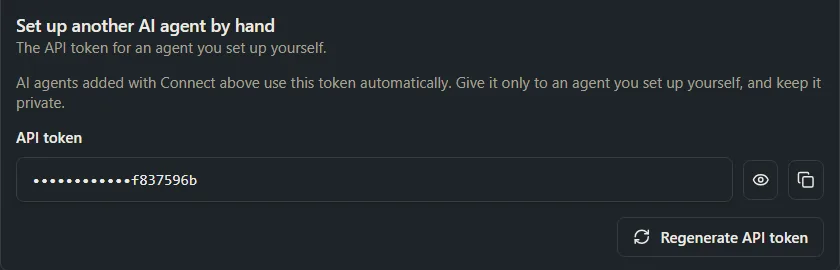
- The box under API token shows only the last characters. Click the eye button (Show token) to see all of it.
- Click the copy button, to the right of the eye button, to copy the whole token. PromptMason shows “Full token copied to clipboard.”
All your AI agents share one API token, so you can’t use it to cut off a single agent. To stop one agent, remove PromptMason from that agent, or set What connected apps can do to Off to stop them all.
Regenerate the API token
Do this if you think someone else has your API token. It can’t be undone.
- Under Set up another AI agent by hand, click Regenerate API token.
- Read the dialog: “AI agents added with Connect pick up the new token on their own. One you set up by hand stops working until you give it the new token. The Chrome extension isn’t affected. This can’t be undone.”
- Click Regenerate.
PromptMason shows “New token generated.” If an agent you set up by hand used the old token, give it the new one. If regenerating fails, PromptMason shows “Could not regenerate the token.” Try again.
The extension token
The Chrome extension uses its own token, separate from the API token. You find it under Chrome extension, in Settings → AI & connected apps, labeled Extension token. It has the same eye and copy buttons. For where to paste it, see Connect the extension to PromptMason.
Regenerate the extension token
Regenerating can’t be undone, and the extension stops working until you paste the new token into it.
- Under Chrome extension, click Regenerate extension token.
- Read the dialog: “The Chrome extension stops working until you paste the new token into it. AI agents aren’t affected. This can’t be undone.”
- Click Regenerate.
PromptMason shows “New token generated. Paste it into the Chrome extension.” Then replace the token in the extension.
Related guides
Want a hand?
Copy this prompt into Claude, ChatGPT or another AI assistant, and it walks you through it step by step.
I've connected an AI agent to PromptMason. Help me choose between “Full access”, “Read-only” and “Off”, and walk me through changing the setting and restarting the agent.
Copy adds a short note about PromptMason and this guide's steps, so the assistant has what it needs.
I've connected an AI agent to PromptMason. Help me choose between “Full access”, “Read-only” and “Off”, and walk me through changing the setting and restarting the agent. About PromptMason: a Windows desktop app for building AI prompts from reusable blocks. A person writes blocks (reusable pieces of prompt text), builds prompts from them on the Build screen (or keeps a Markdown document, such as a Skill), and copies a prompt into an AI tool, runs it in PromptMason’s own Chat, or lets a connected AI agent use it through PromptMason’s built-in MCP server (the Chrome extension copies prompts on any website). AI assist, Evaluate and Chat use a local model that runs on the person’s PC, or their own AI provider. The guides are also on PromptMason’s Help screen, and Chat can answer “how do I” questions from them. Libraries hold the blocks and prompts; a person can sync their personal library to their other PCs and share team libraries, both through a folder in cloud storage they already have (OneDrive, Google Drive or Dropbox). Everything synced is encrypted and every edit is signed and checked. A recovery kit (a file plus a code) is the spare copy of the person’s keys, for when every PC is lost. The official guide for this is "Control what connected apps can do": https://promptmason.ai/docs/agent-access Its full text follows, between the lines. Use it as the source of truth, and if anything I see differs from it, tell me rather than guessing. --- Connected apps are other apps on this PC that use your PromptMason library: AI agents such as Claude Desktop, Cursor and Claude Code, and the PromptMason Chrome extension. You decide what they may do in **Settings → AI & connected apps**. PromptMason's own window always has full access. ## Choose what connected apps can do 1. Click **Settings** in the sidebar, then **AI & connected apps**. 2. In the **Connected apps** card, find **What connected apps can do**. 3. Choose one of the options: | Option | What PromptMason says | |---|---| | **Full access** | "Search, read, create, edit, and delete your blocks and prompts." This is the default. | | **Read-only** | "Search and read only. They can't change anything or export your whole library." | | **Off** | "Connected apps can't reach your library." | PromptMason saves your choice straight away. If it can't, it shows a message under the options, for example "Could not save the setting." Choose the option again. The library tools in Chat follow this setting too: with **Off**, Chat can't use your library, and with **Read-only** it can read but not change it. With **Full access**, Chat asks you before each change (see [Approve or refuse a change](https://promptmason.ai/docs/chat-basics#approve-or-refuse-a-change)). This doesn't change how AI agents work. ### Restart any open AI agent An AI agent learns which PromptMason tools it has when it starts. If an agent is open when you change this setting, close it completely and open it again. PromptMason shows the same reminder: "If an AI agent is open when you change this, restart it to update what it can do." ### How each option affects AI agents - **Full access:** the agent can search and read everything; create, change and delete blocks, prompts, folders, variables and comments; archive blocks and prompts and take them out of the archive; add and delete expected output; and add or remove tags. See [MCP tools: what an AI agent can do](https://promptmason.ai/docs/agent-tools). - **Read-only:** an agent started while this is set can only search and read. If an agent that was started under **Full access** tries a change, PromptMason refuses it with "PromptMason is read-only for connected apps. To allow changes, choose Full access in PromptMason under Settings → AI & connected apps." - **Off:** an agent started while this is set has no PromptMason tools at all. One that was already running gets "PromptMason is turned off for connected apps. Turn it on in PromptMason under Settings → AI & connected apps." The **Add** and **Copy command** buttons under **Connect an AI agent** are turned off. ### How each option affects the Chrome extension - **Full access:** you can browse, preview and copy, and also add favorites and ratings from the popup. - **Read-only:** you can browse, preview and copy. Changing a favorite or a rating shows "The desktop app is in read-only mode, so this can't be changed from the browser. To allow changes, choose Full access in the desktop app under Settings → AI & connected apps." Values you type into **Fill in your values** are still remembered. - **Off:** the popup shows "PromptMason is turned off for connected apps. Turn it on in the desktop app under Settings → AI & connected apps to see your blocks and prompts here." The extension doesn't need restarting: it checks each time you open the popup. See [The Chrome extension](https://promptmason.ai/docs/chrome-extension). ## Set what AI apps can do in a team library Each team library has its own setting for AI apps (AI agents and Chat). Only the library's primary owner can change it, and it applies on every member's PC. 1. Click **Settings** in the sidebar, then **Libraries & sharing**. 2. Under **Libraries**, click **Manage** next to the team library. 3. Under **Name and AI apps**, open **What AI apps can do in [library name]** and choose: - **Read only (recommended)**: AI agents can search and read it. This is the default for a team library. - **Read and change**: AI agents can also add and change items in it. - **Nothing: AI apps can’t see it**: AI agents don't see the library at all. 4. To limit how much an AI agent can change, type a number in **Most changes an AI app can make per hour** and click **Save**. The default is 1,000. The note under these controls says: "This applies on every member’s PC. Each person’s Connected apps setting still applies too; the stricter one wins." For example, if the library allows **Read and change** but your own setting is **Read-only**, your AI agent can only read it. Other members see the current setting as a line such as "AI apps: read only, up to 1,000 changes an hour. Only the primary owner changes this." This team library setting applies to AI agents and Chat, not to the Chrome extension. It also doesn't limit a member's own AI assist or Evaluate: each member chooses their own provider, and those send text to it as described in [What AI features send, and where](https://promptmason.ai/docs/ai-privacy). Your personal library has no such setting: there, **What connected apps can do** decides, with no hourly limit. In a team library, a change an AI agent made is marked **via AI app** next to the person's name. ## The API token for an agent you set up yourself Every AI agent uses one API token, a long secret code that proves to PromptMason it's allowed in. Agents you add with **Connect an AI agent** read it on their own, so you don't need to do anything with it. You find it under **Set up another AI agent by hand**, in **Settings → AI & connected apps**. PromptMason says: "AI agents added with Connect above use this token automatically. Give it only to an agent you set up yourself, and keep it private." - The box under **API token** shows only the last characters. Click the eye button (**Show token**) to see all of it. - Click the copy button, to the right of the eye button, to copy the whole token. PromptMason shows "Full token copied to clipboard." All your AI agents share one API token, so you can't use it to cut off a single agent. To stop one agent, remove PromptMason from that agent, or set **What connected apps can do** to **Off** to stop them all. ### Regenerate the API token Do this if you think someone else has your API token. It can't be undone. 1. Under **Set up another AI agent by hand**, click **Regenerate API token**. 2. Read the dialog: "AI agents added with Connect pick up the new token on their own. One you set up by hand stops working until you give it the new token. The Chrome extension isn't affected. This can't be undone." 3. Click **Regenerate**. PromptMason shows "New token generated." If an agent you set up by hand used the old token, give it the new one. If regenerating fails, PromptMason shows "Could not regenerate the token." Try again. ## The extension token The Chrome extension uses its own token, separate from the API token. You find it under **Chrome extension**, in **Settings → AI & connected apps**, labeled **Extension token**. It has the same eye and copy buttons. For where to paste it, see [Connect the extension to PromptMason](https://promptmason.ai/docs/chrome-extension#connect-the-extension-to-promptmason). ### Regenerate the extension token Regenerating can't be undone, and the extension stops working until you paste the new token into it. 1. Under **Chrome extension**, click **Regenerate extension token**. 2. Read the dialog: "The Chrome extension stops working until you paste the new token into it. AI agents aren't affected. This can't be undone." 3. Click **Regenerate**. PromptMason shows "New token generated. Paste it into the Chrome extension." Then [replace the token in the extension](https://promptmason.ai/docs/chrome-extension#replace-the-token). ## Related guides - [Connect an AI agent through MCP](https://promptmason.ai/docs/connect-ai-agent) - [Team libraries](https://promptmason.ai/docs/team-libraries) - [Troubleshooting MCP connections](https://promptmason.ai/docs/mcp-troubleshooting) --- How to help me: - Go one step at a time. After each step, ask what I see on screen before giving the next one. - Use the exact words on PromptMason’s buttons and screens, as the guide does. - Never ask me for my recovery code, my recovery kit file, a password or my invite line, and never ask me to paste them here. - Start by asking which step I’m on, or what I see now.