A tour of PromptMason
What each part of the PromptMason window is for, and the few ideas everything else builds on.
This page walks through the PromptMason window: the sidebar, the screens it opens, and the bell and banner at the top. It ends with the ideas the rest of the guides use.
The window
The window has a sidebar on the left and the current screen on the right.
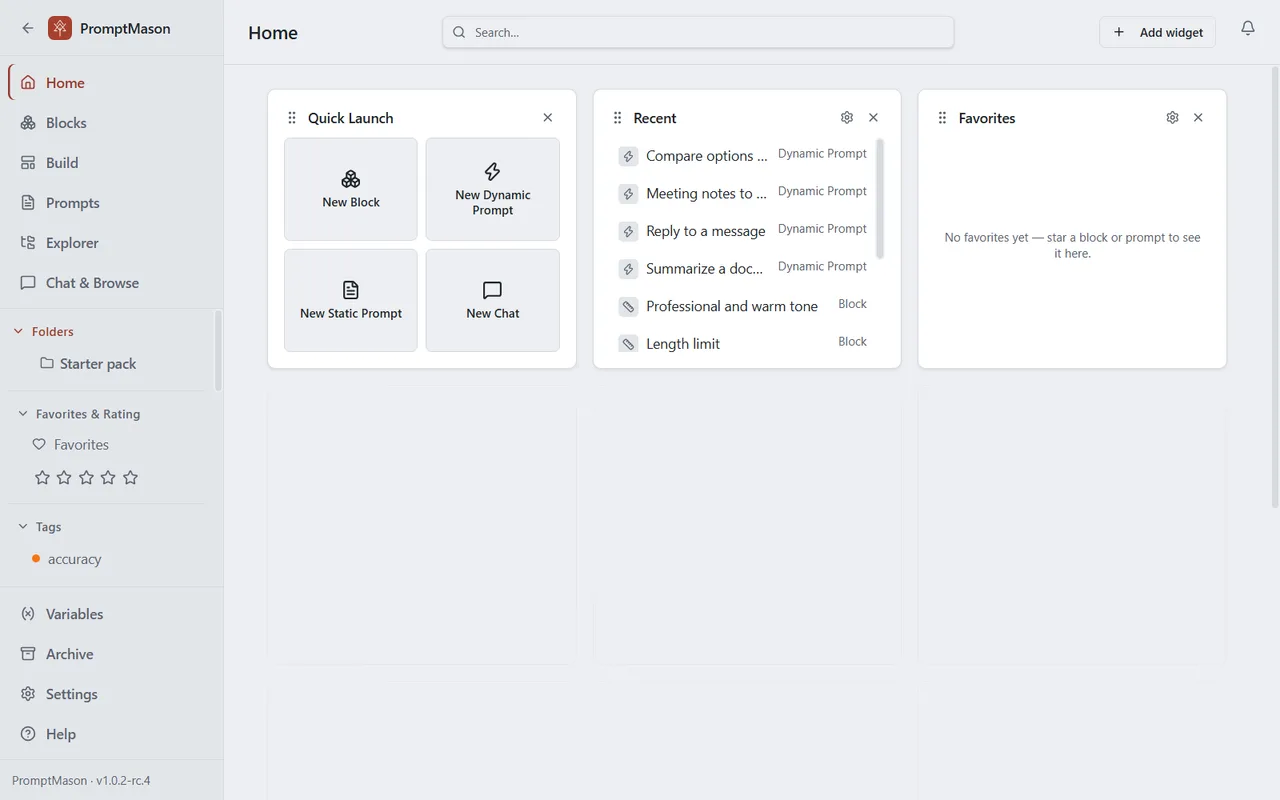
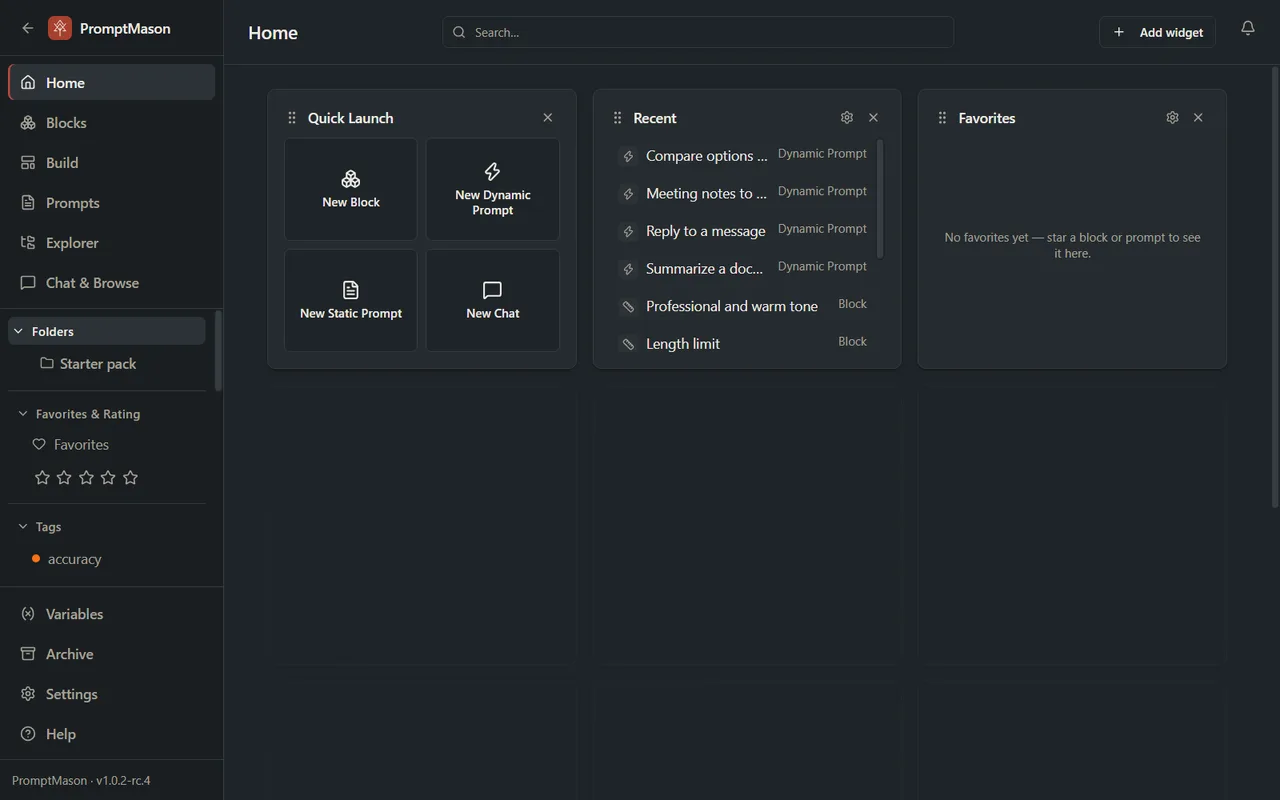
- The Notifications bell sits in the top-right corner of every screen. See The bell.
- A one-line banner can appear across the top of every screen when your plan needs attention. See The plan banner.
- Short messages appear in the bottom-right corner now and then, and go away by themselves.
The sidebar
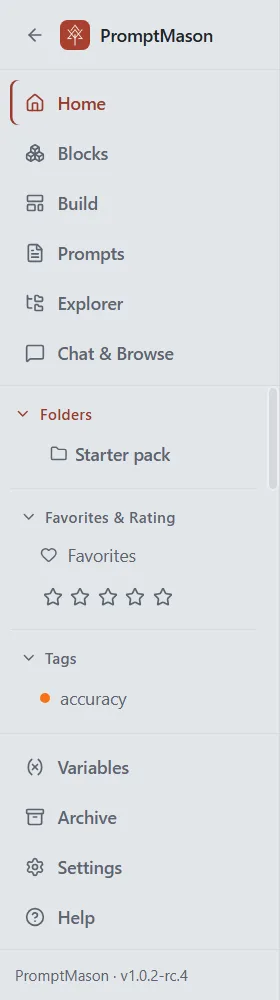
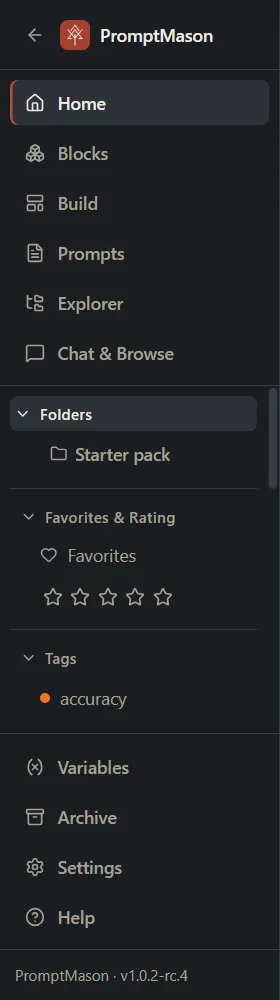
From top to bottom:
| Item | What it’s for | Default shortcut |
|---|---|---|
| Back (arrow, top left) | Goes back to the screen you were on before. There’s no Forward. It’s grayed out when there’s nowhere to go back to. | |
| Home | A start page with a search across everything you’ve saved, and widgets you arrange. Shown only when the Home dashboard feature is on. See The Home screen. | Ctrl+8 |
| Blocks | Your reusable pieces of prompt text. See Create and edit blocks. | Ctrl+1 |
| Build | Put blocks together into a prompt, or, with the Markdown editor feature on, write a Markdown document. See Build a prompt. | Ctrl+2 |
| Prompts | Your saved prompts and documents: read, copy and edit them. See Copy and use a prompt. | Ctrl+3 |
| Explorer | Blocks and prompts side by side, in their folders, to move, copy, file and delete them. See Explorer. | Ctrl+4 |
| Chat & Browse | Run your prompts with an AI model and read the results, and, with Web tabs on, open AI websites in tabs. Shown only when the Chat feature is on. See Run prompts in Chat. | Ctrl+9 |
| Folders or Libraries | Your folders. Click one to show only what’s in it. Once you have a team library, this becomes Libraries, with one row per library. See Folders, moving and copying and Personal and team libraries. | |
| Favorites & Rating | Show only favorites, or only items rated at or above a number of stars. Shown only when the Favorites & ratings feature is on. | |
| Tags | Click a tag to show only items with it. Shown only when the Tags feature is on. See Tags, favorites and ratings. | |
| Variables | Named values, such as your company name, that fill in when you copy. Shown only when the Variables feature is on. See Variables. | Ctrl+5 |
| Archive | Items you archived, and items you deleted in the last 30 days, ready to bring back. See Archive, delete and restore. | Ctrl+6 |
| Settings | Everything you can change. See Settings reference. | Ctrl+7 |
| Help | Every guide from promptmason.ai, inside PromptMason, as it was when your version was made. It works without an internet connection. See Get help. | F1 |
The bottom line of the sidebar shows the version you have.
You can change any of these shortcuts. In the Keyboard shortcuts settings, the shortcut for Build is called Go to Canvas, and the one for Chat & Browse is Go to Chat. See Keyboard shortcuts.
Folder, tag, favorite and rating filters you pick in the sidebar carry across the Blocks, Prompts and Explorer screens, and the block list on Build.
If you have unsaved changes when you click another screen, PromptMason asks before it leaves.
Right-click a block, prompt or folder to see what you can do with it.
The bell
Click the bell in the top-right corner to open Notifications.
- To do lists things that need you, such as a PC asking to join a library, or a backup that didn’t finish. They stay until they’re dealt with. The red number on the bell counts these.
- Earlier lists things you might want to know, such as two people editing the same item at the same time, or a team library its owner deleted.
Many notifications have a button that does the next step, and a link to the guide that explains it. See Notifications.
The plan banner
A banner appears across the top only when one of these applies:
- Your library is paused. You’re on the Free plan with more than 25 blocks or more than 15 prompts, for example after your 14 days of Pro ended. Its buttons are Enter key, Other options and, when available, Upgrade to Pro. See When your library is paused.
- Your 14 days of Pro end within three days. The banner says, for example, “Your PromptMason Pro trial ends in 2 days.” Its buttons are Enter key and, when available, Buy PromptMason Pro. Enter key opens Settings → Plan, where you paste your Pro key and click Activate. See Activate a Pro key.
- PromptMason couldn’t check your license for three days or more. The banner starts “Couldn’t verify your license” and says how many days are left before the Free limits apply. Connect to the internet, then click Open Settings and click Check again. See How your license is checked.
The ideas behind it
- Block: a reusable piece of prompt text, with a name and a type, such as Role, Task or Format.
- Prompt: the text you paste into an AI tool. It comes in two kinds:
- A dynamic prompt is built from blocks on Build and stays linked to them. Edit a block, and every dynamic prompt that uses it changes too.
- A static prompt is fixed text. You write it on the Prompts screen, or save it from Build with Save as Static. Changes to blocks don’t affect it.
- Document: a Markdown file, such as a Skill for an AI tool, written on Build’s Markdown tab. It counts as a prompt. Writing and editing documents needs the Markdown editor feature on; saved documents can always be read, copied and downloaded.
- Variable: a named value written as
{{name}}in a block or prompt, filled in when you copy. A variable can ask you for its value each time. - Library: where your blocks and prompts live. Everyone has a personal library. A team library is shared with other people through a cloud folder. Your library is kept on your PC, not on a PromptMason server (Privacy in PromptMason).
- Local model: PromptMason’s own AI model, free on every plan. It runs on your PC, so AI assist, Evaluate and Chat can work with no API key and nothing sent anywhere. See Free, private AI on your PC.
- MCP server: built into PromptMason, so AI apps such as Claude Desktop, Cursor and Claude Code can search and use your library from their own chat. See PromptMason’s built-in MCP server.
Static prompts, dynamic prompts and documents explains the kinds in more detail, and the Glossary lists every term.
Want a hand?
Copy this prompt into Claude, ChatGPT or another AI assistant, and it walks you through it step by step.
I'm new to PromptMason. Give me a short tour of the sidebar and the main screens, and explain the ideas it builds on: blocks, static and dynamic prompts, documents, variables and libraries.
Copy adds a short note about PromptMason and this guide's steps, so the assistant has what it needs.
I'm new to PromptMason. Give me a short tour of the sidebar and the main screens, and explain the ideas it builds on: blocks, static and dynamic prompts, documents, variables and libraries. About PromptMason: a Windows desktop app for building AI prompts from reusable blocks. A person writes blocks (reusable pieces of prompt text), builds prompts from them on the Build screen (or keeps a Markdown document, such as a Skill), and copies a prompt into an AI tool, runs it in PromptMason’s own Chat, or lets a connected AI agent use it through PromptMason’s built-in MCP server (the Chrome extension copies prompts on any website). AI assist, Evaluate and Chat use a local model that runs on the person’s PC, or their own AI provider. The guides are also on PromptMason’s Help screen, and Chat can answer “how do I” questions from them. Libraries hold the blocks and prompts; a person can sync their personal library to their other PCs and share team libraries, both through a folder in cloud storage they already have (OneDrive, Google Drive or Dropbox). Everything synced is encrypted and every edit is signed and checked. A recovery kit (a file plus a code) is the spare copy of the person’s keys, for when every PC is lost. The official guide for this is "A tour of PromptMason": https://promptmason.ai/docs/app-tour Its full text follows, between the lines. Use it as the source of truth, and if anything I see differs from it, tell me rather than guessing. --- This page walks through the PromptMason window: the sidebar, the screens it opens, and the bell and banner at the top. It ends with the ideas the rest of the guides use. ## The window The window has a sidebar on the left and the current screen on the right. - The **Notifications** bell sits in the top-right corner of every screen. See [The bell](#the-bell). - A one-line banner can appear across the top of every screen when your plan needs attention. See [The plan banner](#the-plan-banner). - Short messages appear in the bottom-right corner now and then, and go away by themselves. ## The sidebar From top to bottom: | Item | What it's for | Default shortcut | |---|---|---| | **Back** (arrow, top left) | Goes back to the screen you were on before. There's no Forward. It's grayed out when there's nowhere to go back to. | | | **Home** | A start page with a search across everything you've saved, and widgets you arrange. Shown only when the Home dashboard feature is on. See [The Home screen](https://promptmason.ai/docs/home). | Ctrl+8 | | **Blocks** | Your reusable pieces of prompt text. See [Create and edit blocks](https://promptmason.ai/docs/blocks). | Ctrl+1 | | **Build** | Put blocks together into a prompt, or, with the Markdown editor feature on, write a Markdown document. See [Build a prompt](https://promptmason.ai/docs/build-prompt). | Ctrl+2 | | **Prompts** | Your saved prompts and documents: read, copy and edit them. See [Copy and use a prompt](https://promptmason.ai/docs/use-prompts). | Ctrl+3 | | **Explorer** | Blocks and prompts side by side, in their folders, to move, copy, file and delete them. See [Explorer](https://promptmason.ai/docs/explorer). | Ctrl+4 | | **Chat & Browse** | Run your prompts with an AI model and read the results, and, with Web tabs on, open AI websites in tabs. Shown only when the Chat feature is on. See [Run prompts in Chat](https://promptmason.ai/docs/chat-basics). | Ctrl+9 | | **Folders** or **Libraries** | Your folders. Click one to show only what's in it. Once you have a team library, this becomes **Libraries**, with one row per library. See [Folders, moving and copying](https://promptmason.ai/docs/folders) and [Personal and team libraries](https://promptmason.ai/docs/libraries). | | | **Favorites & Rating** | Show only favorites, or only items rated at or above a number of stars. Shown only when the Favorites & ratings feature is on. | | | **Tags** | Click a tag to show only items with it. Shown only when the Tags feature is on. See [Tags, favorites and ratings](https://promptmason.ai/docs/tags-favorites-ratings). | | | **Variables** | Named values, such as your company name, that fill in when you copy. Shown only when the Variables feature is on. See [Variables](https://promptmason.ai/docs/variables). | Ctrl+5 | | **Archive** | Items you archived, and items you deleted in the last 30 days, ready to bring back. See [Archive, delete and restore](https://promptmason.ai/docs/archive-and-delete). | Ctrl+6 | | **Settings** | Everything you can change. See [Settings reference](https://promptmason.ai/docs/settings). | Ctrl+7 | | **Help** | Every guide from promptmason.ai, inside PromptMason, as it was when your version was made. It works without an internet connection. See [Get help](https://promptmason.ai/docs/get-help#read-the-guides-in-promptmason). | F1 | The bottom line of the sidebar shows the version you have. You can change any of these shortcuts. In the Keyboard shortcuts settings, the shortcut for Build is called **Go to Canvas**, and the one for Chat & Browse is **Go to Chat**. See [Keyboard shortcuts](https://promptmason.ai/docs/keyboard-shortcuts). Folder, tag, favorite and rating filters you pick in the sidebar carry across the Blocks, Prompts and Explorer screens, and the block list on Build. If you have unsaved changes when you click another screen, PromptMason asks before it leaves. Right-click a block, prompt or folder to see what you can do with it. ## The bell Click the bell in the top-right corner to open **Notifications**. - **To do** lists things that need you, such as a PC asking to join a library, or a backup that didn't finish. They stay until they're dealt with. The red number on the bell counts these. - **Earlier** lists things you might want to know, such as two people editing the same item at the same time, or a team library its owner deleted. Many notifications have a button that does the next step, and a link to the guide that explains it. See [Notifications](https://promptmason.ai/docs/notifications). ## The plan banner A banner appears across the top only when one of these applies: - **Your library is paused.** You're on the Free plan with more than 25 blocks or more than 15 prompts, for example after your 14 days of Pro ended. Its buttons are **Enter key**, **Other options** and, when available, **Upgrade to Pro**. See [When your library is paused](https://promptmason.ai/docs/paused-library). - **Your 14 days of Pro end within three days.** The banner says, for example, "Your PromptMason Pro trial ends in 2 days." Its buttons are **Enter key** and, when available, **Buy PromptMason Pro**. **Enter key** opens **Settings → Plan**, where you paste your Pro key and click **Activate**. See [Activate a Pro key](https://promptmason.ai/docs/license#activate-a-pro-key). - **PromptMason couldn't check your license for three days or more.** The banner starts "Couldn't verify your license" and says how many days are left before the Free limits apply. Connect to the internet, then click **Open Settings** and click **Check again**. See [How your license is checked](https://promptmason.ai/docs/license#how-your-license-is-checked). ## The ideas behind it - **Block:** a reusable piece of prompt text, with a name and a type, such as Role, Task or Format. - **Prompt:** the text you paste into an AI tool. It comes in two kinds: - A **dynamic prompt** is built from blocks on Build and stays linked to them. Edit a block, and every dynamic prompt that uses it changes too. - A **static prompt** is fixed text. You write it on the Prompts screen, or save it from Build with **Save as Static**. Changes to blocks don't affect it. - **Document:** a Markdown file, such as a Skill for an AI tool, written on Build's Markdown tab. It counts as a prompt. Writing and editing documents needs the Markdown editor feature on; saved documents can always be read, copied and downloaded. - **Variable:** a named value written as `{{name}}` in a block or prompt, filled in when you copy. A variable can ask you for its value each time. - **Library:** where your blocks and prompts live. Everyone has a personal library. A team library is shared with other people through a cloud folder. Your library is kept on your PC, not on a PromptMason server ([Privacy in PromptMason](https://promptmason.ai/docs/privacy-overview)). - **Local model:** PromptMason's own AI model, free on every plan. It runs on your PC, so AI assist, Evaluate and Chat can work with no API key and nothing sent anywhere. See [Free, private AI on your PC](https://promptmason.ai/docs/local-model). - **MCP server:** built into PromptMason, so AI apps such as Claude Desktop, Cursor and Claude Code can search and use your library from their own chat. See [PromptMason's built-in MCP server](https://promptmason.ai/docs/mcp-server). [Static prompts, dynamic prompts and documents](https://promptmason.ai/docs/static-and-dynamic) explains the kinds in more detail, and the [Glossary](https://promptmason.ai/docs/glossary) lists every term. --- How to help me: - Go one step at a time. After each step, ask what I see on screen before giving the next one. - Use the exact words on PromptMason’s buttons and screens, as the guide does. - Never ask me for my recovery code, my recovery kit file, a password or my invite line, and never ask me to paste them here. - Start by asking which step I’m on, or what I see now.