Remove a person or a PC
Remove someone from a team library, or one of their PCs, then remove them from the folder's sharing.
Only the library’s primary owner removes people and PCs, on their approving PC (see The primary owner). If you’re not the primary owner, ask them.
Removing switches the library to a new key straight away. People and PCs you remove can’t read edits made after every PC has picked up the change. They keep what they already had: removal never takes back what someone could already read or copy.
Remove a person
-
Click Settings in the sidebar, then Libraries & sharing.
-
Under Libraries, click Manage next to the library.
-
Under Members, find the person and click Remove [name].


-
Click OK to confirm.
All of their PCs stop getting new changes. Then do the two follow-ups below.
Remove them from the shared folder too
PromptMason can’t change your cloud storage’s sharing. Until you do, the removed person can still see the folder’s files. The files are locked, so they can’t read new edits. Notifications shows Remove them from the shared folder too until you click Done.
- OneDrive, SharePoint, Google Drive or Dropbox: in your cloud storage, stop sharing the folder with the person, or remove their access to it. Your provider’s help explains how.
- A network drive: ask whoever looks after it to remove the person’s access.
Then click Done on the item in Notifications.
Waiting for PCs to pick up the change
Notifications may also show Waiting for PCs to pick up the change: “These PCs haven’t picked up the new key yet: …”. Those PCs haven’t synced since the library switched to its new key. Anything they save before they do may still be readable by the person you removed. The item clears by itself as each PC syncs. To speed it up, ask the people listed to open PromptMason with their cloud storage running.
Remove one PC
To remove a single PC, for example a laptop someone lost:
-
Click Settings in the sidebar, then Libraries & sharing.
-
Under Libraries, click Manage next to the library.
-
Under Members, find the PC under its person, shown as its code and name (for example “38C5 - Alex’s laptop”), and click Remove this PC.
-
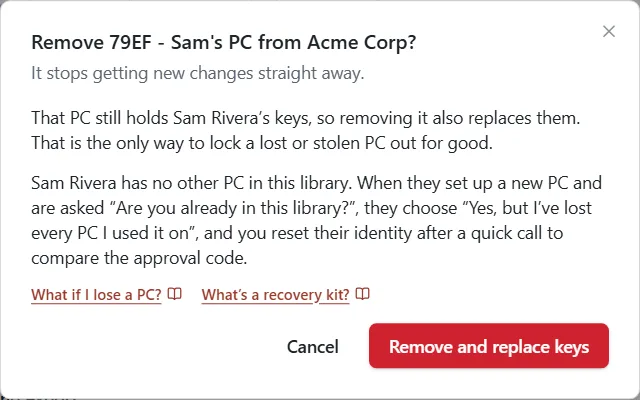
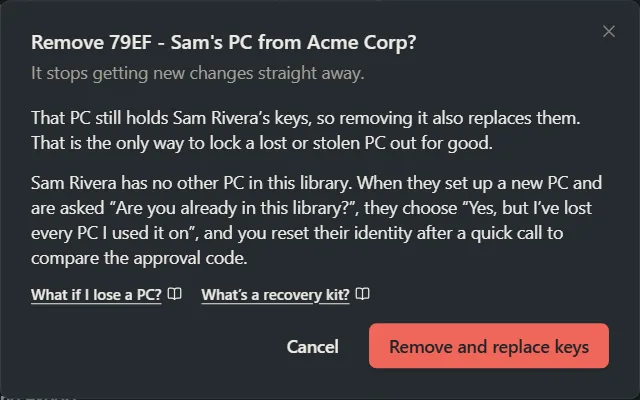
Read the Remove [PC] from [library]? window. That PC still holds its person’s keys, so removing it also replaces them. That’s the only way to lock a lost or stolen PC out for good.
-
If the PC confirmed other PCs as its person’s, the window says so (“1 other PC it approved goes too”). They’re removed with it.
-
Click Remove and replace keys.
What happens next to the person’s keys:
- They have another PC in the library. That PC asks them to Replace my keys and save a new recovery kit. You then see A member made a new recovery kit: click Review, then Approve. Until then, their old kit opens nothing new.
- They have no other PC. When they set up a new PC, they join with Yes, but I’ve lost every PC I used it on, and you reset their identity after a quick call. See Lost or stolen PC or kit.
- It’s one of your own PCs. PromptMason goes straight on to make you new keys and a new recovery kit. See Lost or stolen PC or kit.
If the window is titled Two copies of … are writing, the PC’s disk was copied. See Sync problems.
What the removed person sees
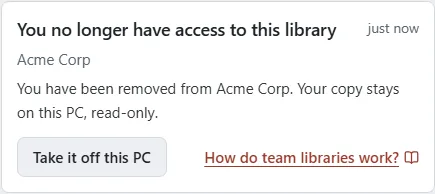
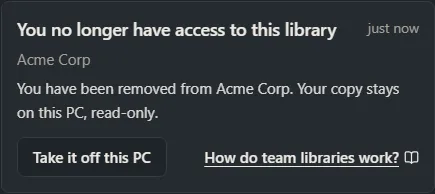
Their PC shows You no longer have access to this library: “You have been removed from [library]. Your copy stays on this PC, read-only.” (or “This PC was removed from [library]” for a single PC). When they no longer need the copy, they click Take it off this PC, then OK. This removes it from their PC only.
Changes they made that hadn’t been sent yet when the removal reached their PC aren’t shared. Their PC says Some changes weren’t shared, “… made after this PC was removed weren’t shared. Export them if you need them.” To keep that work, they open each item and copy the text they need into their personal library before they take the library off their PC.
Want a hand?
Copy this prompt into Claude, ChatGPT or another AI assistant, and it walks you through it step by step.
I need to remove someone from my team library in PromptMason. We share the folder through OneDrive. Walk me through removing them in PromptMason and from the shared folder, and what to check afterwards.
Copy adds a short note about PromptMason and this guide's steps, so the assistant has what it needs.
I need to remove someone from my team library in PromptMason. We share the folder through OneDrive. Walk me through removing them in PromptMason and from the shared folder, and what to check afterwards. About PromptMason: a Windows desktop app for building AI prompts from reusable blocks. A person writes blocks (reusable pieces of prompt text), builds prompts from them on the Build screen (or keeps a Markdown document, such as a Skill), and copies a prompt into an AI tool, runs it in PromptMason’s own Chat, or lets a connected AI agent use it through PromptMason’s built-in MCP server (the Chrome extension copies prompts on any website). AI assist, Evaluate and Chat use a local model that runs on the person’s PC, or their own AI provider. The guides are also on PromptMason’s Help screen, and Chat can answer “how do I” questions from them. Libraries hold the blocks and prompts; a person can sync their personal library to their other PCs and share team libraries, both through a folder in cloud storage they already have (OneDrive, Google Drive or Dropbox). Everything synced is encrypted and every edit is signed and checked. A recovery kit (a file plus a code) is the spare copy of the person’s keys, for when every PC is lost. The official guide for this is "Remove a person or a PC": https://promptmason.ai/docs/remove-someone Its full text follows, between the lines. Use it as the source of truth, and if anything I see differs from it, tell me rather than guessing. --- Only the library's primary owner removes people and PCs, on their approving PC (see [The primary owner](https://promptmason.ai/docs/primary-owner)). If you're not the primary owner, ask them. Removing switches the library to a new key straight away. People and PCs you remove can't read edits made after every PC has picked up the change. They keep what they already had: removal never takes back what someone could already read or copy. ## Remove a person 1. Click **Settings** in the sidebar, then **Libraries & sharing**. 2. Under **Libraries**, click **Manage** next to the library. 3. Under **Members**, find the person and click **Remove [name]**. 4. Click **OK** to confirm. All of their PCs stop getting new changes. Then do the two follow-ups below. ## Remove them from the shared folder too PromptMason can't change your cloud storage's sharing. Until you do, the removed person can still see the folder's files. The files are locked, so they can't read new edits. Notifications shows **Remove them from the shared folder too** until you click **Done**. - **OneDrive, SharePoint, Google Drive or Dropbox:** in your cloud storage, stop sharing the folder with the person, or remove their access to it. Your provider’s help explains how. - **A network drive:** ask whoever looks after it to remove the person's access. Then click **Done** on the item in Notifications. ## Waiting for PCs to pick up the change Notifications may also show **Waiting for PCs to pick up the change**: "These PCs haven’t picked up the new key yet: …". Those PCs haven't synced since the library switched to its new key. Anything they save before they do may still be readable by the person you removed. The item clears by itself as each PC syncs. To speed it up, ask the people listed to open PromptMason with their cloud storage running. ## Remove one PC To remove a single PC, for example a laptop someone lost: 1. Click **Settings** in the sidebar, then **Libraries & sharing**. 2. Under **Libraries**, click **Manage** next to the library. 3. Under **Members**, find the PC under its person, shown as its code and name (for example "38C5 - Alex's laptop"), and click **Remove this PC**. 4. Read the **Remove [PC] from [library]?** window. That PC still holds its person's keys, so removing it also replaces them. That's the only way to lock a lost or stolen PC out for good. 5. If the PC confirmed other PCs as its person's, the window says so ("1 other PC it approved goes too"). They're removed with it. 6. Click **Remove and replace keys**. What happens next to the person's keys: - **They have another PC in the library.** That PC asks them to **Replace my keys** and save a new recovery kit. You then see **A member made a new recovery kit**: click **Review**, then **Approve**. Until then, their old kit opens nothing new. - **They have no other PC.** When they set up a new PC, they join with **Yes, but I’ve lost every PC I used it on**, and you reset their identity after a quick call. See [Lost or stolen PC or kit](https://promptmason.ai/docs/lost-device#you-lost-every-pc-and-your-kit). - **It's one of your own PCs.** PromptMason goes straight on to make you new keys and a new recovery kit. See [Lost or stolen PC or kit](https://promptmason.ai/docs/lost-device#one-pc-was-lost-or-stolen). If the window is titled **Two copies of … are writing**, the PC's disk was copied. See [Sync problems](https://promptmason.ai/docs/sync-problems#two-copies-of-a-pc-are-writing). ## What the removed person sees Their PC shows **You no longer have access to this library**: "You have been removed from [library]. Your copy stays on this PC, read-only." (or "This PC was removed from [library]" for a single PC). When they no longer need the copy, they click **Take it off this PC**, then **OK**. This removes it from their PC only. Changes they made that hadn’t been sent yet when the removal reached their PC aren’t shared. Their PC says **Some changes weren’t shared**, "… made after this PC was removed weren’t shared. Export them if you need them." To keep that work, they open each item and copy the text they need into their personal library before they take the library off their PC. --- How to help me: - Go one step at a time. After each step, ask what I see on screen before giving the next one. - Use the exact words on PromptMason’s buttons and screens, as the guide does. - Never ask me for my recovery code, my recovery kit file, a password or my invite line, and never ask me to paste them here. - Start by asking which step I’m on, or what I see now.