The Chrome extension
Install the PromptMason extension for Chrome, connect it with the extension token, and search and copy your prompts on any website.
The PromptMason Chrome extension is a small add-on for the Chrome browser. It puts your library one click away in Chrome’s toolbar: on any website, open it to search your prompts and blocks, preview the finished prompt, fill in its values and copy it, ready to paste into a chat box or any other text box. It doesn’t edit your blocks and prompts; to edit one, open it in PromptMason. You can set favorites and ratings from it, though (see Favorites and ratings).
PromptMason must be open on the same PC while you use the extension. The extension talks only to PromptMason on this PC, and doesn’t send your library online. Text leaves your PC only when you paste a prompt into a website or app.
Install the extension
- In PromptMason, click Settings in the sidebar, then AI & connected apps.
- Under Chrome extension, click Install from Chrome Web Store. The extension’s Chrome Web Store page opens in your default browser. If that isn’t Chrome, open the same page in Chrome.
- Follow Chrome’s prompts to add the extension.
Connect the extension to PromptMason
The extension needs the extension token, a secret code that proves to PromptMason that the extension is yours. You paste it into the extension once.
-
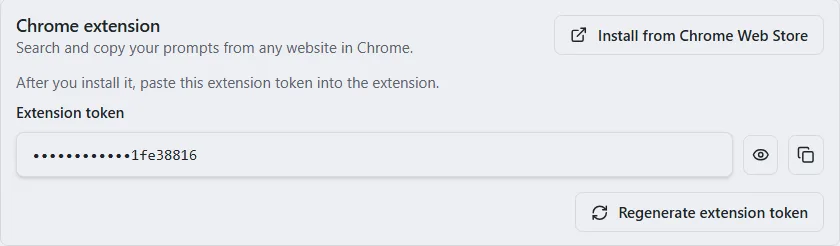
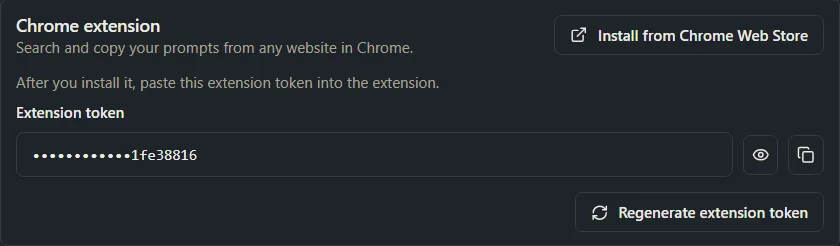
In PromptMason, go to Settings → AI & connected apps. Under Chrome extension, PromptMason says “After you install it, paste this extension token into the extension.”
-
Next to Extension token, click the copy button (to the right of the eye button). PromptMason shows “Full token copied to clipboard.”
-
In Chrome, open the PromptMason extension from Chrome’s toolbar or Extensions menu. The popup shows an Extension token box, with “Desktop app → Settings → AI & connected apps → Extension token.” under it.
-
Paste the token into the box.
-
Click Save.
The popup loads your blocks and prompts. If it shows a message instead, see Popup messages.
Use the extension token, not the API token under Set up another AI agent by hand. They’re different.
Find a prompt or block
- Search: type in Search prompts and blocks. Search looks in every folder, whichever folder is chosen.
- Folder: click the folder button (it shows All Files at first) and choose a folder.
- Filter: click the filter icon (Filter list) and choose from (Select All), Favorites, Blocks, Static Prompts, Dynamic Prompts and Markdown. Favorites shows only when favorites and ratings are switched on in PromptMason (see Show or hide features).
- Sort: click the arrow icon next to search to reverse the order. To choose what to sort by, click the gear (Settings) and pick from Sort list by: Date created, Favorites, Last modified, Name or Rating. In the same place, Show favorites & ratings under each list row adds them to the list. Favorites, Rating and the checkbox show only when favorites and ratings are switched on in PromptMason.
If you use more than one library, the list is grouped under each library’s name. A team library you can only view is marked Read-only. If nothing matches, the list shows “No matches.”
Copy a prompt
- Click a prompt or block in the list. Its preview appears next to the list. (Before you choose one, the popup says “Select a prompt or block on the left to preview and copy.”)
- Click the preview. It shows Copy when you point at it, and Copied once it’s on the clipboard.
- Go to the website’s text box and press Ctrl+V.
While the finished prompt is being built, the preview shows “Resolving…”.
Fill in your values
If the prompt has values that are asked each time, clicking Copy opens Fill in your values.
- Type a value in each box. Press Enter to move to the next box.
- Click Copy.
If a variable offers a list of choices, its box is a drop-down, or a text box with a button that opens the list. See Offer a list of choices.
The line under each box says what happens if you leave it empty: “Left empty, this copies as [name].” or “Left empty, this copies as nothing.” Values you used before are listed under the box, and Clear removes them. To stop without copying, click Cancel. See Variables.
If the prompt has a character limit, the form shows how many characters it will copy, for example “1,250 of 2,000 characters”, and warns you when it’s over. You can still copy it.
Copy only some blocks
For a prompt made of more than one block:
- Click the arrow at the right edge of the preview (Choose which blocks to copy).
- Under Copy selected blocks, tick the blocks you want. An archived block is marked Archived.
- Click Copy [n] of [total].
Markdown documents
A Markdown document has two buttons: Copy copies its text exactly as written, and Download .md saves it as a file. An empty document says “This document is empty.”
Favorites and ratings
When favorites and ratings are switched on in PromptMason, the preview has a heart (Add to favorites) and stars (Rating). Changes are saved to your library. This needs Full access (see Access levels and the extension).
Open an item in PromptMason
Click the Open in PromptMason icon next to the item’s name in the preview, or double-click the item in the list. Chrome passes it to PromptMason, which opens it. If Chrome asks whether to open PromptMason, allow it.
Replace the token
Do this after you regenerate the extension token in PromptMason, or if the popup says your token wasn’t accepted.
- In PromptMason, go to Settings → AI & connected apps and click the copy button next to Extension token.
- In the extension popup, click the gear (Settings).
- Click Extension token to open it. It shows the start and end of the token you saved.
- Click Replace token.
- Paste the token and click Save.
The popup reloads with your library. If the token can’t be saved, the popup shows a message, for example “Couldn’t save the token.” Try again.
To make a new extension token, see Regenerate the extension token. The old one stops working straight away.
The bottom of the gear menu shows Extension v… and Desktop app v…, the two version numbers. Include them if you contact support.
Access levels and the extension
What connected apps can do in Settings → AI & connected apps applies to the extension:
- Full access: browse, preview, copy, and change favorites and ratings.
- Read-only: browse, preview and copy. Values you type into Fill in your values are still remembered, but favorites and ratings can’t be changed.
- Off: the popup can’t show your library.
A team library’s own setting for AI apps applies to AI agents, not to the extension. See Control what connected apps can do.
Popup messages
The popup checks PromptMason each time you open it. It has no reload button: to check again, close the popup and open it again.
| Message | What to do |
|---|---|
| “Can’t reach the PromptMason desktop app. Make sure it’s running, then hit the reload button above.” | PromptMason isn’t open, or is still starting. Open PromptMason, then close the popup and open it again. (The popup has no reload button.) |
| An Extension token box with “Desktop app → Settings → AI & connected apps → Extension token.” | No token is saved yet. Follow Connect the extension to PromptMason. |
| “Loading…” | The popup is fetching your library. Wait a moment. |
| “Your extension token wasn’t accepted. Paste a fresh one below.” | The token was regenerated, or what was pasted isn’t the extension token. Copy the Extension token from PromptMason again, paste it into the box under the message, and click Save. |
| “PromptMason is turned off for connected apps. Turn it on in the desktop app under Settings → AI & connected apps to see your blocks and prompts here.” | In PromptMason, set What connected apps can do to Full access or Read-only. Then close the popup and open it again. |
| A message that starts “Your library is paused.” | Your library is on the Free plan and over a limit, so the extension can’t show it. The Upgrade to Pro button, when shown, opens the page to buy Pro. See When your library is paused. |
| “Couldn’t load your blocks and prompts.” (sometimes with more detail) | Close the popup and open it again. If it keeps happening, close PromptMason, open it again, and retry. If that doesn’t help, email support. |
| “The desktop app is in read-only mode, so this can’t be changed from the browser. To allow changes, choose Full access in the desktop app under Settings → AI & connected apps.” | You tried to change a favorite or rating while connected apps are set to Read-only. Choose Full access if you want to allow it. |
| “You can view this library but not change it. Ask a library owner for edit access.” | The item is in a team library you can only view. Ask a library owner for edit access. |
| “Couldn’t build the preview (…).” | Click the item again, or close the popup and open it again. |
| “Couldn’t copy to the clipboard (…).” | Click the preview again. If it keeps happening, close the popup and open it again. |
| “Couldn’t download the file (…).” | Click Download .md again. |
| “Couldn’t save that change (…).” | Your favorite or rating wasn’t saved. Try again. |
If a problem continues, email support@promptmason.ai with the exact message and the two version numbers from the gear menu.
Want a hand?
Copy this prompt into Claude, ChatGPT or another AI assistant, and it walks you through it step by step.
I want to use my PromptMason prompts from Chrome. Walk me through installing the PromptMason Chrome extension and connecting it with the extension token, then show me how to copy a prompt into a website's chat box.
Copy adds a short note about PromptMason and this guide's steps, so the assistant has what it needs.
I want to use my PromptMason prompts from Chrome. Walk me through installing the PromptMason Chrome extension and connecting it with the extension token, then show me how to copy a prompt into a website's chat box. About PromptMason: a Windows desktop app for building AI prompts from reusable blocks. A person writes blocks (reusable pieces of prompt text), builds prompts from them on the Build screen (or keeps a Markdown document, such as a Skill), and copies a prompt into an AI tool, runs it in PromptMason’s own Chat, or lets a connected AI agent use it through PromptMason’s built-in MCP server (the Chrome extension copies prompts on any website). AI assist, Evaluate and Chat use a local model that runs on the person’s PC, or their own AI provider. The guides are also on PromptMason’s Help screen, and Chat can answer “how do I” questions from them. Libraries hold the blocks and prompts; a person can sync their personal library to their other PCs and share team libraries, both through a folder in cloud storage they already have (OneDrive, Google Drive or Dropbox). Everything synced is encrypted and every edit is signed and checked. A recovery kit (a file plus a code) is the spare copy of the person’s keys, for when every PC is lost. The official guide for this is "The Chrome extension": https://promptmason.ai/docs/chrome-extension Its full text follows, between the lines. Use it as the source of truth, and if anything I see differs from it, tell me rather than guessing. --- The PromptMason Chrome extension is a small add-on for the Chrome browser. It puts your library one click away in Chrome's toolbar: on any website, open it to search your prompts and blocks, preview the finished prompt, fill in its values and copy it, ready to paste into a chat box or any other text box. It doesn't edit your blocks and prompts; to edit one, open it in PromptMason. You can set favorites and ratings from it, though (see [Favorites and ratings](#favorites-and-ratings)). PromptMason must be open on the same PC while you use the extension. The extension talks only to PromptMason on this PC, and doesn't send your library online. Text leaves your PC only when you paste a prompt into a website or app. ## Install the extension 1. In PromptMason, click **Settings** in the sidebar, then **AI & connected apps**. 2. Under **Chrome extension**, click **Install from Chrome Web Store**. The extension's Chrome Web Store page opens in your default browser. If that isn't Chrome, open the same page in Chrome. 3. Follow Chrome's prompts to add the extension. ## Connect the extension to PromptMason The extension needs the extension token, a secret code that proves to PromptMason that the extension is yours. You paste it into the extension once. 1. In PromptMason, go to **Settings → AI & connected apps**. Under **Chrome extension**, PromptMason says "After you install it, paste this extension token into the extension." 2. Next to **Extension token**, click the copy button (to the right of the eye button). PromptMason shows "Full token copied to clipboard." 3. In Chrome, open the PromptMason extension from Chrome's toolbar or Extensions menu. The popup shows an **Extension token** box, with "Desktop app → Settings → AI & connected apps → Extension token." under it. 4. Paste the token into the box. 5. Click **Save**. The popup loads your blocks and prompts. If it shows a message instead, see [Popup messages](#popup-messages). Use the extension token, not the API token under **Set up another AI agent by hand**. They're different. ## Find a prompt or block - **Search:** type in **Search prompts and blocks**. Search looks in every folder, whichever folder is chosen. - **Folder:** click the folder button (it shows **All Files** at first) and choose a folder. - **Filter:** click the filter icon (**Filter list**) and choose from **(Select All)**, **Favorites**, **Blocks**, **Static Prompts**, **Dynamic Prompts** and **Markdown**. **Favorites** shows only when favorites and ratings are switched on in PromptMason (see [Show or hide features](https://promptmason.ai/docs/features)). - **Sort:** click the arrow icon next to search to reverse the order. To choose what to sort by, click the gear (**Settings**) and pick from **Sort list by**: **Date created**, **Favorites**, **Last modified**, **Name** or **Rating**. In the same place, **Show favorites & ratings under each list row** adds them to the list. **Favorites**, **Rating** and the checkbox show only when favorites and ratings are switched on in PromptMason. If you use more than one library, the list is grouped under each library's name. A team library you can only view is marked **Read-only**. If nothing matches, the list shows "No matches." ## Copy a prompt 1. Click a prompt or block in the list. Its preview appears next to the list. (Before you choose one, the popup says "Select a prompt or block on the left to preview and copy.") 2. Click the preview. It shows **Copy** when you point at it, and **Copied** once it's on the clipboard. 3. Go to the website's text box and press Ctrl+V. While the finished prompt is being built, the preview shows "Resolving…". ### Fill in your values If the prompt has values that are asked each time, clicking **Copy** opens **Fill in your values**. 1. Type a value in each box. Press Enter to move to the next box. 2. Click **Copy**. If a variable offers a list of choices, its box is a drop-down, or a text box with a button that opens the list. See [Offer a list of choices](https://promptmason.ai/docs/variables#offer-a-list-of-choices). The line under each box says what happens if you leave it empty: "Left empty, this copies as [name]." or "Left empty, this copies as nothing." Values you used before are listed under the box, and **Clear** removes them. To stop without copying, click **Cancel**. See [Variables](https://promptmason.ai/docs/variables). If the prompt has a character limit, the form shows how many characters it will copy, for example "1,250 of 2,000 characters", and warns you when it's over. You can still copy it. ### Copy only some blocks For a prompt made of more than one block: 1. Click the arrow at the right edge of the preview (**Choose which blocks to copy**). 2. Under **Copy selected blocks**, tick the blocks you want. An archived block is marked **Archived**. 3. Click **Copy [n] of [total]**. ### Markdown documents A Markdown document has two buttons: **Copy** copies its text exactly as written, and **Download .md** saves it as a file. An empty document says "This document is empty." ## Favorites and ratings When favorites and ratings are switched on in PromptMason, the preview has a heart (**Add to favorites**) and stars (**Rating**). Changes are saved to your library. This needs **Full access** (see [Access levels and the extension](#access-levels-and-the-extension)). ## Open an item in PromptMason Click the **Open in PromptMason** icon next to the item's name in the preview, or double-click the item in the list. Chrome passes it to PromptMason, which opens it. If Chrome asks whether to open PromptMason, allow it. ## Replace the token Do this after you regenerate the extension token in PromptMason, or if the popup says your token wasn't accepted. 1. In PromptMason, go to **Settings → AI & connected apps** and click the copy button next to **Extension token**. 2. In the extension popup, click the gear (**Settings**). 3. Click **Extension token** to open it. It shows the start and end of the token you saved. 4. Click **Replace token**. 5. Paste the token and click **Save**. The popup reloads with your library. If the token can't be saved, the popup shows a message, for example "Couldn't save the token." Try again. To make a new extension token, see [Regenerate the extension token](https://promptmason.ai/docs/agent-access#regenerate-the-extension-token). The old one stops working straight away. The bottom of the gear menu shows **Extension v…** and **Desktop app v…**, the two version numbers. Include them if you contact support. ## Access levels and the extension **What connected apps can do** in **Settings → AI & connected apps** applies to the extension: - **Full access:** browse, preview, copy, and change favorites and ratings. - **Read-only:** browse, preview and copy. Values you type into **Fill in your values** are still remembered, but favorites and ratings can't be changed. - **Off:** the popup can't show your library. A team library's own setting for AI apps applies to AI agents, not to the extension. See [Control what connected apps can do](https://promptmason.ai/docs/agent-access). ## Popup messages The popup checks PromptMason each time you open it. It has no reload button: to check again, close the popup and open it again. | Message | What to do | |---|---| | "Can't reach the PromptMason desktop app. Make sure it's running, then hit the reload button above." | PromptMason isn't open, or is still starting. Open PromptMason, then close the popup and open it again. (The popup has no reload button.) | | An **Extension token** box with "Desktop app → Settings → AI & connected apps → Extension token." | No token is saved yet. Follow [Connect the extension to PromptMason](#connect-the-extension-to-promptmason). | | "Loading…" | The popup is fetching your library. Wait a moment. | | "Your extension token wasn't accepted. Paste a fresh one below." | The token was regenerated, or what was pasted isn't the extension token. Copy the **Extension token** from PromptMason again, paste it into the box under the message, and click **Save**. | | "PromptMason is turned off for connected apps. Turn it on in the desktop app under Settings → AI & connected apps to see your blocks and prompts here." | In PromptMason, set **What connected apps can do** to **Full access** or **Read-only**. Then close the popup and open it again. | | A message that starts "Your library is paused." | Your library is on the Free plan and over a limit, so the extension can't show it. The **Upgrade to Pro** button, when shown, opens the page to buy Pro. See [When your library is paused](https://promptmason.ai/docs/paused-library). | | "Couldn't load your blocks and prompts." (sometimes with more detail) | Close the popup and open it again. If it keeps happening, close PromptMason, open it again, and retry. If that doesn't help, email support. | | "The desktop app is in read-only mode, so this can't be changed from the browser. To allow changes, choose Full access in the desktop app under Settings → AI & connected apps." | You tried to change a favorite or rating while connected apps are set to **Read-only**. Choose **Full access** if you want to allow it. | | "You can view this library but not change it. Ask a library owner for edit access." | The item is in a team library you can only view. Ask a library owner for edit access. | | "Couldn't build the preview (…)." | Click the item again, or close the popup and open it again. | | "Couldn't copy to the clipboard (…)." | Click the preview again. If it keeps happening, close the popup and open it again. | | "Couldn't download the file (…)." | Click **Download .md** again. | | "Couldn't save that change (…)." | Your favorite or rating wasn't saved. Try again. | If a problem continues, email [support@promptmason.ai](mailto:support@promptmason.ai) with the exact message and the two version numbers from the gear menu. --- How to help me: - Go one step at a time. After each step, ask what I see on screen before giving the next one. - Use the exact words on PromptMason’s buttons and screens, as the guide does. - Never ask me for my recovery code, my recovery kit file, a password or my invite line, and never ask me to paste them here. - Start by asking which step I’m on, or what I see now.