Formatting, block headers and hidden notes
Format the text of blocks and prompts, control the header lines between blocks, and leave notes that never reach the AI.
This page covers the text editor you use for blocks and static prompts, the header lines PromptMason can put above each block in a prompt, and hidden notes: text you keep in a block or prompt that’s left out whenever it’s copied.
The text editor
You write in the same editor on the Blocks screen, in the Prompts screen’s static prompts, and on the Build screen in embedded blocks and the Edit block window. It works like a word processor: what you see is how the text is formatted. The toolbar above it has:
| Button | What it does |
|---|---|
| Undo and Redo | Undo or redo your typing. |
| Bold | Makes the selected text bold. |
| Italic | Makes the selected text italic. |
| Bullet list | Starts or ends a bulleted list. |
| Numbered list | Starts or ends a numbered list. |
| Text color | Colors the selected text red, orange, yellow, green, blue or purple. Remove color takes the color off. |
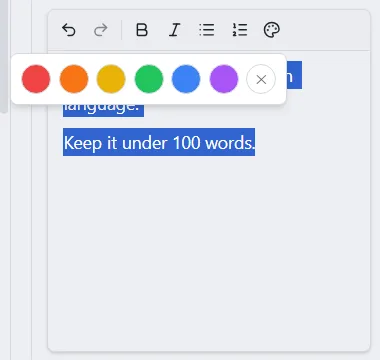
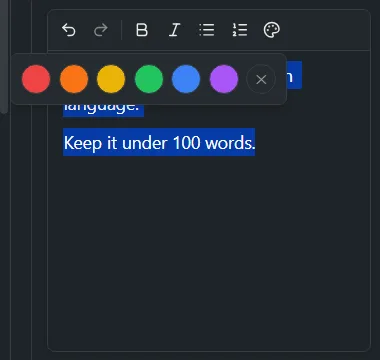
When AI assist is set up, its button is at the right end of the toolbar (Improve text with AI assist). To put in a variable, type {{ and pick a name from the list.
What isn’t supported
The editor has no headings, quotes, code blocks, strikethrough, underline or links. For a document that needs them, such as a Skill, write a Markdown document instead.
A line that starts with # stays exactly as you type it. It isn’t turned into a heading, so you can write your own section markers, such as ### CONTEXT ###.
What the formatting does when you copy
When you copy a prompt, PromptMason puts two versions on the clipboard, and the app you paste into picks one:
- Apps that take formatted text, such as Word, Google Docs and Slack, get the bold, italics, colors and lists.
- Apps that only take plain text, including many AI chat boxes, get the words without bold, italics or colors. Lists keep their
-and1.markers.
Bold, italics and color don’t reach an app that takes plain text, so don’t rely on them to tell an AI model something. Say it in words, or use a block header.
Block headers
In a dynamic prompt, each block can have a header line above its text, so an AI model can tell the parts apart. On the Build screen, each block has two boxes:
- Include Type writes the block’s type in capitals.
- Include Name writes the block’s name.
| Ticked | Header |
|---|---|
| Include Type | ### ROLE ### |
| Include Name | ### Support agent ### |
| Both | ### ROLE: Support agent ### |
| Neither | No header |
Each block in each prompt keeps its own choice. See Build a prompt.
Choose whether new blocks start with headers
- Click Settings in the sidebar, then Blocks & prompts.
- Under When you add a block to a prompt, turn on Include the block’s name, Include the block’s type, or both.
Blocks you add to a prompt from then on start with those boxes ticked. Blocks already in a prompt keep their own choice.
Change the header marker
The marker is the ### written on both sides of a header.
- Click Settings in the sidebar, then Blocks & prompts.
- Under Block headers, type a new marker in the Block header marker box, for example
***or===. - Press Enter or click outside the box. The marker can be up to 10 characters.
The Example line under the box shows what a header will look like. To go back to ###, click Reset.
If the marker can’t be used, a message under the box says why, and the old marker stays in use:
| Message | What to do |
|---|---|
| Enter a marker, or choose Reset to go back to ###. | Type a marker, or click Reset. |
| Use characters only, with no spaces, for example *** or ===. | Take out the spaces. |
| Leave out { and }, which prompts use for variables. | Use other characters. |
| Couldn’t save this marker. Try again. | Click in the box and press Enter again. |
Change the space between blocks
- Click Settings in the sidebar, then Blocks & prompts.
- Under Between blocks, set Blank lines between blocks to 1, 2 or 3. The default is 1.
The blank lines go only before a block that has a header (Include Type or Include Name ticked). A block with no header continues the section above it, with no blank line between them. This keeps several short blocks, such as a list of rules, together under one header. The first block in a prompt has nothing above it, so no blank line goes before it.
PromptMason also tidies blank lines inside a block’s text when it puts a prompt together: blank lines at the start and end are dropped, and a run of two or more in the middle counts as one. The block itself isn’t changed.
The marker and the spacing apply to every dynamic prompt, in the preview and in the text you copy. A static prompt keeps the headers and spacing it was saved with.
Hidden notes
A hidden note is text in a block or prompt that’s left out whenever the text is previewed or copied. Use it for reminders to yourself, such as why a line is there or what to change next time.
Write a note between {{! and }}:
Summarize the report in plain language. {{! Legal asked for no jargon. }}When you copy this, you get only “Summarize the report in plain language.”
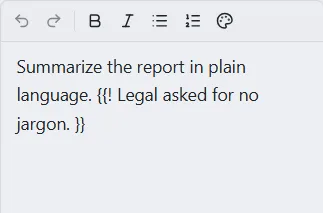
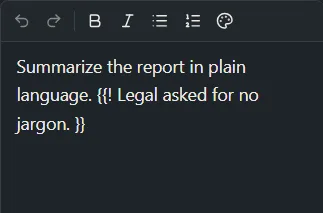
How notes work:
- A note can go anywhere in the text, and can run over several lines.
- If a note is alone on its line, the whole line is left out, so no blank line is left behind.
- The note ends at the first
}}. Don’t put}}inside a note. - If you forget the closing
}}, nothing is hidden: the{{!shows as typed. - A note is never read as a variable.
- Each block’s notes are removed on their own, so a note in one block can’t hide the next block.
- A static prompt saved from Build keeps its notes, still hidden when you copy it.
Hidden notes are saved with the text. Anyone who can open the block or prompt can read them, and AI assist sends the text with its notes, so don’t use them for anything private.
Hidden notes are different from Comments, which are kept in a separate panel under the list (or under the canvas on Build) and are never part of the text. Markdown documents don’t hide notes: a document is kept and copied exactly as written.
Want a hand?
Copy this prompt into Claude, ChatGPT or another AI assistant, and it walks you through it step by step.
I want my PromptMason prompts to be well structured for an AI model. Explain the formatting options, block headers and hidden notes, and help me set up headers and spacing that work well.
Copy adds a short note about PromptMason and this guide's steps, so the assistant has what it needs.
I want my PromptMason prompts to be well structured for an AI model. Explain the formatting options, block headers and hidden notes, and help me set up headers and spacing that work well. About PromptMason: a Windows desktop app for building AI prompts from reusable blocks. A person writes blocks (reusable pieces of prompt text), builds prompts from them on the Build screen (or keeps a Markdown document, such as a Skill), and copies a prompt into an AI tool, runs it in PromptMason’s own Chat, or lets a connected AI agent use it through PromptMason’s built-in MCP server (the Chrome extension copies prompts on any website). AI assist, Evaluate and Chat use a local model that runs on the person’s PC, or their own AI provider. The guides are also on PromptMason’s Help screen, and Chat can answer “how do I” questions from them. Libraries hold the blocks and prompts; a person can sync their personal library to their other PCs and share team libraries, both through a folder in cloud storage they already have (OneDrive, Google Drive or Dropbox). Everything synced is encrypted and every edit is signed and checked. A recovery kit (a file plus a code) is the spare copy of the person’s keys, for when every PC is lost. The official guide for this is "Formatting, block headers and hidden notes": https://promptmason.ai/docs/text-formatting Its full text follows, between the lines. Use it as the source of truth, and if anything I see differs from it, tell me rather than guessing. --- This page covers the text editor you use for blocks and static prompts, the header lines PromptMason can put above each block in a prompt, and hidden notes: text you keep in a block or prompt that's left out whenever it's copied. ## The text editor You write in the same editor on the Blocks screen, in the Prompts screen's static prompts, and on the Build screen in embedded blocks and the **Edit block** window. It works like a word processor: what you see is how the text is formatted. The toolbar above it has: | Button | What it does | |---|---| | **Undo** and **Redo** | Undo or redo your typing. | | **Bold** | Makes the selected text bold. | | **Italic** | Makes the selected text italic. | | **Bullet list** | Starts or ends a bulleted list. | | **Numbered list** | Starts or ends a numbered list. | | **Text color** | Colors the selected text red, orange, yellow, green, blue or purple. **Remove color** takes the color off. | When AI assist is set up, its button is at the right end of the toolbar ([Improve text with AI assist](https://promptmason.ai/docs/ai-assist)). To put in a [variable](https://promptmason.ai/docs/variables), type `{{` and pick a name from the list. ### What isn't supported The editor has no headings, quotes, code blocks, strikethrough, underline or links. For a document that needs them, such as a Skill, write a [Markdown document](https://promptmason.ai/docs/markdown-documents) instead. A line that starts with `#` stays exactly as you type it. It isn't turned into a heading, so you can write your own section markers, such as `### CONTEXT ###`. ### What the formatting does when you copy When you copy a prompt, PromptMason puts two versions on the clipboard, and the app you paste into picks one: - Apps that take formatted text, such as Word, Google Docs and Slack, get the bold, italics, colors and lists. - Apps that only take plain text, including many AI chat boxes, get the words without bold, italics or colors. Lists keep their `-` and `1.` markers. Bold, italics and color don't reach an app that takes plain text, so don't rely on them to tell an AI model something. Say it in words, or use a [block header](#block-headers). ## Block headers In a dynamic prompt, each block can have a header line above its text, so an AI model can tell the parts apart. On the Build screen, each block has two boxes: - **Include Type** writes the block's type in capitals. - **Include Name** writes the block's name. | Ticked | Header | |---|---| | **Include Type** | `### ROLE ###` | | **Include Name** | `### Support agent ###` | | Both | `### ROLE: Support agent ###` | | Neither | No header | Each block in each prompt keeps its own choice. See [Build a prompt](https://promptmason.ai/docs/build-prompt#block-headers-include-name-and-include-type). ### Choose whether new blocks start with headers 1. Click **Settings** in the sidebar, then **Blocks & prompts**. 2. Under **When you add a block to a prompt**, turn on **Include the block's name**, **Include the block's type**, or both. Blocks you add to a prompt from then on start with those boxes ticked. Blocks already in a prompt keep their own choice. ### Change the header marker The marker is the `###` written on both sides of a header. 1. Click **Settings** in the sidebar, then **Blocks & prompts**. 2. Under **Block headers**, type a new marker in the **Block header marker** box, for example `***` or `===`. 3. Press Enter or click outside the box. The marker can be up to 10 characters. The **Example** line under the box shows what a header will look like. To go back to `###`, click **Reset**. If the marker can't be used, a message under the box says why, and the old marker stays in use: | Message | What to do | |---|---| | **Enter a marker, or choose Reset to go back to ###.** | Type a marker, or click **Reset**. | | **Use characters only, with no spaces, for example \*\*\* or ===.** | Take out the spaces. | | **Leave out { and }, which prompts use for variables.** | Use other characters. | | **Couldn't save this marker. Try again.** | Click in the box and press Enter again. | ### Change the space between blocks 1. Click **Settings** in the sidebar, then **Blocks & prompts**. 2. Under **Between blocks**, set **Blank lines between blocks** to 1, 2 or 3. The default is 1. The blank lines go only before a block that has a header (**Include Type** or **Include Name** ticked). A block with no header continues the section above it, with no blank line between them. This keeps several short blocks, such as a list of rules, together under one header. The first block in a prompt has nothing above it, so no blank line goes before it. PromptMason also tidies blank lines inside a block's text when it puts a prompt together: blank lines at the start and end are dropped, and a run of two or more in the middle counts as one. The block itself isn't changed. The marker and the spacing apply to every dynamic prompt, in the preview and in the text you copy. A static prompt keeps the headers and spacing it was saved with. ## Hidden notes A hidden note is text in a block or prompt that's left out whenever the text is previewed or copied. Use it for reminders to yourself, such as why a line is there or what to change next time. Write a note between `{{!` and `}}`: ``` Summarize the report in plain language. {{! Legal asked for no jargon. }} ``` When you copy this, you get only "Summarize the report in plain language." How notes work: - A note can go anywhere in the text, and can run over several lines. - If a note is alone on its line, the whole line is left out, so no blank line is left behind. - The note ends at the first `}}`. Don't put `}}` inside a note. - If you forget the closing `}}`, nothing is hidden: the `{{!` shows as typed. - A note is never read as a [variable](https://promptmason.ai/docs/variables). - Each block's notes are removed on their own, so a note in one block can't hide the next block. - A static prompt saved from Build keeps its notes, still hidden when you copy it. Hidden notes are saved with the text. Anyone who can open the block or prompt can read them, and AI assist sends the text with its notes, so don't use them for anything private. Hidden notes are different from [Comments](https://promptmason.ai/docs/comments), which are kept in a separate panel under the list (or under the canvas on Build) and are never part of the text. Markdown documents don't hide notes: a document is kept and copied exactly as written. --- How to help me: - Go one step at a time. After each step, ask what I see on screen before giving the next one. - Use the exact words on PromptMason’s buttons and screens, as the guide does. - Never ask me for my recovery code, my recovery kit file, a password or my invite line, and never ask me to paste them here. - Start by asking which step I’m on, or what I see now.