When your library is paused
Why PromptMason pauses your library on the Free plan, what still works, and the three ways to unpause it.
Your library is paused when you’re on the Free plan and have more than 25 blocks or more than 15 prompts. Nothing is deleted. You can still see, search and export everything, but you can’t add, change or copy anything until you’re back within the limits or on Pro.
Why it happens
The Free plan has room for 25 blocks and 15 prompts, counted across every library on this PC (see Plans and limits). A pause happens when you have more than that while on Free:
- your 14 days of Pro ended,
- your Pro license ended, or you removed it from this PC,
- PromptMason couldn’t check your license for 14 days (How your license is checked),
- you joined a team library, or teammates or your other PCs added items to a library you share, and that took you over the limits, or
- you chose Add anyway for a block pack bigger than the Free plan (Add a block pack). Deleting the pack’s folder removes all of its items.
Being exactly at a limit (25 blocks, or 15 prompts) doesn’t pause anything.
What you see
A line at the top of every screen says Your library is paused. It gives the Free limits and how many blocks and prompts you have, with three buttons:
-
Upgrade to Pro opens the checkout in your browser.
-
Enter key opens Settings → Plan, where you paste a license key.
-
Other options opens the Your library is paused window.


Plan in Settings also has a dot next to it.
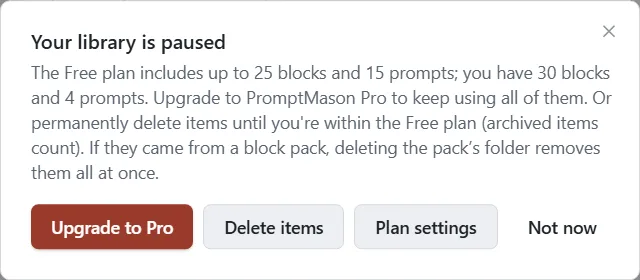
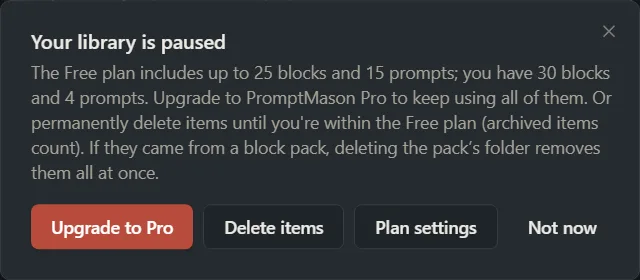
When you try something that’s paused, such as editing, copying or making something new, the Your library is paused window opens. Its buttons are Upgrade to Pro, Delete items and Not now.
What still works
- Opening, viewing and searching everything, and the preview of each block, prompt and document.
- Deleting blocks and prompts, emptying Recently deleted, and Delete forever.
- Archiving and un-archiving.
- Settings, including your plan and license key, turning on and making backups, and sync. Changes your teammates make in a team library still arrive.
- Export everything, in Settings → Backup & data (see Export and import).
- Reading, renaming and deleting your chats.
What’s paused
- Making or editing blocks, prompts, Markdown documents, variables, folders, comments and expected output.
- Favorites and ratings, and restoring an older version from History.
- Copying out of PromptMason’s screens: Copy to Clipboard, Download .md, and even Ctrl+C on selected text.
- Importing a file, adding a block pack, restoring a backup, restoring a library with your recovery kit, restoring items from Recently deleted, and joining a library.
- AI assist, Evaluate, and sending messages in Chat.
- Connected apps. An AI agent connected to PromptMason can’t read or change your library, and the Chrome extension shows the paused message with Upgrade to Pro.
Unpause your library
There are three ways out. Each one ends the pause at once.
Buy Pro
- Click Upgrade to Pro in the line at the top of the screen.
- Complete the checkout in your browser.
- Activate the Pro key you get when you buy. See Your trial and license key for the steps.
Enter a key you already have
- Click Enter key in the line at the top of the screen. Settings opens at Plan.
- Paste the key into the box under License key.
- Click Activate.
If the key doesn’t activate, see If Activate shows a message for what each message means.
Delete items until you’re within the limits
Before you delete anything, consider exporting a copy: click Settings in the sidebar, then Backup & data, then Export. Export works while your library is paused. See Export and import.
- Click Other options in the line at the top of the screen.
- Click Delete items. PromptMason opens Blocks if you have too many blocks, otherwise Prompts.
- Delete the blocks or prompts you no longer need, until you have no more than 25 blocks and 15 prompts. To delete several at once, see Archive, delete and restore.
Deleted items go to Recently deleted, which doesn’t count toward the limits, so you don’t need to empty it. Items stay there for 30 days, then they’re gone for good. Restoring one later is checked like making a new one, so it only works if there’s room.
Archiving doesn’t help, because archived items count.
Take care in a team library: deleting an item there deletes it for everyone in the library. Start with your personal library.
While you decide
You can click Not now and keep using PromptMason to read and search. The line at the top stays until the library is unpaused.
Want a hand?
Copy this prompt into Claude, ChatGPT or another AI assistant, and it walks you through it step by step.
PromptMason says my library is paused. Explain why, what I can still do, and help me choose between buying Pro, entering a key I already have, and deleting items to get back under the Free limits.
Copy adds a short note about PromptMason and this guide's steps, so the assistant has what it needs.
PromptMason says my library is paused. Explain why, what I can still do, and help me choose between buying Pro, entering a key I already have, and deleting items to get back under the Free limits. About PromptMason: a Windows desktop app for building AI prompts from reusable blocks. A person writes blocks (reusable pieces of prompt text), builds prompts from them on the Build screen (or keeps a Markdown document, such as a Skill), and copies a prompt into an AI tool, runs it in PromptMason’s own Chat, or lets a connected AI agent use it through PromptMason’s built-in MCP server (the Chrome extension copies prompts on any website). AI assist, Evaluate and Chat use a local model that runs on the person’s PC, or their own AI provider. The guides are also on PromptMason’s Help screen, and Chat can answer “how do I” questions from them. Libraries hold the blocks and prompts; a person can sync their personal library to their other PCs and share team libraries, both through a folder in cloud storage they already have (OneDrive, Google Drive or Dropbox). Everything synced is encrypted and every edit is signed and checked. A recovery kit (a file plus a code) is the spare copy of the person’s keys, for when every PC is lost. The official guide for this is "When your library is paused": https://promptmason.ai/docs/paused-library Its full text follows, between the lines. Use it as the source of truth, and if anything I see differs from it, tell me rather than guessing. --- Your library is paused when you're on the Free plan and have more than 25 blocks or more than 15 prompts. Nothing is deleted. You can still see, search and export everything, but you can't add, change or copy anything until you're back within the limits or on Pro. ## Why it happens The Free plan has room for 25 blocks and 15 prompts, counted across every library on this PC (see [Plans and limits](https://promptmason.ai/docs/plans#what-counts-toward-the-free-limits)). A pause happens when you have more than that while on Free: - your 14 days of Pro ended, - your Pro license ended, or you removed it from this PC, - PromptMason couldn't check your license for 14 days ([How your license is checked](https://promptmason.ai/docs/license#how-your-license-is-checked)), - you joined a team library, or teammates or your other PCs added items to a library you share, and that took you over the limits, or - you chose **Add anyway** for a block pack bigger than the Free plan ([Add a block pack](https://promptmason.ai/docs/block-packs#on-the-free-plan)). Deleting the pack's folder removes all of its items. Being exactly at a limit (25 blocks, or 15 prompts) doesn't pause anything. ## What you see A line at the top of every screen says **Your library is paused.** It gives the Free limits and how many blocks and prompts you have, with three buttons: - **Upgrade to Pro** opens the checkout in your browser. - **Enter key** opens **Settings → Plan**, where you paste a license key. - **Other options** opens the **Your library is paused** window. **Plan** in Settings also has a dot next to it. When you try something that's paused, such as editing, copying or making something new, the **Your library is paused** window opens. Its buttons are **Upgrade to Pro**, **Delete items** and **Not now**. ## What still works - Opening, viewing and searching everything, and the preview of each block, prompt and document. - Deleting blocks and prompts, emptying **Recently deleted**, and **Delete forever**. - Archiving and un-archiving. - **Settings**, including your plan and license key, turning on and making backups, and sync. Changes your teammates make in a team library still arrive. - **Export everything**, in **Settings → Backup & data** (see [Export and import](https://promptmason.ai/docs/export-import)). - Reading, renaming and deleting your chats. ## What's paused - Making or editing blocks, prompts, Markdown documents, variables, folders, comments and expected output. - Favorites and ratings, and restoring an older version from History. - Copying out of PromptMason's screens: **Copy to Clipboard**, **Download .md**, and even Ctrl+C on selected text. - Importing a file, adding a block pack, restoring a backup, restoring a library with your recovery kit, restoring items from **Recently deleted**, and joining a library. - AI assist, Evaluate, and sending messages in Chat. - Connected apps. An AI agent connected to PromptMason can't read or change your library, and the Chrome extension shows the paused message with **Upgrade to Pro**. ## Unpause your library There are three ways out. Each one ends the pause at once. ### Buy Pro 1. Click **Upgrade to Pro** in the line at the top of the screen. 2. Complete the checkout in your browser. 3. Activate the Pro key you get when you buy. See [Your trial and license key](https://promptmason.ai/docs/license#activate-a-pro-key) for the steps. ### Enter a key you already have 1. Click **Enter key** in the line at the top of the screen. **Settings** opens at **Plan**. 2. Paste the key into the box under **License key**. 3. Click **Activate**. If the key doesn't activate, see [If Activate shows a message](https://promptmason.ai/docs/license#if-activate-shows-a-message) for what each message means. ### Delete items until you're within the limits Before you delete anything, consider exporting a copy: click **Settings** in the sidebar, then **Backup & data**, then **Export**. Export works while your library is paused. See [Export and import](https://promptmason.ai/docs/export-import). 1. Click **Other options** in the line at the top of the screen. 2. Click **Delete items**. PromptMason opens **Blocks** if you have too many blocks, otherwise **Prompts**. 3. Delete the blocks or prompts you no longer need, until you have no more than 25 blocks and 15 prompts. To delete several at once, see [Archive, delete and restore](https://promptmason.ai/docs/archive-and-delete). Deleted items go to **Recently deleted**, which doesn't count toward the limits, so you don't need to empty it. Items stay there for 30 days, then they're gone for good. Restoring one later is checked like making a new one, so it only works if there's room. Archiving doesn't help, because archived items count. Take care in a team library: deleting an item there deletes it for everyone in the library. Start with your personal library. ## While you decide You can click **Not now** and keep using PromptMason to read and search. The line at the top stays until the library is unpaused. --- How to help me: - Go one step at a time. After each step, ask what I see on screen before giving the next one. - Use the exact words on PromptMason’s buttons and screens, as the guide does. - Never ask me for my recovery code, my recovery kit file, a password or my invite line, and never ask me to paste them here. - Start by asking which step I’m on, or what I see now.