Settings reference
Find any setting in PromptMason, see what it does and its default, and go to the guide that explains it.
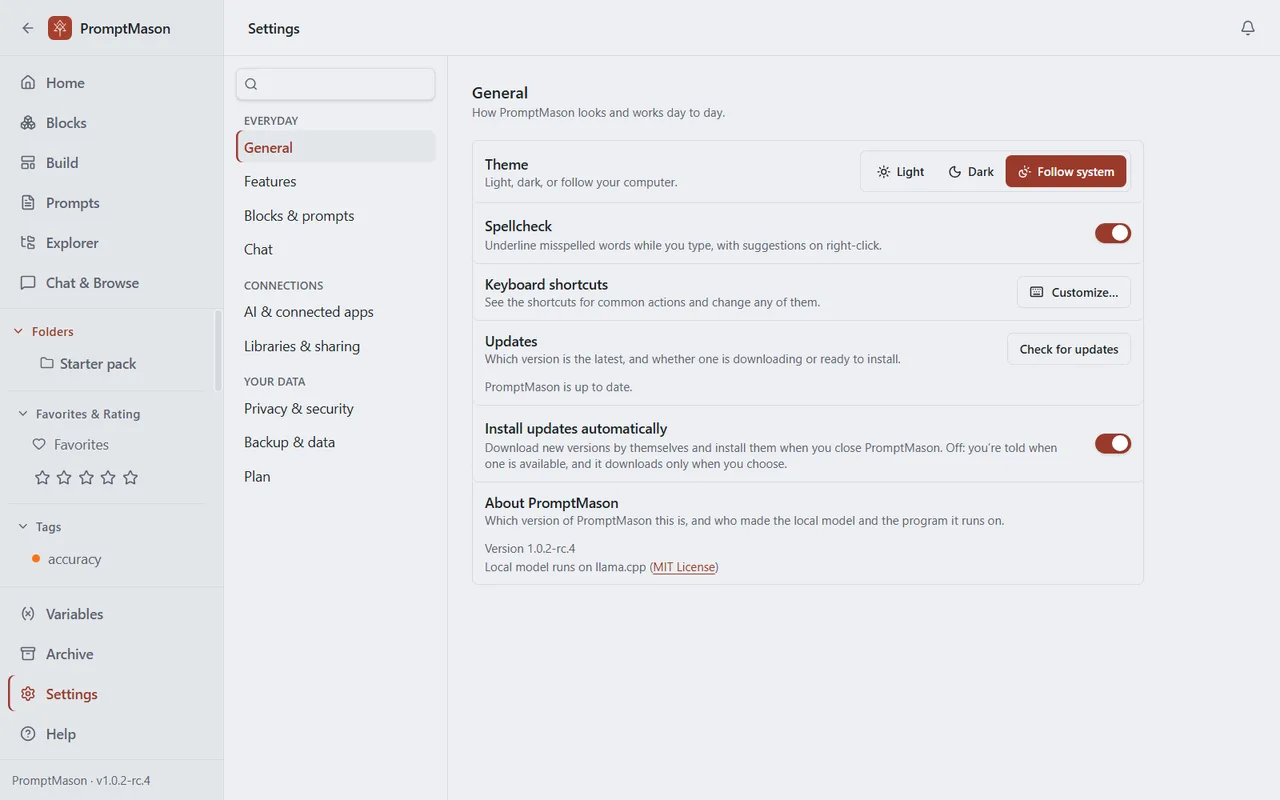
Settings holds every option in PromptMason. This page explains how the Settings screen works, then lists every row, pane by pane, in the order the app shows them. Each row links to the guide that covers it.
Open Settings
Click Settings in the sidebar, or press Ctrl+7 (the default shortcut). Settings opens on General.
Some messages and buttons elsewhere in the app open Settings at the right place for you, for example Enter key on the plan banner, or a button in Notifications.
How Settings is laid out
- Panes. The left side lists the panes in three groups: Everyday (General, Features, Blocks & prompts, Chat), Connections (AI & connected apps, Libraries & sharing) and Your data (Privacy & security, Backup & data, Plan). Click a pane to show it. With the pane list selected, the Up and Down arrow keys move between panes. In a narrow window the list becomes a drop-down above the pane.
- Rows. Each pane starts with its name and one line on what it’s for. Each row shows the setting’s name, a line describing it, and its control on the right.
- Advanced. Some panes have an Advanced section that holds settings you rarely need or that are hard to undo. It’s closed until you click Advanced. It opens by itself when you reach one of its rows from search.
- The Plan dot. A dot next to Plan means your plan needs attention: your library is paused, your 14 days of Pro end within 3 days, or PromptMason hasn’t been able to check your license for 3 days or more. In the narrow drop-down it reads Plan (needs attention). See Plans and limits and Your trial and license key.
Search settings
- Click the search box at the top of the pane list.
- Type a word for what you want to change. Search looks at setting names, other common words for them (for example, “dark mode” finds Theme), pane names and descriptions.
- The results replace the pane list. Each result shows the setting’s name, with its pane underneath. · feature is off after the pane name means the setting belongs to a feature that’s switched off.
- Click a result, or press Enter to open the first one.
Settings opens that pane, scrolls to the row and highlights it for a moment.
If the setting belongs to a feature that’s off, Settings takes you to that feature’s switch in Features instead, with a note such as Turn on Comments to use this. Turn the switch on, then search again.
If nothing matches, you see Nothing matches followed by what you typed. Try a shorter or different word. To clear the search, press Esc or click the X in the box.
Rows that come and go
Some rows show only while a feature is on, and a few only in certain situations. The tables below say so next to the setting’s name. Turning a feature off never deletes anything. See Show or hide features.
Settings on your other PCs
When your personal library syncs to your other PCs, most settings follow you there: features, Home, everything under Blocks & prompts, theme, spellcheck, keyboard shortcuts, instructions, your default AI and bookmarks. What keeps you safe or belongs to one computer stays on each PC: API keys, the local model, App Lock, connected apps, updates, backups, chats and your license key. For the full list, see Use your library on a second PC.
General
| Setting | What it does | Default | Guide |
|---|---|---|---|
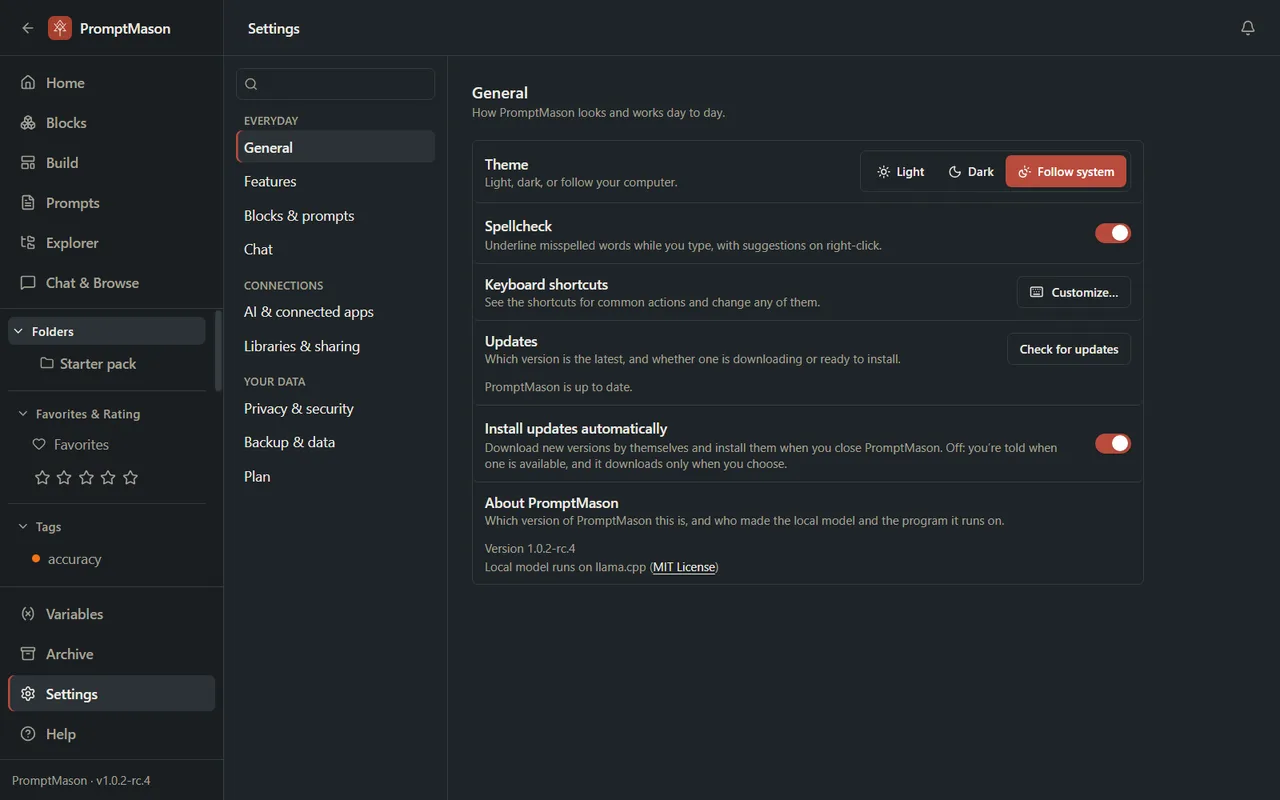
| Theme | Choose Light, Dark or Follow system (matches Windows’ light or dark mode). | Follow system | — |
| Spellcheck | Underlines misspelled words while you type. Right-click a word for suggestions. | On | — |
| Keyboard shortcuts | Customize… opens the list of shortcuts, where you can change any of them. | — | Keyboard shortcuts |
| Updates | Shows whether a newer version is out, downloading or ready to install. | — | Install, update and remove |
| Install updates automatically | Off: you choose when a new version downloads, and it installs only when you click Restart to update. | On | Install, update and remove |
| About PromptMason | Shows your version number, and who made the local model and the program it runs on, with links to their licenses. | — | Get help |
Features
Every switch here starts on. If you chose Start simple the first time you opened PromptMason, they all start off except Chat.
| Setting | What it does | Default | Guide |
|---|---|---|---|
| Simple or everything | Simple turns every switch below off except Chat; Everything turns them all on. It applies at once. A grayed-out Custom shows when your switches match neither. | Your first-run choice | Show or hide features |
| Home dashboard | Shows the Home screen: a search across everything and widgets you arrange. | On | The Home screen |
| Home grid size (while Home dashboard is on) | Columns (2 to 5) and Rows (2 to 12) on the Home screen. | 3 columns, 4 rows | The Home screen |
| Favorites & ratings | Hearts and one-to-five-star ratings on blocks, prompts and documents, with filters and sorting. | On | Tags, favorites and ratings |
| Tags | Tags on blocks, prompts and documents, with a tag filter in the sidebar. | On | Tags, favorites and ratings |
| Variables | The Variables screen and {{name}} values in blocks and prompts. |
On | Variables |
| Comments | A comments panel on the Blocks, Prompts and Build screens. | On | Comments |
| Expand comments by default (while Comments is on) | Opens the comments panel without a click. | Off | Comments |
| Version history | View and restore earlier versions of a block, prompt or document. | On | Version history |
| Expected output | Keep the results an AI tool gave, with the tool, model and an optional file. | On | Expected output |
| Markdown editor | Write and edit Markdown documents, such as Skills, on the Build screen. Saved documents can still be read, copied and downloaded while it’s off. | On | Markdown documents and Skills |
| AI assist | AI assist and Evaluate while you edit. If the switch is on and no AI is set up yet, a Set up AI assist link appears under it. | On | Improve text with AI assist |
| Chat | The Chat & Browse screen, where you run prompts and read the results. | On | Run prompts in Chat |
| Web tabs (under Chat, while Chat is on) | Websites such as Claude or ChatGPT in tabs on the Chat & Browse screen. Turning Chat off hides it; your choice comes back when you turn Chat on again. | On | Web tabs |
Blocks & prompts
| Setting | What it does | Default | Guide |
|---|---|---|---|
| Days in Recent | Items not changed for longer than this many days don’t show as Recent (1 to 3650). | 30 | Block types, prompt types and defaults |
| Include the block’s name | New blocks in a prompt start with Include Name ticked. | Off | Block types, prompt types and defaults |
| Include the block’s type | New blocks in a prompt start with Include Type ticked. | Off | Block types, prompt types and defaults |
| Block header marker | The characters written on both sides of a block’s header in a prompt, such as ### ROLE ###. |
### |
Block types, prompt types and defaults |
| Blank lines between blocks | Empty lines before a block that has a header in a prompt (1 to 3). A block with no header continues the section above. | 1 | Block types, prompt types and defaults |
| Block types | The types you can pick for a block. Add your own; the defaults stay. | Constraints, Context, Format, Role, Task | Block types, prompt types and defaults |
| Prompt types | The types you can pick for a prompt. Add your own; the defaults stay. | Skill, System Prompt, User Prompt | Block types, prompt types and defaults |
Chat
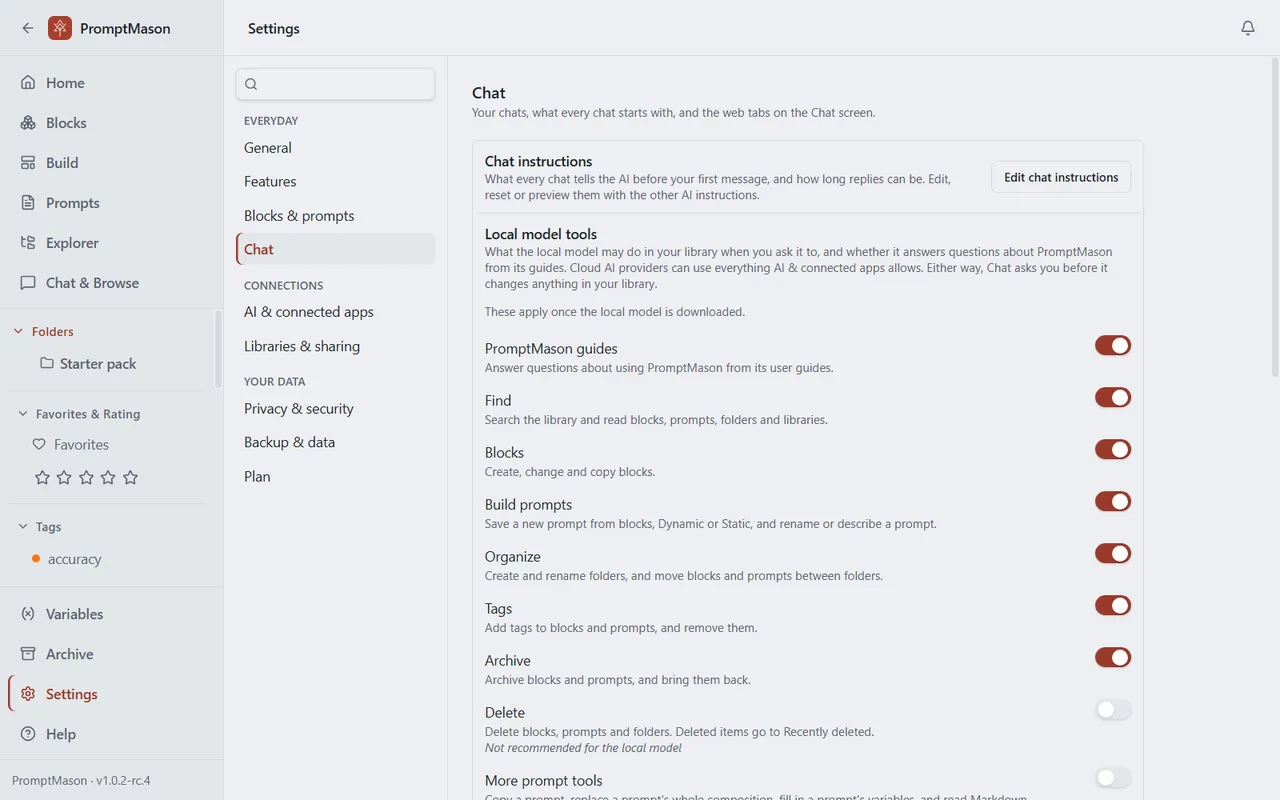
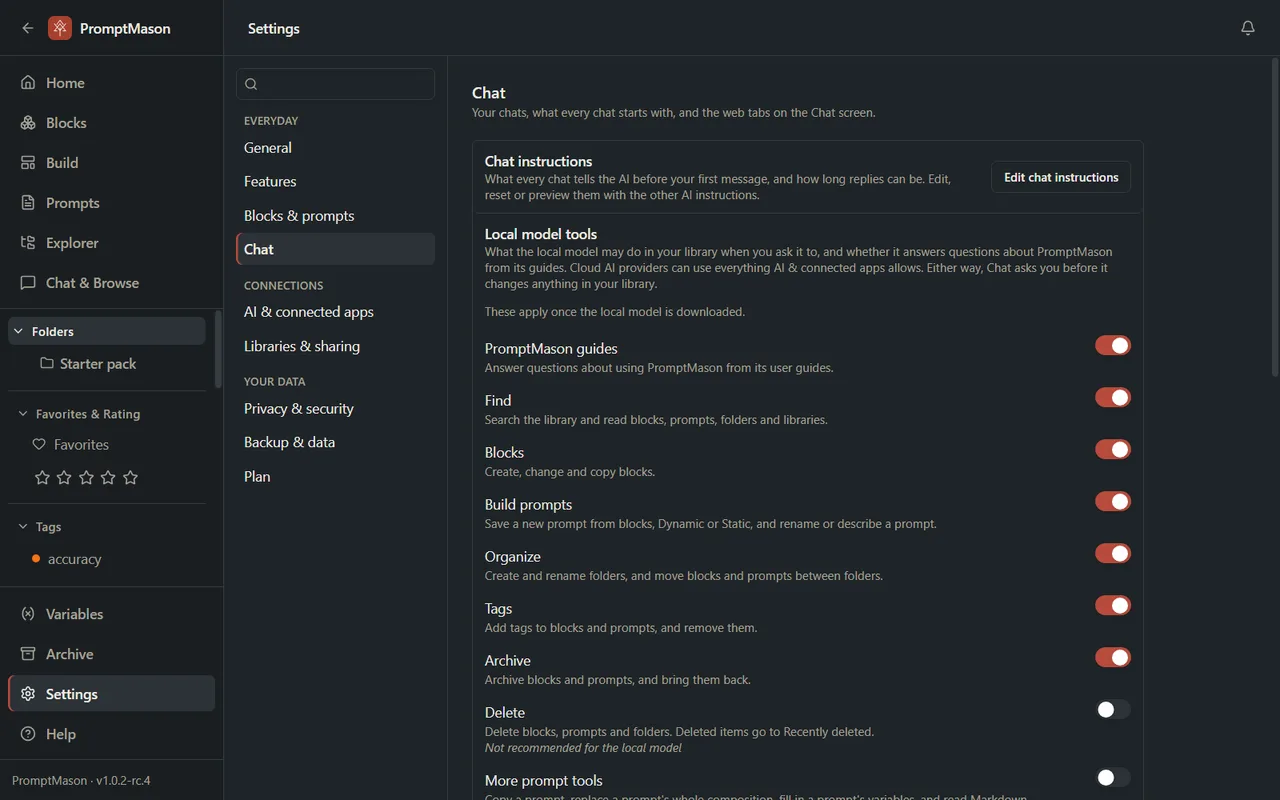
The Chat pane shows its rows only while Chat is on in Features. While it’s off, the pane says Turn on Chat in Features to see its settings here. The last three rows show only while Web tabs is on as well.
| Setting | What it does | Default | Guide |
|---|---|---|---|
| Chat instructions | Edit chat instructions opens the instructions every chat starts with, and how long replies can be, under AI & connected apps. | Built-in text | Customize the AI instructions |
| Local model tools | One switch per kind of task the local model may do in your library when you ask it in Chat, such as finding, creating or deleting items. PromptMason guides lets it answer questions about using PromptMason from the guides. Before the local model is downloaded, the switches apply once it is. While What connected apps can do is Off, Chat can’t use your library at all, but it can still look in the guides. | Depends on the model: kinds marked as not recommended start off | Run prompts in Chat |
| Delete all chats | Deletes every chat on this PC. Your blocks, prompts and settings aren’t affected. This can’t be undone. | — | Chat and context |
| Bookmarks (while Web tabs is on) | The sites listed when you open a new web tab. Add, rename or remove them. | Four AI sites | Web tabs |
| Browsing history (while Web tabs is on) | Keeps a list of pages you open in web tabs, for Keep pages for a number of days (1 to 365). Turning it off deletes the list. | On, 30 days | Web tabs |
| Clear browsing data (while Web tabs is on) | Signs you out of every site you opened in web tabs and deletes their cookies, saved data, cache and browsing history. | — | Web tabs |
AI & connected apps
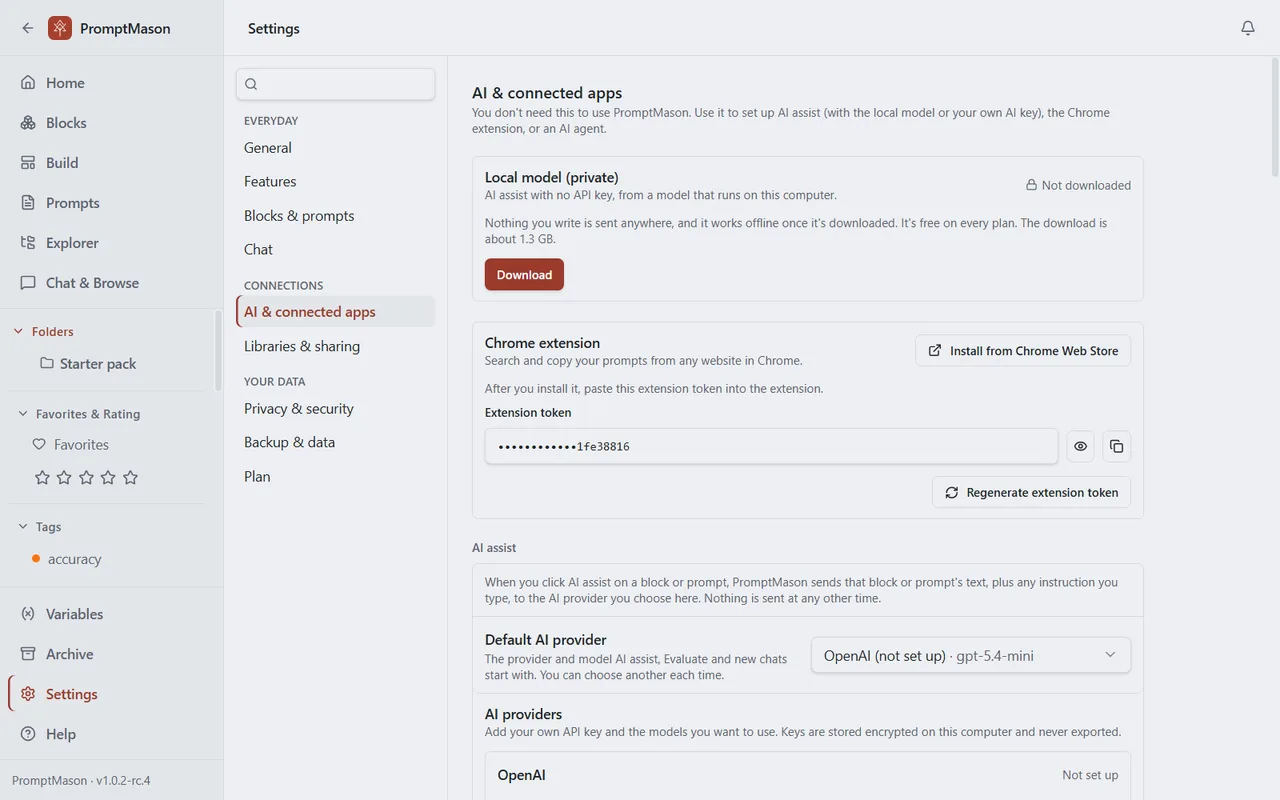
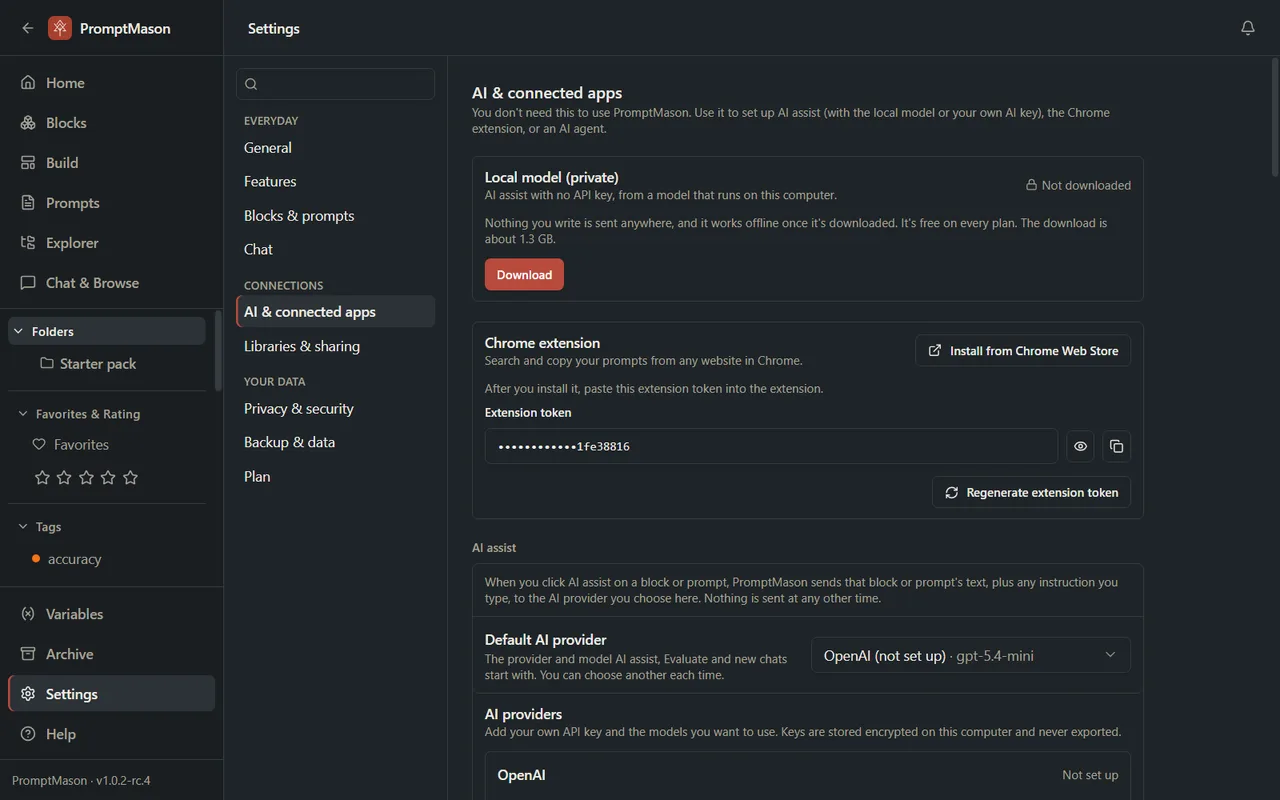
You don’t need this pane to use PromptMason. It’s for setting up AI, the Chrome extension and AI agents.
| Setting | What it does | Default | Guide |
|---|---|---|---|
| Local model (private) | Downloads an AI model that runs on this PC, so AI features work with no API key and none of your text is sent anywhere. Free on every plan. | Not downloaded | Free, private AI on your PC |
| Chrome extension | Install from Chrome Web Store, and the Extension token you paste into the extension. | — | The Chrome extension |
| Default AI provider | The provider and model that AI assist, Evaluate and new chats start with. You can choose another each time. | — | Set up AI |
| AI providers | Add your own API key and models for OpenAI, Anthropic, Google Gemini or xAI (Grok), then Save and Test connection. Keys are stored encrypted on this PC and never exported. | None set up | Set up AI |
| AI assist activity | PromptMason’s record of each AI assist run and chat reply: when, which provider and model, and the tokens used. Your text isn’t kept. Clear activity deletes the record and can’t be undone. | — | What AI features send, and where |
| AI assist instructions | What PromptMason tells the AI for AI assist, Evaluate and Chat, and how the local model summarizes a long chat. Edit, reset, preview, export or import them, customize them for one provider, or use your own blocks as examples. | Built-in text | Customize the AI instructions |
| Your own AI server (under Advanced) | Use an OpenAI-compatible server, such as one running on this PC. | Not set up | Set up AI |
| What connected apps can do | Full access, Read-only or Off for AI agents, the Chrome extension and Chat’s use of your library. Restart an open AI agent after you change it. | Full access | Control what connected apps can do |
| Connect an AI agent | Add for Claude Desktop and Cursor, and Copy command for Claude Code. | — | Connect an AI agent through MCP |
| Set up another AI agent by hand | The API token for an agent you set up yourself, with show, copy and Regenerate API token. | — | Control what connected apps can do |
Libraries & sharing
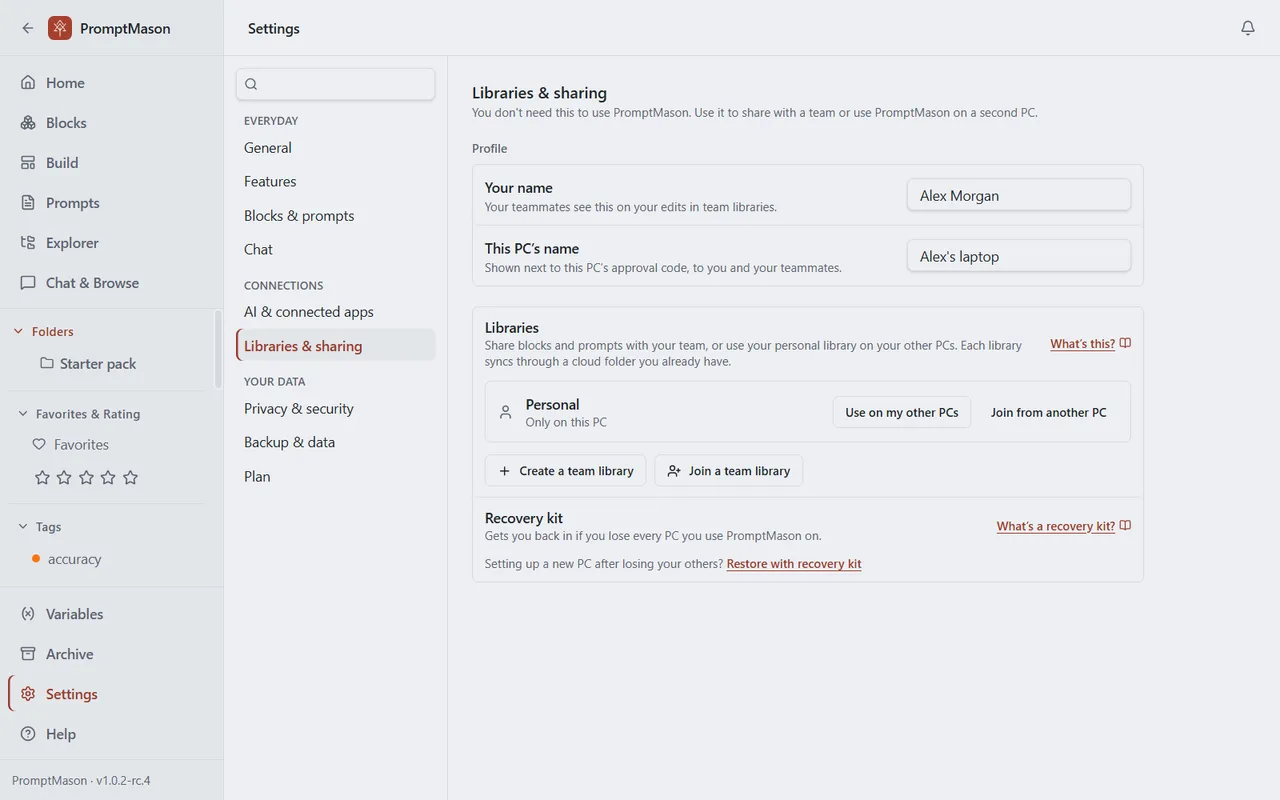
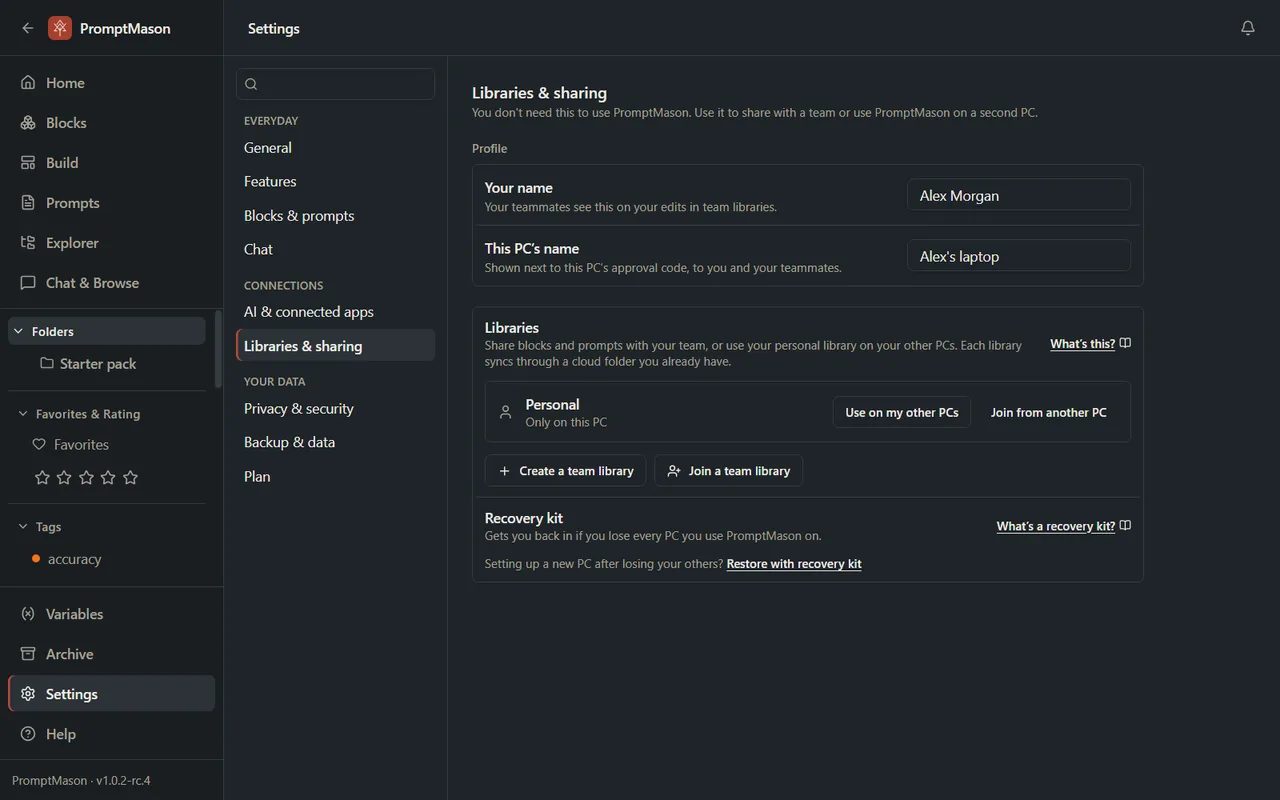
You don’t need this pane to use PromptMason. It’s for sharing with a team or using your library on a second PC.
| Setting | What it does | Default | Guide |
|---|---|---|---|
| Your name | The name your teammates see on your edits in team libraries. | Empty; the line under the box shows the name teammates see meanwhile | Personal and team libraries |
| This PC’s name | The name shown next to this PC’s approval code, to you and your teammates. | Empty; the line under the box shows the name used meanwhile | Approve a PC |
| Libraries | Your libraries and their sync status, with Use on my other PCs, Join from another PC, Manage, Create a team library and Join a team library. | Your personal library, on this PC only | Personal and team libraries, Team libraries, Use your library on a second PC |
| Recovery kit | Whether you’ve confirmed you saved your kit, and Make another kit. On a PC where you haven’t set up a team library, syncing or backups yet, Restore with recovery kit. | — | Your recovery kit |
| My kit was stolen (under Advanced) | Makes your old recovery kit stop working and saves a new one. Shows only once you’ve set up a team library, syncing or backups on this PC. | — | Lost or stolen PC or kit |
Privacy & security
| Setting | What it does | Default | Guide |
|---|---|---|---|
| App Lock | Locks PromptMason with a password. Enable App Lock sets one; then Auto-lock after, Lock now, Change password and Disable appear. | Off (Auto-lock after: Never) | Lock PromptMason with a password |
| Remember values on this computer | Keeps the last five values you typed for each variable that asks each time, on this PC only. Turning it off forgets them right away. | On | Variables |
| What’s protected | Show explains how PromptMason keeps your library safe on this PC. | — | How your data is protected on this PC |
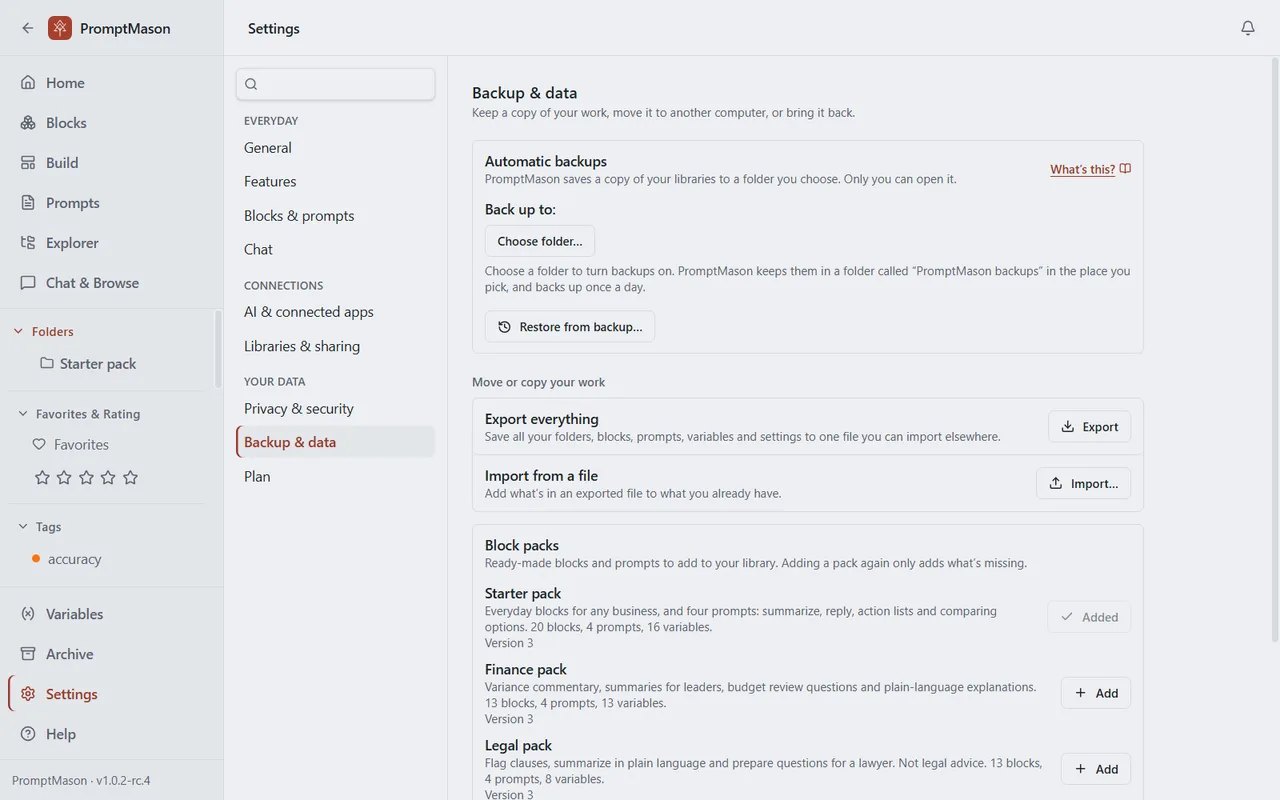
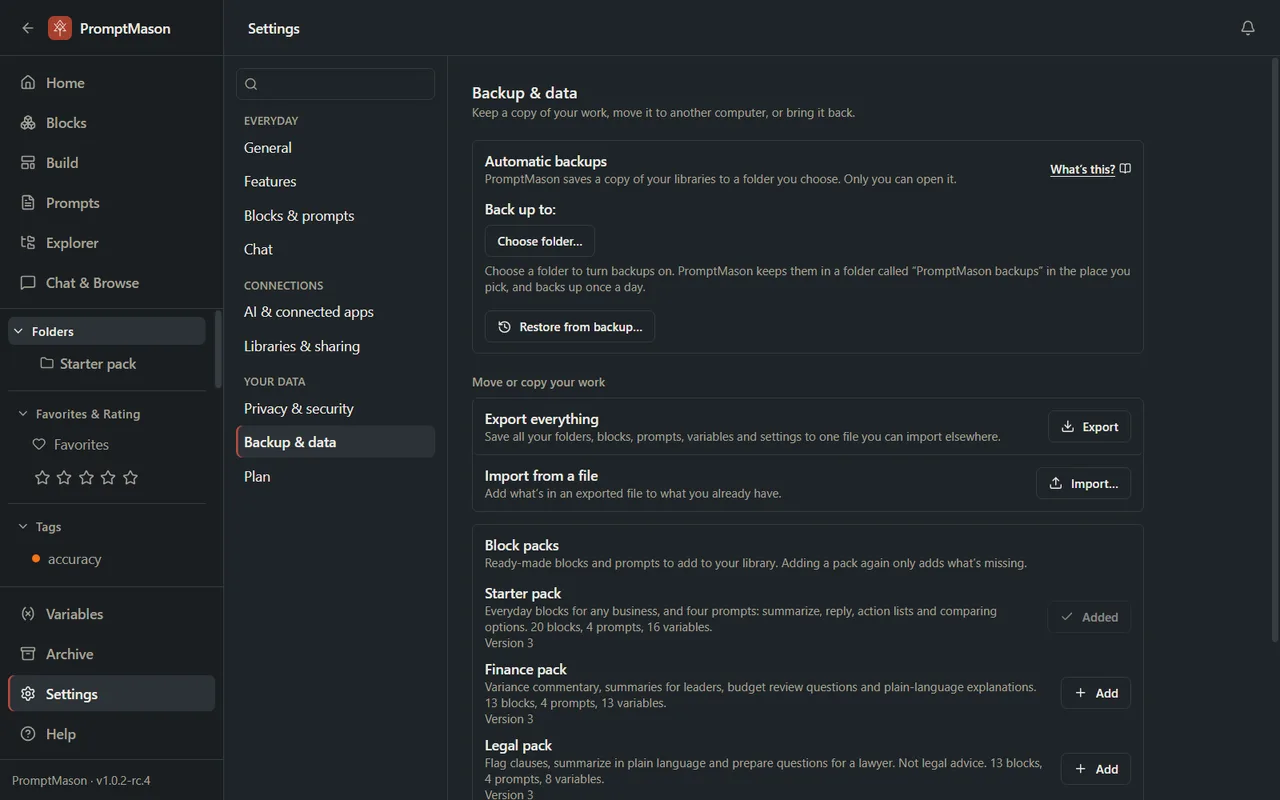
Backup & data
| Setting | What it does | Default | Guide |
|---|---|---|---|
| Automatic backups | Saves a copy of your libraries to a folder you choose: Choose folder…, how often (Automatically:), how many to keep, Back up now and Restore from backup…. | Off until you choose a folder; then Daily, keeping the last 30 | Backups |
| Export everything | Export saves your personal library and settings to one file you can import elsewhere. Team libraries aren’t in it. | — | Export and import |
| Import from a file | Import… adds what’s in an exported file to what you already have. | — | Export and import |
| Block packs | Ready-made blocks and prompts to add (Add, Add missing items), and Add a pack from a file…. Adding a pack again only adds what’s missing. | — | Add a block pack |
| Replace everything from a file (under Advanced) | Replace everything… wipes your library and loads an exported file in its place. This can’t be undone, so export first. | — | Export and import |
Plan
| Setting | What it does | Default | Guide |
|---|---|---|---|
| Your plan | Your plan (Free, Pro with days left in your 14 days, or Pro) and, on Free, how many of your 25 blocks and 15 prompts you use. On Free or during your 14 days of Pro, a Buy PromptMason Pro button can show here; it opens the page to buy Pro in your browser. Check again shows when PromptMason couldn’t check your license. | 14 days of Pro, then Free | Plans and limits |
| License key | Paste your Pro key and click Activate to unlock Pro. With a key on this PC, the row shows the end of the key. During your 14 days of Pro, the box is there for a Pro key. | — | Your trial and license key |
| Remove license (under Advanced, only with a key on this PC) | Takes the key off this PC so you can use it on another one. It doesn’t ask to confirm, and this PC goes to Free at once. | — | Your trial and license key |
Want a hand?
Copy this prompt into Claude, ChatGPT or another AI assistant, and it walks you through it step by step.
I want to change something in PromptMason but I don't know which setting does it. Help me find the right place in Settings and explain what the setting does. Here's what I want to change:
Copy adds a short note about PromptMason and this guide's steps, so the assistant has what it needs.
I want to change something in PromptMason but I don't know which setting does it. Help me find the right place in Settings and explain what the setting does. Here's what I want to change: About PromptMason: a Windows desktop app for building AI prompts from reusable blocks. A person writes blocks (reusable pieces of prompt text), builds prompts from them on the Build screen (or keeps a Markdown document, such as a Skill), and copies a prompt into an AI tool, runs it in PromptMason’s own Chat, or lets a connected AI agent use it through PromptMason’s built-in MCP server (the Chrome extension copies prompts on any website). AI assist, Evaluate and Chat use a local model that runs on the person’s PC, or their own AI provider. The guides are also on PromptMason’s Help screen, and Chat can answer “how do I” questions from them. Libraries hold the blocks and prompts; a person can sync their personal library to their other PCs and share team libraries, both through a folder in cloud storage they already have (OneDrive, Google Drive or Dropbox). Everything synced is encrypted and every edit is signed and checked. A recovery kit (a file plus a code) is the spare copy of the person’s keys, for when every PC is lost. The official guide for this is "Settings reference": https://promptmason.ai/docs/settings Its full text follows, between the lines. Use it as the source of truth, and if anything I see differs from it, tell me rather than guessing. --- Settings holds every option in PromptMason. This page explains how the Settings screen works, then lists every row, pane by pane, in the order the app shows them. Each row links to the guide that covers it. ## Open Settings Click **Settings** in the sidebar, or press Ctrl+7 (the default [shortcut](https://promptmason.ai/docs/keyboard-shortcuts)). Settings opens on **General**. Some messages and buttons elsewhere in the app open Settings at the right place for you, for example **Enter key** on the plan banner, or a button in Notifications. ## How Settings is laid out - **Panes.** The left side lists the panes in three groups: **Everyday** (General, Features, Blocks & prompts, Chat), **Connections** (AI & connected apps, Libraries & sharing) and **Your data** (Privacy & security, Backup & data, Plan). Click a pane to show it. With the pane list selected, the Up and Down arrow keys move between panes. In a narrow window the list becomes a drop-down above the pane. - **Rows.** Each pane starts with its name and one line on what it's for. Each row shows the setting's name, a line describing it, and its control on the right. - **Advanced.** Some panes have an **Advanced** section that holds settings you rarely need or that are hard to undo. It's closed until you click **Advanced**. It opens by itself when you reach one of its rows from search. - **The Plan dot.** A dot next to **Plan** means your plan needs attention: your library is paused, your 14 days of Pro end within 3 days, or PromptMason hasn't been able to check your license for 3 days or more. In the narrow drop-down it reads **Plan (needs attention)**. See [Plans and limits](https://promptmason.ai/docs/plans) and [Your trial and license key](https://promptmason.ai/docs/license). ## Search settings 1. Click the search box at the top of the pane list. 2. Type a word for what you want to change. Search looks at setting names, other common words for them (for example, "dark mode" finds **Theme**), pane names and descriptions. 3. The results replace the pane list. Each result shows the setting's name, with its pane underneath. **· feature is off** after the pane name means the setting belongs to a feature that's switched off. 4. Click a result, or press Enter to open the first one. Settings opens that pane, scrolls to the row and highlights it for a moment. If the setting belongs to a feature that's off, Settings takes you to that feature's switch in **Features** instead, with a note such as **Turn on Comments to use this.** Turn the switch on, then search again. If nothing matches, you see **Nothing matches** followed by what you typed. Try a shorter or different word. To clear the search, press Esc or click the **X** in the box. ## Rows that come and go Some rows show only while a feature is on, and a few only in certain situations. The tables below say so next to the setting's name. Turning a feature off never deletes anything. See [Show or hide features](https://promptmason.ai/docs/features). ## Settings on your other PCs When your personal library syncs to your other PCs, most settings follow you there: features, Home, everything under **Blocks & prompts**, theme, spellcheck, keyboard shortcuts, instructions, your default AI and bookmarks. What keeps you safe or belongs to one computer stays on each PC: API keys, the local model, **App Lock**, connected apps, updates, backups, chats and your license key. For the full list, see [Use your library on a second PC](https://promptmason.ai/docs/second-pc#your-settings-on-every-pc). ## General | Setting | What it does | Default | Guide | |---|---|---|---| | **Theme** | Choose **Light**, **Dark** or **Follow system** (matches Windows' light or dark mode). | Follow system | — | | **Spellcheck** | Underlines misspelled words while you type. Right-click a word for suggestions. | On | — | | **Keyboard shortcuts** | **Customize…** opens the list of shortcuts, where you can change any of them. | — | [Keyboard shortcuts](https://promptmason.ai/docs/keyboard-shortcuts) | | **Updates** | Shows whether a newer version is out, downloading or ready to install. | — | [Install, update and remove](https://promptmason.ai/docs/installation#update) | | **Install updates automatically** | Off: you choose when a new version downloads, and it installs only when you click **Restart to update**. | On | [Install, update and remove](https://promptmason.ai/docs/installation#update) | | **About PromptMason** | Shows your version number, and who made the local model and the program it runs on, with links to their licenses. | — | [Get help](https://promptmason.ai/docs/get-help) | ## Features Every switch here starts on. If you chose **Start simple** the first time you opened PromptMason, they all start off except **Chat**. | Setting | What it does | Default | Guide | |---|---|---|---| | **Simple or everything** | **Simple** turns every switch below off except **Chat**; **Everything** turns them all on. It applies at once. A grayed-out **Custom** shows when your switches match neither. | Your first-run choice | [Show or hide features](https://promptmason.ai/docs/features) | | **Home dashboard** | Shows the Home screen: a search across everything and widgets you arrange. | On | [The Home screen](https://promptmason.ai/docs/home) | | **Home grid size** (while Home dashboard is on) | **Columns** (2 to 5) and **Rows** (2 to 12) on the Home screen. | 3 columns, 4 rows | [The Home screen](https://promptmason.ai/docs/home) | | **Favorites & ratings** | Hearts and one-to-five-star ratings on blocks, prompts and documents, with filters and sorting. | On | [Tags, favorites and ratings](https://promptmason.ai/docs/tags-favorites-ratings) | | **Tags** | Tags on blocks, prompts and documents, with a tag filter in the sidebar. | On | [Tags, favorites and ratings](https://promptmason.ai/docs/tags-favorites-ratings) | | **Variables** | The Variables screen and `{{name}}` values in blocks and prompts. | On | [Variables](https://promptmason.ai/docs/variables) | | **Comments** | A comments panel on the Blocks, Prompts and Build screens. | On | [Comments](https://promptmason.ai/docs/comments) | | **Expand comments by default** (while Comments is on) | Opens the comments panel without a click. | Off | [Comments](https://promptmason.ai/docs/comments) | | **Version history** | View and restore earlier versions of a block, prompt or document. | On | [Version history](https://promptmason.ai/docs/version-history) | | **Expected output** | Keep the results an AI tool gave, with the tool, model and an optional file. | On | [Expected output](https://promptmason.ai/docs/expected-output) | | **Markdown editor** | Write and edit Markdown documents, such as Skills, on the Build screen. Saved documents can still be read, copied and downloaded while it's off. | On | [Markdown documents and Skills](https://promptmason.ai/docs/markdown-documents) | | **AI assist** | AI assist and Evaluate while you edit. If the switch is on and no AI is set up yet, a **Set up AI assist** link appears under it. | On | [Improve text with AI assist](https://promptmason.ai/docs/ai-assist) | | **Chat** | The Chat & Browse screen, where you run prompts and read the results. | On | [Run prompts in Chat](https://promptmason.ai/docs/chat-basics) | | **Web tabs** (under Chat, while Chat is on) | Websites such as Claude or ChatGPT in tabs on the Chat & Browse screen. Turning Chat off hides it; your choice comes back when you turn Chat on again. | On | [Web tabs](https://promptmason.ai/docs/web-tabs) | ## Blocks & prompts | Setting | What it does | Default | Guide | |---|---|---|---| | **Days in Recent** | Items not changed for longer than this many days don't show as Recent (1 to 3650). | 30 | [Block types, prompt types and defaults](https://promptmason.ai/docs/types-and-defaults#days-in-recent) | | **Include the block's name** | New blocks in a prompt start with **Include Name** ticked. | Off | [Block types, prompt types and defaults](https://promptmason.ai/docs/types-and-defaults#include-the-blocks-name-or-type) | | **Include the block's type** | New blocks in a prompt start with **Include Type** ticked. | Off | [Block types, prompt types and defaults](https://promptmason.ai/docs/types-and-defaults#include-the-blocks-name-or-type) | | **Block header marker** | The characters written on both sides of a block's header in a prompt, such as `### ROLE ###`. | `###` | [Block types, prompt types and defaults](https://promptmason.ai/docs/types-and-defaults#block-header-marker) | | **Blank lines between blocks** | Empty lines before a block that has a header in a prompt (1 to 3). A block with no header continues the section above. | 1 | [Block types, prompt types and defaults](https://promptmason.ai/docs/types-and-defaults#blank-lines-between-blocks) | | **Block types** | The types you can pick for a block. Add your own; the defaults stay. | Constraints, Context, Format, Role, Task | [Block types, prompt types and defaults](https://promptmason.ai/docs/types-and-defaults#block-types-and-prompt-types) | | **Prompt types** | The types you can pick for a prompt. Add your own; the defaults stay. | Skill, System Prompt, User Prompt | [Block types, prompt types and defaults](https://promptmason.ai/docs/types-and-defaults#block-types-and-prompt-types) | ## Chat The Chat pane shows its rows only while **Chat** is on in Features. While it's off, the pane says **Turn on Chat in Features to see its settings here.** The last three rows show only while **Web tabs** is on as well. | Setting | What it does | Default | Guide | |---|---|---|---| | **Chat instructions** | **Edit chat instructions** opens the instructions every chat starts with, and how long replies can be, under AI & connected apps. | Built-in text | [Customize the AI instructions](https://promptmason.ai/docs/ai-instructions) | | **Local model tools** | One switch per kind of task the local model may do in your library when you ask it in Chat, such as finding, creating or deleting items. **PromptMason guides** lets it answer questions about using PromptMason from the guides. Before the local model is downloaded, the switches apply once it is. While **What connected apps can do** is **Off**, Chat can't use your library at all, but it can still look in the guides. | Depends on the model: kinds marked as not recommended start off | [Run prompts in Chat](https://promptmason.ai/docs/chat-basics) | | **Delete all chats** | Deletes every chat on this PC. Your blocks, prompts and settings aren't affected. This can't be undone. | — | [Chat and context](https://promptmason.ai/docs/chat) | | **Bookmarks** (while Web tabs is on) | The sites listed when you open a new web tab. Add, rename or remove them. | Four AI sites | [Web tabs](https://promptmason.ai/docs/web-tabs) | | **Browsing history** (while Web tabs is on) | Keeps a list of pages you open in web tabs, for **Keep pages for** a number of days (1 to 365). Turning it off deletes the list. | On, 30 days | [Web tabs](https://promptmason.ai/docs/web-tabs) | | **Clear browsing data** (while Web tabs is on) | Signs you out of every site you opened in web tabs and deletes their cookies, saved data, cache and browsing history. | — | [Web tabs](https://promptmason.ai/docs/web-tabs) | ## AI & connected apps You don't need this pane to use PromptMason. It's for setting up AI, the Chrome extension and AI agents. | Setting | What it does | Default | Guide | |---|---|---|---| | **Local model (private)** | Downloads an AI model that runs on this PC, so AI features work with no API key and none of your text is sent anywhere. Free on every plan. | Not downloaded | [Free, private AI on your PC](https://promptmason.ai/docs/local-model) | | **Chrome extension** | **Install from Chrome Web Store**, and the **Extension token** you paste into the extension. | — | [The Chrome extension](https://promptmason.ai/docs/chrome-extension) | | **Default AI provider** | The provider and model that AI assist, Evaluate and new chats start with. You can choose another each time. | — | [Set up AI](https://promptmason.ai/docs/ai-setup) | | **AI providers** | Add your own API key and models for OpenAI, Anthropic, Google Gemini or xAI (Grok), then **Save** and **Test connection**. Keys are stored encrypted on this PC and never exported. | None set up | [Set up AI](https://promptmason.ai/docs/ai-setup) | | **AI assist activity** | PromptMason's record of each AI assist run and chat reply: when, which provider and model, and the tokens used. Your text isn't kept. **Clear activity** deletes the record and can't be undone. | — | [What AI features send, and where](https://promptmason.ai/docs/ai-privacy) | | **AI assist instructions** | What PromptMason tells the AI for AI assist, Evaluate and Chat, and how the local model summarizes a long chat. Edit, reset, preview, export or import them, customize them for one provider, or use your own blocks as examples. | Built-in text | [Customize the AI instructions](https://promptmason.ai/docs/ai-instructions) | | **Your own AI server** (under Advanced) | Use an OpenAI-compatible server, such as one running on this PC. | Not set up | [Set up AI](https://promptmason.ai/docs/ai-setup) | | **What connected apps can do** | **Full access**, **Read-only** or **Off** for AI agents, the Chrome extension and Chat's use of your library. Restart an open AI agent after you change it. | Full access | [Control what connected apps can do](https://promptmason.ai/docs/agent-access) | | **Connect an AI agent** | **Add** for Claude Desktop and Cursor, and **Copy command** for Claude Code. | — | [Connect an AI agent through MCP](https://promptmason.ai/docs/connect-ai-agent) | | **Set up another AI agent by hand** | The **API token** for an agent you set up yourself, with show, copy and **Regenerate API token**. | — | [Control what connected apps can do](https://promptmason.ai/docs/agent-access) | ## Libraries & sharing You don't need this pane to use PromptMason. It's for sharing with a team or using your library on a second PC. | Setting | What it does | Default | Guide | |---|---|---|---| | **Your name** | The name your teammates see on your edits in team libraries. | Empty; the line under the box shows the name teammates see meanwhile | [Personal and team libraries](https://promptmason.ai/docs/libraries) | | **This PC’s name** | The name shown next to this PC’s approval code, to you and your teammates. | Empty; the line under the box shows the name used meanwhile | [Approve a PC](https://promptmason.ai/docs/approve-device) | | **Libraries** | Your libraries and their sync status, with **Use on my other PCs**, **Join from another PC**, **Manage**, **Create a team library** and **Join a team library**. | Your personal library, on this PC only | [Personal and team libraries](https://promptmason.ai/docs/libraries), [Team libraries](https://promptmason.ai/docs/team-libraries), [Use your library on a second PC](https://promptmason.ai/docs/second-pc) | | **Recovery kit** | Whether you've confirmed you saved your kit, and **Make another kit**. On a PC where you haven't set up a team library, syncing or backups yet, **Restore with recovery kit**. | — | [Your recovery kit](https://promptmason.ai/docs/recovery-kit) | | **My kit was stolen** (under Advanced) | Makes your old recovery kit stop working and saves a new one. Shows only once you've set up a team library, syncing or backups on this PC. | — | [Lost or stolen PC or kit](https://promptmason.ai/docs/lost-device) | ## Privacy & security | Setting | What it does | Default | Guide | |---|---|---|---| | **App Lock** | Locks PromptMason with a password. **Enable App Lock** sets one; then **Auto-lock after**, **Lock now**, **Change password** and **Disable** appear. | Off (Auto-lock after: Never) | [Lock PromptMason with a password](https://promptmason.ai/docs/app-lock) | | **Remember values on this computer** | Keeps the last five values you typed for each variable that asks each time, on this PC only. Turning it off forgets them right away. | On | [Variables](https://promptmason.ai/docs/variables) | | **What’s protected** | **Show** explains how PromptMason keeps your library safe on this PC. | — | [How your data is protected on this PC](https://promptmason.ai/docs/data-on-this-pc) | ## Backup & data | Setting | What it does | Default | Guide | |---|---|---|---| | **Automatic backups** | Saves a copy of your libraries to a folder you choose: **Choose folder…**, how often (**Automatically:**), how many to keep, **Back up now** and **Restore from backup…**. | Off until you choose a folder; then Daily, keeping the last 30 | [Backups](https://promptmason.ai/docs/backups) | | **Export everything** | **Export** saves your personal library and settings to one file you can import elsewhere. Team libraries aren't in it. | — | [Export and import](https://promptmason.ai/docs/export-import) | | **Import from a file** | **Import…** adds what's in an exported file to what you already have. | — | [Export and import](https://promptmason.ai/docs/export-import) | | **Block packs** | Ready-made blocks and prompts to add (**Add**, **Add missing items**), and **Add a pack from a file…**. Adding a pack again only adds what's missing. | — | [Add a block pack](https://promptmason.ai/docs/block-packs) | | **Replace everything from a file** (under Advanced) | **Replace everything…** wipes your library and loads an exported file in its place. This can't be undone, so export first. | — | [Export and import](https://promptmason.ai/docs/export-import) | ## Plan | Setting | What it does | Default | Guide | |---|---|---|---| | **Your plan** | Your plan (Free, Pro with days left in your 14 days, or Pro) and, on Free, how many of your 25 blocks and 15 prompts you use. On Free or during your 14 days of Pro, a **Buy PromptMason Pro** button can show here; it opens the page to buy Pro in your browser. **Check again** shows when PromptMason couldn't check your license. | 14 days of Pro, then Free | [Plans and limits](https://promptmason.ai/docs/plans) | | **License key** | Paste your Pro key and click **Activate** to unlock Pro. With a key on this PC, the row shows the end of the key. During your 14 days of Pro, the box is there for a Pro key. | — | [Your trial and license key](https://promptmason.ai/docs/license) | | **Remove license** (under Advanced, only with a key on this PC) | Takes the key off this PC so you can use it on another one. It doesn't ask to confirm, and this PC goes to Free at once. | — | [Your trial and license key](https://promptmason.ai/docs/license) | --- How to help me: - Go one step at a time. After each step, ask what I see on screen before giving the next one. - Use the exact words on PromptMason’s buttons and screens, as the guide does. - Never ask me for my recovery code, my recovery kit file, a password or my invite line, and never ask me to paste them here. - Start by asking which step I’m on, or what I see now.