Find anything
Search your whole library from Home, search and filter each screen, find a setting, and sort what you see.
PromptMason has a search box on every screen that lists things, and one on Home that looks through everything at once. On Home, Blocks, Build, Prompts, Explorer, Archive and Variables, Ctrl+F puts the cursor in that screen’s search box. You can then narrow a list with the sidebar’s folder, tag, favorite and rating filters, and with the filters on each column.
Searching is never case-sensitive, and what you type is matched as one phrase: “sales email” finds “Sales email follow-up” but not “Email for sales”.
Search everything from Home
The Search… box at the top of Home searches all of these at once: blocks, prompts, Markdown documents, variables, tags, folders, and archived blocks and prompts. It looks in names, descriptions, text, tags, types, kinds and folders, and also in comments and expected output.
-
Click Home in the sidebar.
-
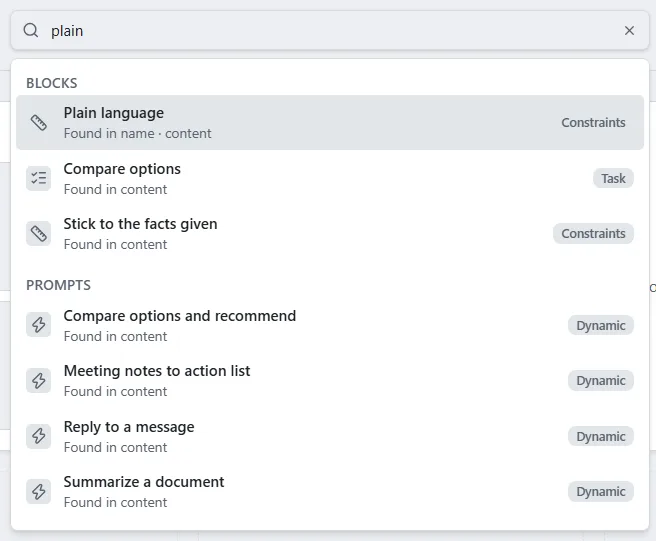
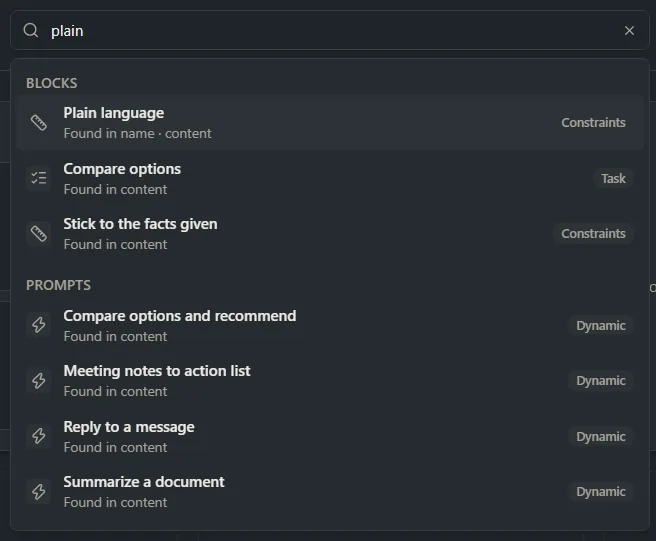
Click the Search… box (or press Ctrl+F) and type.
-
Click a result, or use the Up and Down arrow keys to pick one and press Enter.
Results are grouped under Blocks, Prompts, Variables, Tags, Folders and Archive. Names that match come first in each group. Each result says where the words were found, for example “Found in content · tags”. A block shows its type, and a prompt shows Static, Dynamic or Markdown. In the Archive group, each result shows Block, Prompt or Markdown instead. A tag shows how many items use it, and a folder shows the folder it’s in.
What opening a result does:
| Result | Opens |
|---|---|
| Block | The Blocks screen, showing the block |
| Prompt or document | The Prompts screen, showing it |
| Variable | The Variables screen, with the variable open |
| Tag | Explorer, showing everything with that tag |
| Folder | Explorer, inside that folder |
| Archived item | The Archive screen, searching for its name |
Opening a tag or folder clears any other filters you had set, so you see everything in it.
Press Esc once to close the results, and again to clear the box.
Home search only looks at features that are on. For example, with the Variables feature off, variables aren’t searched, and with Tags off, tags aren’t. Home is a feature too; to turn it on, see Turn Home on or off.
Messages in Home search
| Message | What to do |
|---|---|
| Searching… | Wait a moment for the rest of the results. |
| Nothing matches “…”. | Try fewer or different words. |
| Only the first 200 matches of each kind are listed. Type more to narrow them down. | Add a word or two to your search. |
| Search couldn’t finish. Try again in a moment. | Click the search box again, or change what you typed, to search again. |
Search one screen
Blocks, Prompts, Explorer, Archive and Variables each have their own search box, above the list. Press Ctrl+F to jump to it, and click the X in the box to clear it.
| Screen | What its search looks in |
|---|---|
| Blocks | Name, type, tags, folder, the dates it was created and changed, and the block’s text |
| Prompts | Name, type, kind, tags, folder, dates, and the text (for a Dynamic prompt, the text of its blocks) |
| Explorer | The same as Blocks and Prompts, for both, plus folder names |
| Archive, Archived tab | Name, type and kind |
| Archive, Recently deleted tab | Name only |
| Variables | Name, value and description |
You can search for a date the way it’s written on screen, or in other common forms, for example “Aug 29, 2026”, “August”, “8/29/26” or “2026-08-29”.
The Build screen’s list of blocks has its own search box too, with a block-type filter. See Build a prompt.
The search on Blocks, Prompts and Explorer is cleared when you leave the screen.
Find a setting
- Click Settings in the sidebar.
- Type in the search box above the list of Settings sections (on the left, or at the top when the window is narrow), for example “backup” or “dark”.
- Click a result, or press Enter to open the first one.
Each result shows the setting’s name and the part of Settings it’s in. Settings opens there and highlights the setting for a moment. Search finds a setting by its name, its description, and other words people often use for it.
If a result says · feature is off, the setting belongs to a feature you’ve hidden. Clicking it takes you to that feature’s switch, with the note Turn on [feature] to use this.
Press Esc to clear the search. If nothing matches, Settings says Nothing matches “…”.
Filter from the sidebar
The sidebar’s filters apply to Blocks, Prompts and Explorer together, and stay on as you move between them. The Build screen’s list of blocks follows the folder, tag, favorite and rating filters (not the library filter).
- Folder: click a folder in the sidebar to show only what’s directly in that folder (not in its subfolders). See Folders, moving and copying.
- Library: if you have a team library, the sidebar lists your libraries; click one to show only its items. See Personal and team libraries.
- Tags: click a tag to show only items with that tag. Ctrl+click more tags to show items with any of them. See Tags, favorites and ratings.
- Favorites & Rating: turn on Favorites to show only favorites, or click a star to show items rated that many stars or more. These two also apply to the Archived tab of the Archive screen. See Tags, favorites and ratings.
The filters add up: a folder and a tag together show items that are in the folder and have the tag.
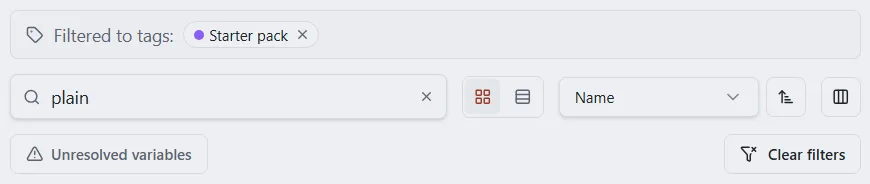
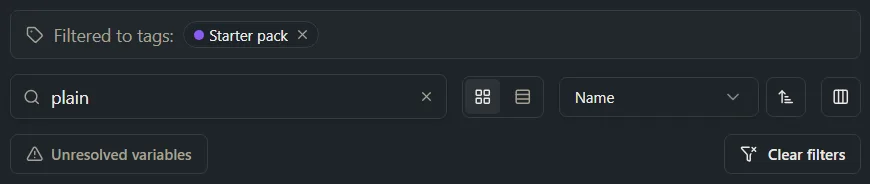
Unresolved variables is not in the sidebar. It is a button in the toolbar of Blocks, Prompts and Explorer, next to the view, sort and column buttons, and it shows when the Variables feature is on. Turn it on to show only blocks and prompts that use a {{name}} no variable has. See Variables.
On Blocks and Prompts, a bar above the list shows an active folder (Filtered to and the folder’s path); click a folder name in the bar to widen the filter to that folder. On Explorer, the folder’s path shows above the list instead. Tags show in a Filtered to tags: bar on all three; click the X on a tag to take that tag off.
Clear every filter
Click the Clear filters button in the toolbar (the funnel with an X). It appears whenever a filter is on, and clears the search, the column filters, the sidebar’s folder, library, tag, favorite and rating filters, and the unresolved-variables filter at once.
Filter by column, type or kind
In List view, each column heading on Blocks, Prompts, Explorer and Variables has a small funnel button, Filter this column. Use it to filter by type, kind, location, rating, date and so on.
-
Click List view in the toolbar, if the list shows tiles.
-
Click the funnel in a column heading, for example Kind or Type.
-
Untick the values you don’t want, or untick (Select All) and tick only the ones you do want.
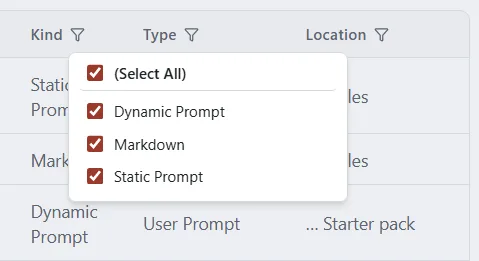
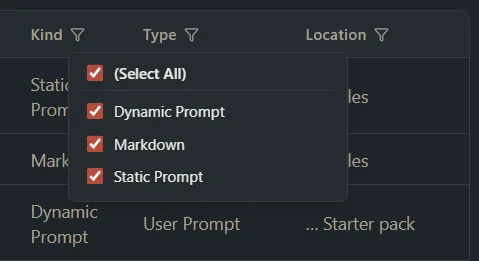
When a column has more than 8 values, a search box appears at the top of the list: type, then press Enter to keep only the ticked values that match.
A filtered column’s funnel is highlighted. Unticking every value shows everything again. If the column filters leave nothing, click Clear column filters under the message.
The Kind column tells blocks, Static prompts, Dynamic prompts and Markdown documents apart. On the Prompts screen, filter Kind to Markdown to see only your documents.
On Blocks, Prompts and Explorer, column filters are cleared when you leave the screen.
Sort a list
On Blocks, Prompts and Explorer:
- Click the sort list in the toolbar and choose what to sort by, for example Name, Last modified or Rating.
- Click the arrow button next to it to switch between ascending and descending.
In List view you can also click a column heading to sort by it; click it again to reverse the order. Each screen remembers its sort.
| Screen | Sorted to start with |
|---|---|
| Blocks | Name, A to Z |
| Prompts | Date created, newest first |
| Explorer | Last modified, newest first |
Ties in Rating and Fav are sorted by name. Unrated items come last when sorting by rating, highest first. When you first turn on the sidebar’s star filter, the list switches to sort by rating, highest first; you can change it back.
On Variables, click a column heading to sort. The Archive lists are always newest first.
Show fewer or more columns and rows
- Columns: click the Columns button in the toolbar and tick the columns to show. Name always shows. Your choice applies to Blocks, Prompts and Explorer alike.
- Column width: drag the right edge of a column heading.
- Rows per page: under the list, choose 25, 50, 75 or 100 next to Show. Use the arrows to move between pages.
- Tiles or rows: click Tile view or List view in the toolbar.
Some columns only exist while their feature is on: Fav and Rating (Favorites & ratings) and Versions (Version history). Library appears once you have a team library.
Want a hand?
Copy this prompt into Claude, ChatGPT or another AI assistant, and it walks you through it step by step.
I have a lot of blocks and prompts in PromptMason and can't find the one I need. Show me the quickest ways to search, filter and sort to find it.
Copy adds a short note about PromptMason and this guide's steps, so the assistant has what it needs.
I have a lot of blocks and prompts in PromptMason and can't find the one I need. Show me the quickest ways to search, filter and sort to find it. About PromptMason: a Windows desktop app for building AI prompts from reusable blocks. A person writes blocks (reusable pieces of prompt text), builds prompts from them on the Build screen (or keeps a Markdown document, such as a Skill), and copies a prompt into an AI tool, runs it in PromptMason’s own Chat, or lets a connected AI agent use it through PromptMason’s built-in MCP server (the Chrome extension copies prompts on any website). AI assist, Evaluate and Chat use a local model that runs on the person’s PC, or their own AI provider. The guides are also on PromptMason’s Help screen, and Chat can answer “how do I” questions from them. Libraries hold the blocks and prompts; a person can sync their personal library to their other PCs and share team libraries, both through a folder in cloud storage they already have (OneDrive, Google Drive or Dropbox). Everything synced is encrypted and every edit is signed and checked. A recovery kit (a file plus a code) is the spare copy of the person’s keys, for when every PC is lost. The official guide for this is "Find anything": https://promptmason.ai/docs/search Its full text follows, between the lines. Use it as the source of truth, and if anything I see differs from it, tell me rather than guessing. --- PromptMason has a search box on every screen that lists things, and one on Home that looks through everything at once. On Home, Blocks, Build, Prompts, Explorer, Archive and Variables, Ctrl+F puts the cursor in that screen's search box. You can then narrow a list with the sidebar's folder, tag, favorite and rating filters, and with the filters on each column. Searching is never case-sensitive, and what you type is matched as one phrase: "sales email" finds "Sales email follow-up" but not "Email for sales". ## Search everything from Home The **Search…** box at the top of Home searches all of these at once: blocks, prompts, Markdown documents, variables, tags, folders, and archived blocks and prompts. It looks in names, descriptions, text, tags, types, kinds and folders, and also in comments and expected output. 1. Click **Home** in the sidebar. 2. Click the **Search…** box (or press Ctrl+F) and type. 3. Click a result, or use the Up and Down arrow keys to pick one and press Enter. Results are grouped under **Blocks**, **Prompts**, **Variables**, **Tags**, **Folders** and **Archive**. Names that match come first in each group. Each result says where the words were found, for example "Found in content · tags". A block shows its type, and a prompt shows **Static**, **Dynamic** or **Markdown**. In the **Archive** group, each result shows **Block**, **Prompt** or **Markdown** instead. A tag shows how many items use it, and a folder shows the folder it's in. What opening a result does: | Result | Opens | |---|---| | Block | The **Blocks** screen, showing the block | | Prompt or document | The **Prompts** screen, showing it | | Variable | The **Variables** screen, with the variable open | | Tag | **Explorer**, showing everything with that tag | | Folder | **Explorer**, inside that folder | | Archived item | The **Archive** screen, searching for its name | Opening a tag or folder clears any other filters you had set, so you see everything in it. Press Esc once to close the results, and again to clear the box. Home search only looks at features that are on. For example, with the Variables feature off, variables aren't searched, and with Tags off, tags aren't. Home is a feature too; to turn it on, see [Turn Home on or off](https://promptmason.ai/docs/home#turn-home-on-or-off). ### Messages in Home search | Message | What to do | |---|---| | **Searching…** | Wait a moment for the rest of the results. | | **Nothing matches “…”.** | Try fewer or different words. | | **Only the first 200 matches of each kind are listed. Type more to narrow them down.** | Add a word or two to your search. | | **Search couldn’t finish. Try again in a moment.** | Click the search box again, or change what you typed, to search again. | ## Search one screen **Blocks**, **Prompts**, **Explorer**, **Archive** and **Variables** each have their own search box, above the list. Press Ctrl+F to jump to it, and click the X in the box to clear it. | Screen | What its search looks in | |---|---| | **Blocks** | Name, type, tags, folder, the dates it was created and changed, and the block's text | | **Prompts** | Name, type, kind, tags, folder, dates, and the text (for a Dynamic prompt, the text of its blocks) | | **Explorer** | The same as Blocks and Prompts, for both, plus folder names | | **Archive**, **Archived** tab | Name, type and kind | | **Archive**, **Recently deleted** tab | Name only | | **Variables** | Name, value and description | You can search for a date the way it's written on screen, or in other common forms, for example "Aug 29, 2026", "August", "8/29/26" or "2026-08-29". The **Build** screen's list of blocks has its own search box too, with a block-type filter. See [Build a prompt](https://promptmason.ai/docs/build-prompt). The search on **Blocks**, **Prompts** and **Explorer** is cleared when you leave the screen. ## Find a setting 1. Click **Settings** in the sidebar. 2. Type in the search box above the list of Settings sections (on the left, or at the top when the window is narrow), for example "backup" or "dark". 3. Click a result, or press Enter to open the first one. Each result shows the setting's name and the part of Settings it's in. Settings opens there and highlights the setting for a moment. Search finds a setting by its name, its description, and other words people often use for it. If a result says **· feature is off**, the setting belongs to a feature you've hidden. Clicking it takes you to that feature's switch, with the note **Turn on [feature] to use this.** Press Esc to clear the search. If nothing matches, Settings says **Nothing matches “…”.** ## Filter from the sidebar The sidebar's filters apply to **Blocks**, **Prompts** and **Explorer** together, and stay on as you move between them. The **Build** screen's list of blocks follows the folder, tag, favorite and rating filters (not the library filter). - **Folder:** click a folder in the sidebar to show only what's directly in that folder (not in its subfolders). See [Folders, moving and copying](https://promptmason.ai/docs/folders#show-whats-in-a-folder). - **Library:** if you have a team library, the sidebar lists your libraries; click one to show only its items. See [Personal and team libraries](https://promptmason.ai/docs/libraries). - **Tags:** click a tag to show only items with that tag. Ctrl+click more tags to show items with any of them. See [Tags, favorites and ratings](https://promptmason.ai/docs/tags-favorites-ratings#filter-by-tag). - **Favorites & Rating:** turn on **Favorites** to show only favorites, or click a star to show items rated that many stars or more. These two also apply to the **Archived** tab of the **Archive** screen. See [Tags, favorites and ratings](https://promptmason.ai/docs/tags-favorites-ratings#filter-by-favorite-or-rating). The filters add up: a folder and a tag together show items that are in the folder and have the tag. **Unresolved variables** is not in the sidebar. It is a button in the toolbar of **Blocks**, **Prompts** and **Explorer**, next to the view, sort and column buttons, and it shows when the Variables feature is on. Turn it on to show only blocks and prompts that use a `{{name}}` no variable has. See [Variables](https://promptmason.ai/docs/variables#find-everything-with-an-unresolved-variable). On **Blocks** and **Prompts**, a bar above the list shows an active folder (**Filtered to** and the folder's path); click a folder name in the bar to widen the filter to that folder. On **Explorer**, the folder's path shows above the list instead. Tags show in a **Filtered to tags:** bar on all three; click the X on a tag to take that tag off. ### Clear every filter Click the **Clear filters** button in the toolbar (the funnel with an X). It appears whenever a filter is on, and clears the search, the column filters, the sidebar's folder, library, tag, favorite and rating filters, and the unresolved-variables filter at once. ## Filter by column, type or kind In List view, each column heading on **Blocks**, **Prompts**, **Explorer** and **Variables** has a small funnel button, **Filter this column**. Use it to filter by type, kind, location, rating, date and so on. 1. Click **List view** in the toolbar, if the list shows tiles. 2. Click the funnel in a column heading, for example **Kind** or **Type**. 3. Untick the values you don't want, or untick **(Select All)** and tick only the ones you do want. When a column has more than 8 values, a search box appears at the top of the list: type, then press Enter to keep only the ticked values that match. A filtered column's funnel is highlighted. Unticking every value shows everything again. If the column filters leave nothing, click **Clear column filters** under the message. The **Kind** column tells blocks, Static prompts, Dynamic prompts and Markdown documents apart. On the **Prompts** screen, filter **Kind** to **Markdown** to see only your documents. On **Blocks**, **Prompts** and **Explorer**, column filters are cleared when you leave the screen. ## Sort a list On **Blocks**, **Prompts** and **Explorer**: 1. Click the sort list in the toolbar and choose what to sort by, for example **Name**, **Last modified** or **Rating**. 2. Click the arrow button next to it to switch between ascending and descending. In List view you can also click a column heading to sort by it; click it again to reverse the order. Each screen remembers its sort. | Screen | Sorted to start with | |---|---| | **Blocks** | **Name**, A to Z | | **Prompts** | **Date created**, newest first | | **Explorer** | **Last modified**, newest first | Ties in **Rating** and **Fav** are sorted by name. Unrated items come last when sorting by rating, highest first. When you first turn on the sidebar's star filter, the list switches to sort by rating, highest first; you can change it back. On **Variables**, click a column heading to sort. The **Archive** lists are always newest first. ## Show fewer or more columns and rows - **Columns:** click the **Columns** button in the toolbar and tick the columns to show. **Name** always shows. Your choice applies to **Blocks**, **Prompts** and **Explorer** alike. - **Column width:** drag the right edge of a column heading. - **Rows per page:** under the list, choose 25, 50, 75 or 100 next to **Show**. Use the arrows to move between pages. - **Tiles or rows:** click **Tile view** or **List view** in the toolbar. Some columns only exist while their feature is on: **Fav** and **Rating** (Favorites & ratings) and **Versions** (Version history). **Library** appears once you have a team library. --- How to help me: - Go one step at a time. After each step, ask what I see on screen before giving the next one. - Use the exact words on PromptMason’s buttons and screens, as the guide does. - Never ask me for my recovery code, my recovery kit file, a password or my invite line, and never ask me to paste them here. - Start by asking which step I’m on, or what I see now.