Use your library on a second PC
Sync your personal library to your other PCs, or add another of your PCs to a team library.
Your libraries sync through a folder in the cloud storage you already use (OneDrive, Google Drive, Dropbox, or a network drive). Nothing in the folder can be read without your PCs, and every edit is signed and checked.
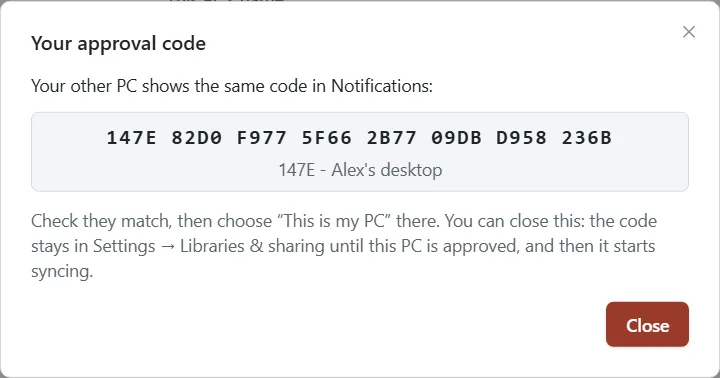
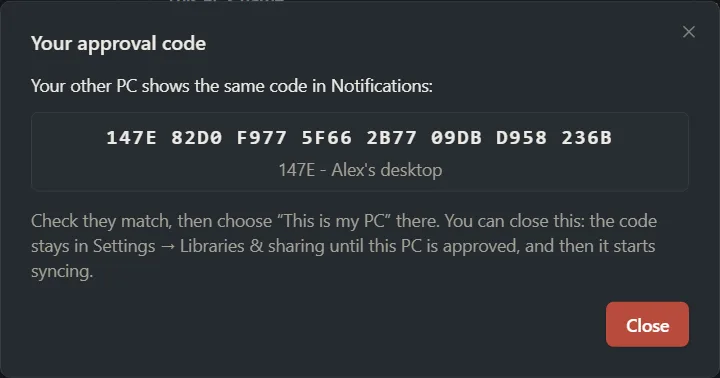
You add a PC from a PC you already have: the new PC asks, both PCs show the same approval code, and you confirm on the PC you already use. You don’t need your recovery kit for this. Your new PC gets your keys once it’s approved. PCs are shown as their approval code’s first four characters and the PC’s name, for example “38C5 - Alex’s laptop”. To name a PC, go to Settings → Libraries & sharing, and type a name under This PC’s name (more).
Your personal library
On the PC you already use
-
Click Settings in the sidebar, then Libraries & sharing.
-
Under Libraries, find Personal and click Use on my other PCs.
-
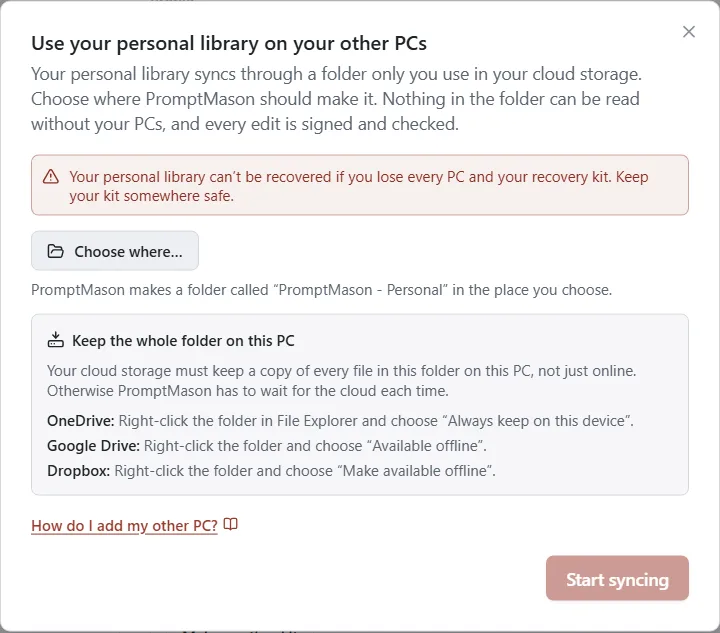
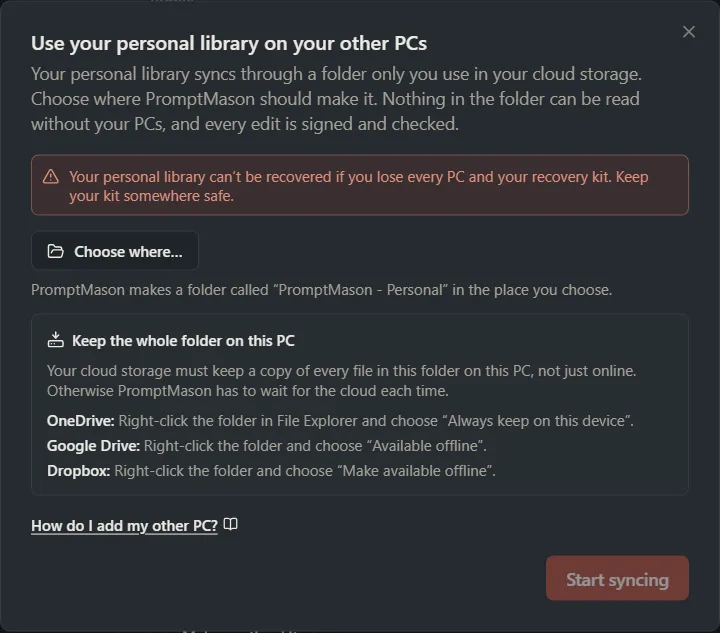
Read the note: your personal library can’t be recovered if you lose every PC and your recovery kit.
-
Click Choose where… and pick where in your cloud storage the library should go, for example the top of your OneDrive or Dropbox. In Google Drive, open the Google Drive drive (usually G:) and pick My Drive: Google Drive doesn’t allow new folders at the top of the drive itself. PromptMason makes a folder there called PromptMason - Personal, only for your personal library.
-
Make sure your cloud storage keeps the whole folder on this PC. See Keep the whole folder on every PC.
-
Click Start syncing.
-
If this is the first time PromptMason needs your keys, save your recovery kit and click I’ve saved my kit (how).
-
Click Close.
On the new PC
-
Install PromptMason and open it.
-
Wait for your cloud storage to bring the folder down to this PC, and set it to keep the whole folder on this PC.
-
Click Settings in the sidebar, then Libraries & sharing.
-
Under Libraries, find Personal and click Join from another PC.
-
Click Choose folder… and pick the PromptMason - Personal folder, as it appears on this PC.
-
Click Ask to add this PC.
-
Your approval code appears, with this PC’s name under it. Leave this window open until you’ve compared the code on your other PC: the personal library doesn’t show it again.
Back on the PC you already use
-
Click the bell in the top-right corner to open Notifications.
-
Under To do, find Is this your PC? and click Review.
-
Check the code matches the one on the new PC, character for character.
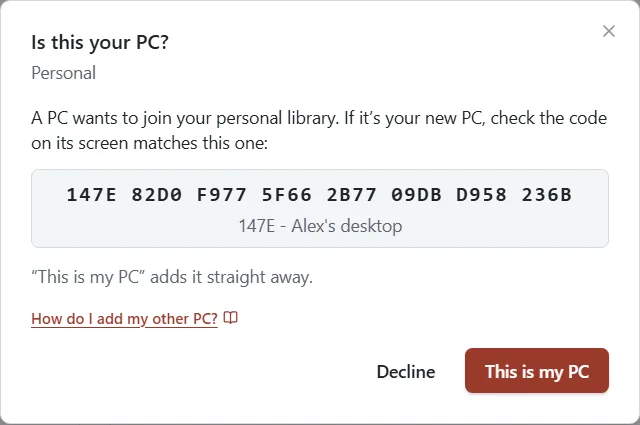
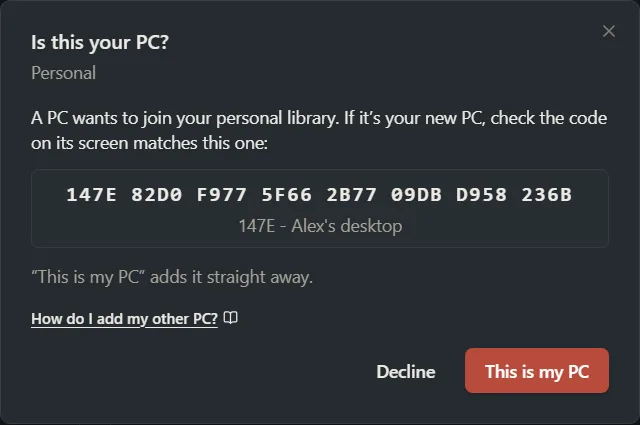
-
Click This is my PC. On your approving PC, this confirms the new PC is yours and adds it in one click. Your approving PC is the one that approves changes to your PCs. If you only have one PC, it’s that one.
The new PC starts syncing on its own. You can click Close on it.
If the code doesn’t match, or you don’t recognize the PC, click Decline on your approving PC instead. On your other PCs the button is Not mine, which only closes the window: the item stays in Notifications until your approving PC declines the PC.
If you have more than one PC already, it’s quickest on your approving PC (more). If you click This is my PC on one of your other PCs instead, your approving PC then shows A member’s new PC asked to join: click Review, then Approve.
What your other PCs get
Your personal library is the same on every PC you sync it to:
- your blocks, prompts and documents, with their folders, tags, comments and archive state, and what’s in Recently deleted,
- notes, expected outputs and their attached files, and your variables,
- your favorites and star ratings,
- the version history of every item, including the versions you saved before you started syncing.
A new PC gets all of this when it joins. A library with a long history can take a few minutes to come down, and you can keep working meanwhile.
Two things stay on the PC where they were made: the values PromptMason remembers for variables that ask each time (more), and the AI assist activity list.
If your PCs were syncing before your favorites and version history followed you, update PromptMason on every PC. Each PC then sends its favorites and history once. You keep the hearts from every PC, and each version shows once.
Your settings on every PC
Your settings follow your personal library to every PC you sync it to. Change a setting on one PC and your other PCs pick it up when they next sync. If you change the same setting on two PCs, the last change wins.
A new PC takes the settings your library already has, in place of its own. If two of your PCs were syncing before your settings followed you, both end up with your approving PC’s settings. To keep another PC’s settings instead, make that PC the approving PC before you update (how).
These follow you:
- Features: every switch, and the Home grid size.
- Your Home screen’s widgets and where they sit.
- Blocks & prompts: every row, including your block and prompt types.
- Theme, Spellcheck and your keyboard shortcuts.
- Expand comments by default, and which columns your lists show.
- Chat instructions, AI assist instructions, and your Default AI provider with the models you added.
- Your web tab Bookmarks, and how many days Browsing history keeps pages.
- The block packs you’ve added, so adding a pack again on another PC doesn’t add it twice.
These stay on each PC: your API keys and your own AI server, the local model and its tool switches, What connected apps can do, This PC’s name, App Lock, Remember values on this computer, Install updates automatically, automatic backups, your chats and browsing history, and your license key.
If your default AI isn’t set up on a PC yet (no API key there, or the local model not downloaded), that PC uses the AI it has until you set it up.
A PC with an older version of PromptMason shows Update PromptMason to read a change from and your name until you update it (how).
Team libraries never carry settings, so nobody else can change yours.
A team library
You need the library’s invite, and the shared folder must be on the new PC in your cloud storage. The invite is the line starting with promptmason-library: that you were sent when you joined. If you don’t have it, ask the library’s primary owner.
On the new PC
- Install PromptMason and open it.
- Click Settings in the sidebar, then Libraries & sharing.
- Under Libraries, click Join a team library.
- Paste the invite under Invite and click Next.
- Click Choose folder…, pick the library’s folder (PromptMason - [library name]) as it appears on this PC, and click Next.
- Choose Yes, this is another of my PCs.
- Click Ask to join.
- Your approval code appears. Leave it on screen.
If the new PC already has your keys
If the new PC is already in another of your libraries (your personal library, say), it already holds your keys. Nothing else is needed on your other PCs. The primary owner sees A member’s new PC asked to join, “proven by” your own identity, and approves it with one click. Once approved, it syncs everything.
Otherwise, on a PC you already use in that library
- Click the bell in the top-right corner.
- Find Is this your PC? and click Review.
- Check the code matches the one on the new PC.
- Click This is my PC.
The library’s primary owner then sees A member’s new PC asked to join and approves it with one click; no call is needed. Once approved, the new PC syncs everything and gets your keys.
Your favorites in a team library follow you to each of your PCs in it. They’re yours: nobody else in the library sees them or gets them.
If you’re the library’s primary owner yourself, use your approving PC: it shows A PC is waiting to be confirmed instead. Click Review, check the code, and click This is my PC. That confirms it’s yours and approves it in one click.
If you don’t recognize a PC asking to join as you, click Not mine and tell the primary owner, who declines it. The item stays in Notifications until they do.
If PromptMason can’t add the PC
If PromptMason says it can’t join, see Sync problems for each message and what to do. Two examples are “That folder is still coming down from your cloud storage. Set it to keep a copy on this PC, then try again in a minute.” and “That folder doesn’t match the invite. Check you picked the folder you were sent.”
See or remove your PCs
Click Settings in the sidebar, then Libraries & sharing, and click Manage next to Personal. Your PCs lists each PC; Approving PC marks the one that adds and removes PCs. To remove one, see Remove a person or a PC.
If the folder was moved or is gone
If you moved or renamed the PromptMason - Personal folder, each PC says Can’t reach the library folder. On each PC, click Choose the folder again in Notifications, then Choose the folder again…, and pick the folder where it is now.
If the folder is gone for good, put your personal library in a new folder from your approving PC:
- Open Settings → Libraries & sharing and click Manage next to Personal.
- Under Sync, click Put Personal in a new folder…. (This button shows only while PromptMason can’t reach the folder or found it empty.)
- Pick where the new folder should go, then click OK to confirm. PromptMason makes a new folder there and copies your library into it from this PC.
- On each of your other PCs, click Choose the folder again in Notifications, then Choose the folder again…, and pick the new folder.
For other causes and fixes, see Sync problems.
Lost your other PCs?
This guide is for adding a PC while you still have another one. If you have no working PC left, see Lost or stolen PC or kit.
Keep the whole folder on every PC
Your cloud storage must keep a copy of every file in the library’s folder on each PC, not only online. Otherwise PromptMason waits for the cloud each time. Do this on every PC:
- OneDrive or SharePoint: in File Explorer, right-click the folder and choose Always keep on this device.
- Google Drive: in File Explorer, right-click the folder, choose Offline access, then Available offline. (If Google Drive is set to mirror your files, they’re already on the PC.)
- Dropbox: right-click the folder and choose Make available offline.
- A network drive: nothing to do, as long as the PC can reach it.
Want a hand?
Copy this prompt into Claude, ChatGPT or another AI assistant, and it walks you through it step by step.
I use PromptMason on one PC and want my library on my second PC too. Walk me through it step by step, and tell me what to check on each PC.
Copy adds a short note about PromptMason and this guide's steps, so the assistant has what it needs.
I use PromptMason on one PC and want my library on my second PC too. Walk me through it step by step, and tell me what to check on each PC. About PromptMason: a Windows desktop app for building AI prompts from reusable blocks. A person writes blocks (reusable pieces of prompt text), builds prompts from them on the Build screen (or keeps a Markdown document, such as a Skill), and copies a prompt into an AI tool, runs it in PromptMason’s own Chat, or lets a connected AI agent use it through PromptMason’s built-in MCP server (the Chrome extension copies prompts on any website). AI assist, Evaluate and Chat use a local model that runs on the person’s PC, or their own AI provider. The guides are also on PromptMason’s Help screen, and Chat can answer “how do I” questions from them. Libraries hold the blocks and prompts; a person can sync their personal library to their other PCs and share team libraries, both through a folder in cloud storage they already have (OneDrive, Google Drive or Dropbox). Everything synced is encrypted and every edit is signed and checked. A recovery kit (a file plus a code) is the spare copy of the person’s keys, for when every PC is lost. The official guide for this is "Use your library on a second PC": https://promptmason.ai/docs/second-pc Its full text follows, between the lines. Use it as the source of truth, and if anything I see differs from it, tell me rather than guessing. --- Your libraries sync through a folder in the cloud storage you already use (OneDrive, Google Drive, Dropbox, or a network drive). Nothing in the folder can be read without your PCs, and every edit is signed and checked. You add a PC from a PC you already have: the new PC asks, both PCs show the same approval code, and you confirm on the PC you already use. You don't need your recovery kit for this. Your new PC gets your keys once it's approved. PCs are shown as their approval code's first four characters and the PC's name, for example "38C5 - Alex's laptop". To name a PC, go to **Settings → Libraries & sharing**, and type a name under **This PC’s name** ([more](https://promptmason.ai/docs/libraries#your-name-and-this-pcs-name)). ## Your personal library ### On the PC you already use 1. Click **Settings** in the sidebar, then **Libraries & sharing**. 2. Under **Libraries**, find **Personal** and click **Use on my other PCs**. 3. Read the note: your personal library can't be recovered if you lose every PC and your recovery kit. 4. Click **Choose where…** and pick where in your cloud storage the library should go, for example the top of your OneDrive or Dropbox. In Google Drive, open the Google Drive drive (usually G:) and pick **My Drive**: Google Drive doesn't allow new folders at the top of the drive itself. PromptMason makes a folder there called **PromptMason - Personal**, only for your personal library. 5. Make sure your cloud storage keeps the whole folder on this PC. See [Keep the whole folder on every PC](#keep-the-whole-folder-on-every-pc). 6. Click **Start syncing**. 7. If this is the first time PromptMason needs your keys, save your recovery kit and click **I’ve saved my kit** ([how](https://promptmason.ai/docs/recovery-kit#save-your-kit)). 8. Click **Close**. ### On the new PC 1. Install PromptMason and open it. 2. Wait for your cloud storage to bring the folder down to this PC, and set it to keep the whole folder on this PC. 3. Click **Settings** in the sidebar, then **Libraries & sharing**. 4. Under **Libraries**, find **Personal** and click **Join from another PC**. 5. Click **Choose folder…** and pick the **PromptMason - Personal** folder, as it appears on this PC. 6. Click **Ask to add this PC**. 7. **Your approval code** appears, with this PC's name under it. Leave this window open until you've compared the code on your other PC: the personal library doesn't show it again. ### Back on the PC you already use 1. Click the bell in the top-right corner to open Notifications. 2. Under **To do**, find **Is this your PC?** and click **Review**. 3. Check the code matches the one on the new PC, character for character. 4. Click **This is my PC**. On your approving PC, this confirms the new PC is yours and adds it in one click. Your approving PC is the one that approves changes to your PCs. If you only have one PC, it's that one. The new PC starts syncing on its own. You can click **Close** on it. If the code doesn't match, or you don't recognize the PC, click **Decline** on your approving PC instead. On your other PCs the button is **Not mine**, which only closes the window: the item stays in Notifications until your approving PC declines the PC. If you have more than one PC already, it's quickest on your **approving PC** ([more](https://promptmason.ai/docs/primary-owner#your-approving-pc)). If you click **This is my PC** on one of your other PCs instead, your approving PC then shows **A member’s new PC asked to join**: click **Review**, then **Approve**. ## What your other PCs get Your personal library is the same on every PC you sync it to: - your blocks, prompts and documents, with their folders, tags, comments and archive state, and what's in **Recently deleted**, - notes, expected outputs and their attached files, and your variables, - your favorites and star ratings, - the version history of every item, including the versions you saved before you started syncing. A new PC gets all of this when it joins. A library with a long history can take a few minutes to come down, and you can keep working meanwhile. Two things stay on the PC where they were made: the values PromptMason remembers for variables that ask each time ([more](https://promptmason.ai/docs/data-on-this-pc#remember-values-on-this-computer)), and the **AI assist activity** list. If your PCs were syncing before your favorites and version history followed you, update PromptMason on every PC. Each PC then sends its favorites and history once. You keep the hearts from every PC, and each version shows once. ## Your settings on every PC Your settings follow your personal library to every PC you sync it to. Change a setting on one PC and your other PCs pick it up when they next sync. If you change the same setting on two PCs, the last change wins. A new PC takes the settings your library already has, in place of its own. If two of your PCs were syncing before your settings followed you, both end up with your approving PC's settings. To keep another PC's settings instead, make that PC the approving PC before you update ([how](https://promptmason.ai/docs/primary-owner#make-another-of-your-pcs-the-approving-pc)). These follow you: - **Features**: every switch, and the Home grid size. - Your Home screen's widgets and where they sit. - **Blocks & prompts**: every row, including your block and prompt types. - **Theme**, **Spellcheck** and your keyboard shortcuts. - **Expand comments by default**, and which columns your lists show. - **Chat instructions**, **AI assist instructions**, and your **Default AI provider** with the models you added. - Your web tab **Bookmarks**, and how many days **Browsing history** keeps pages. - The block packs you've added, so adding a pack again on another PC doesn't add it twice. These stay on each PC: your API keys and your own AI server, the local model and its tool switches, **What connected apps can do**, **This PC’s name**, **App Lock**, **Remember values on this computer**, **Install updates automatically**, automatic backups, your chats and browsing history, and your license key. If your default AI isn't set up on a PC yet (no API key there, or the local model not downloaded), that PC uses the AI it has until you set it up. A PC with an older version of PromptMason shows **Update PromptMason to read a change from** and your name until you update it ([how](https://promptmason.ai/docs/sync-problems#update-promptmason)). Team libraries never carry settings, so nobody else can change yours. ## A team library You need the library's invite, and the shared folder must be on the new PC in your cloud storage. The invite is the line starting with `promptmason-library:` that you were sent when you joined. If you don't have it, ask the library's [primary owner](https://promptmason.ai/docs/primary-owner). ### On the new PC 1. Install PromptMason and open it. 2. Click **Settings** in the sidebar, then **Libraries & sharing**. 3. Under **Libraries**, click **Join a team library**. 4. Paste the invite under **Invite** and click **Next**. 5. Click **Choose folder…**, pick the library's folder (**PromptMason - [library name]**) as it appears on this PC, and click **Next**. 6. Choose **Yes, this is another of my PCs**. 7. Click **Ask to join**. 8. **Your approval code** appears. Leave it on screen. ### If the new PC already has your keys If the new PC is already in another of your libraries (your personal library, say), it already holds your keys. Nothing else is needed on your other PCs. The primary owner sees **A member’s new PC asked to join**, "proven by" your own identity, and approves it with one click. Once approved, it syncs everything. ### Otherwise, on a PC you already use in that library 1. Click the bell in the top-right corner. 2. Find **Is this your PC?** and click **Review**. 3. Check the code matches the one on the new PC. 4. Click **This is my PC**. The library's primary owner then sees **A member’s new PC asked to join** and approves it with one click; no call is needed. Once approved, the new PC syncs everything and gets your keys. Your favorites in a team library follow you to each of your PCs in it. They're yours: nobody else in the library sees them or gets them. If you're the library's primary owner yourself, use your approving PC: it shows **A PC is waiting to be confirmed** instead. Click **Review**, check the code, and click **This is my PC**. That confirms it's yours and approves it in one click. If you don't recognize a PC asking to join as you, click **Not mine** and tell the primary owner, who declines it. The item stays in Notifications until they do. ## If PromptMason can't add the PC If PromptMason says it can't join, see [Sync problems](https://promptmason.ai/docs/sync-problems#library-folders-and-invites) for each message and what to do. Two examples are "That folder is still coming down from your cloud storage. Set it to keep a copy on this PC, then try again in a minute." and "That folder doesn’t match the invite. Check you picked the folder you were sent." ## See or remove your PCs Click **Settings** in the sidebar, then **Libraries & sharing**, and click **Manage** next to **Personal**. **Your PCs** lists each PC; **Approving PC** marks the one that adds and removes PCs. To remove one, see [Remove a person or a PC](https://promptmason.ai/docs/remove-someone#remove-one-pc). ## If the folder was moved or is gone If you moved or renamed the **PromptMason - Personal** folder, each PC says **Can’t reach the library folder**. On each PC, click **Choose the folder again** in Notifications, then **Choose the folder again…**, and pick the folder where it is now. If the folder is gone for good, put your personal library in a new folder from your approving PC: 1. Open **Settings → Libraries & sharing** and click **Manage** next to **Personal**. 2. Under **Sync**, click **Put Personal in a new folder…**. (This button shows only while PromptMason can't reach the folder or found it empty.) 3. Pick where the new folder should go, then click **OK** to confirm. PromptMason makes a new folder there and copies your library into it from this PC. 4. On each of your other PCs, click **Choose the folder again** in Notifications, then **Choose the folder again…**, and pick the new folder. For other causes and fixes, see [Sync problems](https://promptmason.ai/docs/sync-problems#cant-reach-the-library-folder). ## Lost your other PCs? This guide is for adding a PC while you still have another one. If you have no working PC left, see [Lost or stolen PC or kit](https://promptmason.ai/docs/lost-device#you-lost-every-pc-and-still-have-your-kit). ## Keep the whole folder on every PC Your cloud storage must keep a copy of every file in the library's folder on each PC, not only online. Otherwise PromptMason waits for the cloud each time. Do this on every PC: - **OneDrive or SharePoint:** in File Explorer, right-click the folder and choose **Always keep on this device**. - **Google Drive:** in File Explorer, right-click the folder, choose **Offline access**, then **Available offline**. (If Google Drive is set to mirror your files, they're already on the PC.) - **Dropbox:** right-click the folder and choose **Make available offline**. - **A network drive:** nothing to do, as long as the PC can reach it. --- How to help me: - Go one step at a time. After each step, ask what I see on screen before giving the next one. - Use the exact words on PromptMason’s buttons and screens, as the guide does. - Never ask me for my recovery code, my recovery kit file, a password or my invite line, and never ask me to paste them here. - Start by asking which step I’m on, or what I see now.