How your data is protected on this PC
What PromptMason encrypts on your PC, what it leaves readable so search works, and why the data folder can't be copied to another PC.
PromptMason encrypts your library on your PC’s disk. Encrypted means scrambled so that it can only be read with a key. This happens on its own: there’s no setting to turn on and no password to type.
This page is about your library on this PC. For when anything leaves the PC, see Privacy in PromptMason. For libraries that sync or back up, see How PromptMason keeps your libraries safe.
What’s encrypted
- The text of your blocks, prompts and Markdown documents, and every earlier version in their history
- The values of your variables
- Comments
- Expected output and the files attached to it
- Your chats and your web tabs’ browsing history
- Your AI provider keys and your license key
- The values PromptMason remembers for variables that ask each time (see Remember values on this computer)
What isn’t encrypted, and why
Some details are left readable so that search, filters and sorting stay fast:
- names of blocks, prompts, documents and variables
- types
- tags
- folders and how they’re arranged
- dates (when something was made or changed)
- descriptions of prompts and variables
- the names of attached files
- which blocks a prompt uses
- the address of Your own AI server, if you set one up (your AI provider keys are encrypted)
- your web-tab bookmarks (names and addresses)
- the list of web tabs you have open (their addresses and titles). The pages in your browsing history are encrypted; the tabs open right now aren’t.
The record of when you used AI assist isn’t encrypted either. It never holds the text that was sent or returned. It’s part of export files (which aren’t encrypted) and of backups (which are).
So someone who could open PromptMason’s files on your PC could see that you have a prompt named “Quarterly report summary” in a folder called “Finance”, but not the prompt’s text.
Unlocked by your Windows account
The key that unlocks your library is protected by Windows. It opens only when you’re signed in to this PC with the same Windows account you used when PromptMason first set it up. That’s why you never type a password for it.
This protects your library from someone who copies PromptMason’s files, takes the drive out of the PC, or signs in to the PC with a different Windows account.
It doesn’t protect against someone using your PC while you’re signed in to Windows. To guard against that, lock your PC when you step away, and turn on App Lock if other people can use it (Lock PromptMason with a password).
Copying the data folder doesn’t work
Because the key belongs to your Windows account on this PC, PromptMason’s data folder can’t be copied to another PC, or to another Windows account on the same PC. PromptMason can’t read it there and shows Could not load workspace data instead of your library. Your data isn’t lost: it’s still readable on the original PC and account.
To move your library, use one of these instead:
- Export and import: export everything on the old PC, then import the file on the new one (Export and import). This moves your personal library. You join team libraries from the new PC (Use your library on a second PC).
- Sync: keep your personal library on both PCs (Use your library on a second PC).
- A backup: restore your personal library from one of your backups on the new PC, using your recovery kit to open it (Backups).
If you already copied the folder and see Could not load workspace data, see Troubleshooting.
When your library leaves this PC
- An exported file isn’t encrypted. Anyone who opens it can read everything in it. Keep it somewhere only you can open (Export and import).
- Backups and synced libraries are locked. Only the PCs approved for a library, or your recovery kit, can open them (How PromptMason keeps your libraries safe).
- AI features send what you ask them to. When you use AI assist, Evaluate or Chat with a cloud provider, the text goes to that provider. With the local model, none of your text leaves your PC. See What AI features send, and where.
Remember values on this computer
When a variable asks for its value each time you copy or run a prompt, PromptMason can remember the last five values you typed for it, so you can pick one again. These values stay on this PC, encrypted. They are never exported, backed up or synced. This is on to start with.
To turn it off:
-
Click Settings in the sidebar, then Privacy & security.
-
Turn off the switch next to Remember values on this computer.


Turning it off forgets every remembered value straight away. There’s no confirmation, and they can’t be brought back. Turn it on again to start remembering new values.
See Variables for variables that ask each time.
What’s protected
The app has a short summary of this page:
-
Click Settings in the sidebar, then Privacy & security.
-
Next to What’s protected, click Show.
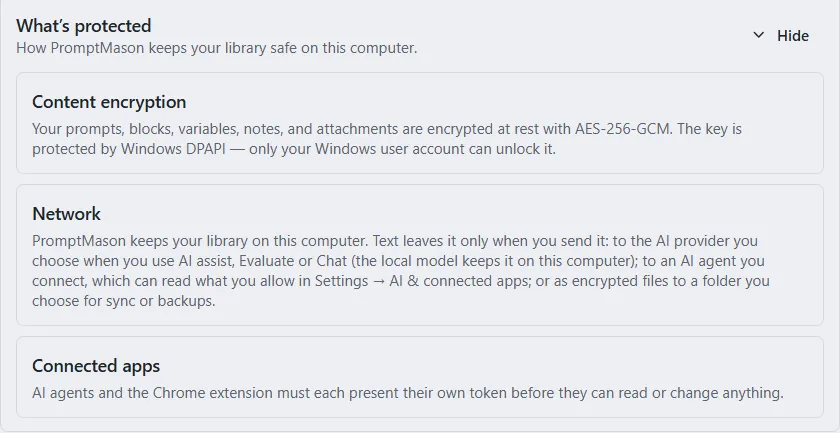
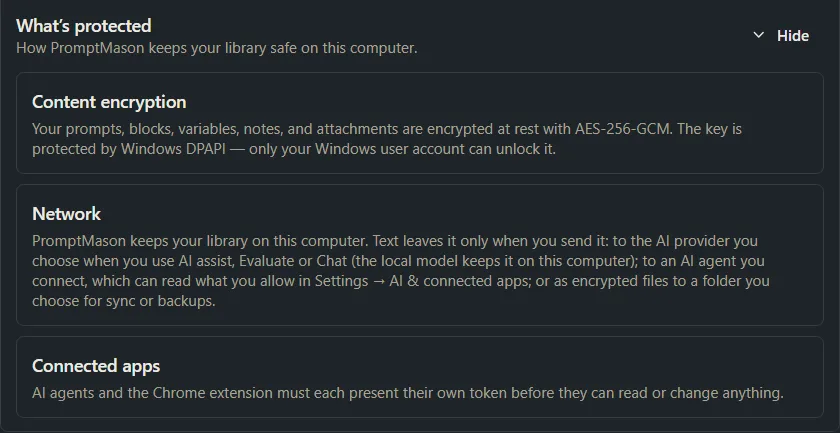
It lists three items: Content encryption, Network and Connected apps. In short:
- Content encryption: your prompts, blocks, variables, notes (comments) and attachments are encrypted on disk, with a key that only your Windows account can unlock. The list above is fuller: it also covers chats, browsing history, keys and more.
- Network: PromptMason keeps your library on this computer. Text leaves it when you send it to an AI provider, to an AI agent you connect, or as encrypted files to a folder you choose for sync or backups. When something leaves your PC lists every case.
- Connected apps: AI agents and the Chrome extension each need their own token, a kind of password made for them, before they can read or change anything (Control what connected apps can do).
Click Hide to close it.
What can leave your PC
PromptMason doesn’t upload your library to a PromptMason server. Text leaves your PC when you take an action that sends it. Running AI assist, Evaluate or Chat with a cloud provider sends it to that provider. Connecting an AI agent sends it to the agent’s service. Typing into a web tab sends it to that website. Choosing a folder for sync or backups puts encrypted files in that folder. If you’ve entered a license key, the license service run by our payment provider, Polar, also receives the key and a random ID for this PC, and this PC’s name when you activate the key. It never receives your library. Privacy in PromptMason lists each case.
Want a hand?
Copy this prompt into Claude, ChatGPT or another AI assistant, and it walks you through it step by step.
Explain in plain words how PromptMason protects my prompts on my PC, what someone with access to my computer could still see, and how I should move my library to a new PC.
Copy adds a short note about PromptMason and this guide's steps, so the assistant has what it needs.
Explain in plain words how PromptMason protects my prompts on my PC, what someone with access to my computer could still see, and how I should move my library to a new PC. About PromptMason: a Windows desktop app for building AI prompts from reusable blocks. A person writes blocks (reusable pieces of prompt text), builds prompts from them on the Build screen (or keeps a Markdown document, such as a Skill), and copies a prompt into an AI tool, runs it in PromptMason’s own Chat, or lets a connected AI agent use it through PromptMason’s built-in MCP server (the Chrome extension copies prompts on any website). AI assist, Evaluate and Chat use a local model that runs on the person’s PC, or their own AI provider. The guides are also on PromptMason’s Help screen, and Chat can answer “how do I” questions from them. Libraries hold the blocks and prompts; a person can sync their personal library to their other PCs and share team libraries, both through a folder in cloud storage they already have (OneDrive, Google Drive or Dropbox). Everything synced is encrypted and every edit is signed and checked. A recovery kit (a file plus a code) is the spare copy of the person’s keys, for when every PC is lost. The official guide for this is "How your data is protected on this PC": https://promptmason.ai/docs/data-on-this-pc Its full text follows, between the lines. Use it as the source of truth, and if anything I see differs from it, tell me rather than guessing. --- PromptMason encrypts your library on your PC's disk. Encrypted means scrambled so that it can only be read with a key. This happens on its own: there's no setting to turn on and no password to type. This page is about your library on this PC. For when anything leaves the PC, see [Privacy in PromptMason](https://promptmason.ai/docs/privacy-overview). For libraries that sync or back up, see [How PromptMason keeps your libraries safe](https://promptmason.ai/docs/security-overview). ## What's encrypted - The text of your blocks, prompts and Markdown documents, and every earlier version in their history - The values of your variables - Comments - Expected output and the files attached to it - Your chats and your web tabs' browsing history - Your AI provider keys and your license key - The values PromptMason remembers for variables that ask each time (see [Remember values on this computer](#remember-values-on-this-computer)) ## What isn't encrypted, and why Some details are left readable so that search, filters and sorting stay fast: - names of blocks, prompts, documents and variables - types - tags - folders and how they're arranged - dates (when something was made or changed) - descriptions of prompts and variables - the names of attached files - which blocks a prompt uses - the address of **Your own AI server**, if you set one up (your AI provider keys are encrypted) - your web-tab bookmarks (names and addresses) - the list of web tabs you have open (their addresses and titles). The pages in your browsing history are encrypted; the tabs open right now aren't. The record of when you used AI assist isn't encrypted either. It never holds the text that was sent or returned. It's part of export files (which aren't encrypted) and of backups (which are). So someone who could open PromptMason's files on your PC could see that you have a prompt named "Quarterly report summary" in a folder called "Finance", but not the prompt's text. ## Unlocked by your Windows account The key that unlocks your library is protected by Windows. It opens only when you're signed in to this PC with the same Windows account you used when PromptMason first set it up. That's why you never type a password for it. This protects your library from someone who copies PromptMason's files, takes the drive out of the PC, or signs in to the PC with a different Windows account. It doesn't protect against someone using your PC while you're signed in to Windows. To guard against that, lock your PC when you step away, and turn on App Lock if other people can use it ([Lock PromptMason with a password](https://promptmason.ai/docs/app-lock)). ## Copying the data folder doesn't work Because the key belongs to your Windows account on this PC, PromptMason's data folder can't be copied to another PC, or to another Windows account on the same PC. PromptMason can't read it there and shows **Could not load workspace data** instead of your library. Your data isn't lost: it's still readable on the original PC and account. To move your library, use one of these instead: - **Export and import:** export everything on the old PC, then import the file on the new one ([Export and import](https://promptmason.ai/docs/export-import#move-to-a-new-pc)). This moves your personal library. You join team libraries from the new PC ([Use your library on a second PC](https://promptmason.ai/docs/second-pc#a-team-library)). - **Sync:** keep your personal library on both PCs ([Use your library on a second PC](https://promptmason.ai/docs/second-pc)). - **A backup:** restore your personal library from one of your backups on the new PC, using your recovery kit to open it ([Backups](https://promptmason.ai/docs/backups#restore-a-backup)). If you already copied the folder and see **Could not load workspace data**, see [Troubleshooting](https://promptmason.ai/docs/troubleshooting). ## When your library leaves this PC - **An exported file isn't encrypted.** Anyone who opens it can read everything in it. Keep it somewhere only you can open ([Export and import](https://promptmason.ai/docs/export-import#keep-the-file-somewhere-safe)). - **Backups and synced libraries are locked.** Only the PCs approved for a library, or your recovery kit, can open them ([How PromptMason keeps your libraries safe](https://promptmason.ai/docs/security-overview)). - **AI features send what you ask them to.** When you use AI assist, Evaluate or Chat with a cloud provider, the text goes to that provider. With the local model, none of your text leaves your PC. See [What AI features send, and where](https://promptmason.ai/docs/ai-privacy). ## Remember values on this computer When a variable asks for its value each time you copy or run a prompt, PromptMason can remember the last five values you typed for it, so you can pick one again. These values stay on this PC, encrypted. They are never exported, backed up or synced. This is on to start with. To turn it off: 1. Click **Settings** in the sidebar, then **Privacy & security**. 2. Turn off the switch next to **Remember values on this computer**. Turning it off forgets every remembered value straight away. There's no confirmation, and they can't be brought back. Turn it on again to start remembering new values. See [Variables](https://promptmason.ai/docs/variables) for variables that ask each time. ## What’s protected The app has a short summary of this page: 1. Click **Settings** in the sidebar, then **Privacy & security**. 2. Next to **What’s protected**, click **Show**. It lists three items: **Content encryption**, **Network** and **Connected apps**. In short: - **Content encryption:** your prompts, blocks, variables, notes (comments) and attachments are encrypted on disk, with a key that only your Windows account can unlock. The list [above](#whats-encrypted) is fuller: it also covers chats, browsing history, keys and more. - **Network:** PromptMason keeps your library on this computer. Text leaves it when you send it to an AI provider, to an AI agent you connect, or as encrypted files to a folder you choose for sync or backups. [When something leaves your PC](https://promptmason.ai/docs/privacy-overview#when-something-leaves-your-pc) lists every case. - **Connected apps:** AI agents and the Chrome extension each need their own token, a kind of password made for them, before they can read or change anything ([Control what connected apps can do](https://promptmason.ai/docs/agent-access)). Click **Hide** to close it. ### What can leave your PC PromptMason doesn't upload your library to a PromptMason server. Text leaves your PC when you take an action that sends it. Running AI assist, Evaluate or Chat with a cloud provider sends it to that provider. Connecting an AI agent sends it to the agent's service. Typing into a web tab sends it to that website. Choosing a folder for sync or backups puts encrypted files in that folder. If you've entered a license key, the license service run by our payment provider, Polar, also receives the key and a random ID for this PC, and this PC's name when you activate the key. It never receives your library. [Privacy in PromptMason](https://promptmason.ai/docs/privacy-overview#when-something-leaves-your-pc) lists each case. --- How to help me: - Go one step at a time. After each step, ask what I see on screen before giving the next one. - Use the exact words on PromptMason’s buttons and screens, as the guide does. - Never ask me for my recovery code, my recovery kit file, a password or my invite line, and never ask me to paste them here. - Start by asking which step I’m on, or what I see now.