Your first prompt
Install PromptMason, see how your 14 days of Pro and the license key work, make your first block, build a prompt from it and copy it.
This walkthrough takes you from installing PromptMason to your first prompt, built from a reusable block. Each step links to a guide with more detail.
A block is a reusable piece of prompt text, like “Act as a careful editor” or “Answer in three bullet points”. A prompt is what you paste into an AI tool. You build prompts from blocks, so a block you improve once improves every prompt that uses it.
1. Install
On the Download page, click Download and enter your email. The next page gives you the installer. You don’t need a key.
Open the installer. If Windows shows a blue Windows protected your PC screen, click More info, check the publisher it names, then click Run anyway. The installation guide gives the publisher’s name to look for.
2. Choose how to start
The first time you open PromptMason it asks How would you like to start?
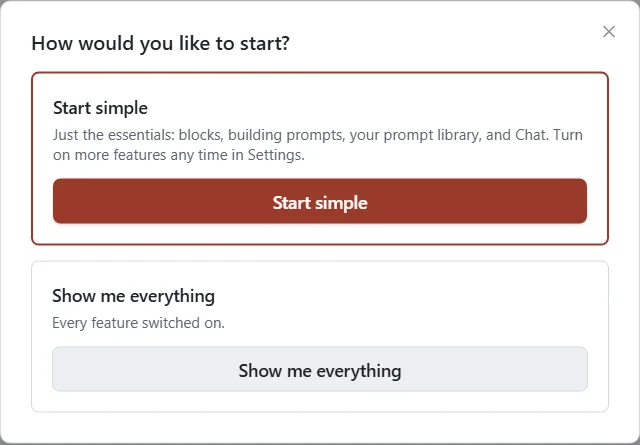
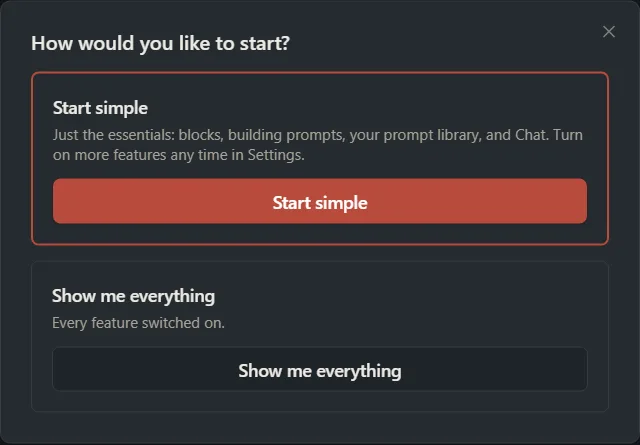
- Start simple shows the essentials: blocks, building prompts, your prompt library and Chat. Every other optional feature is off, including the Home screen, so PromptMason opens on the Prompts screen.
- Show me everything turns every feature on, and PromptMason opens on Home.
Closing the question without choosing counts as Start simple. You can turn features on or off any time in Settings → Features. See Show or hide features.
3. Your 14 days of Pro
Your 14 days of Pro start by themselves. You don’t need a key. After 14 days, PromptMason moves to the Free plan.
Right after you choose, PromptMason opens Settings → Plan once, at License key, with the line “Have a key? Paste it here, then select Activate.” Only enter a key if you bought Pro or support gave you one. Otherwise, close Settings and carry on.


See Your trial and license key.
4. Add the Starter pack, or not
While your library is empty, a card appears in the bottom-right corner: Start with ready-made blocks?
- Click Add the starter pack to add ready-made blocks, prompts and sample variables for everyday work. The card says how many. You can change or delete any of them.
- Click Not now to start from nothing.
Once you click either button, the card doesn’t come back. You can add the Starter pack, or the packs for finance, legal, marketing, sales, HR and customer support, later in Settings → Backup & data, under Block packs. See Add a block pack.
5. Make a block
-
Click Blocks in the sidebar.
-
Click New block.
-
Type a name in the New block name… box.
-
Write the block’s text in the box under it.
-
Under Properties, at the bottom of the pane, pick a Type, such as Role or Task.
-
Click Save: the disk icon at the top right of the pane. Ctrl+S also saves.
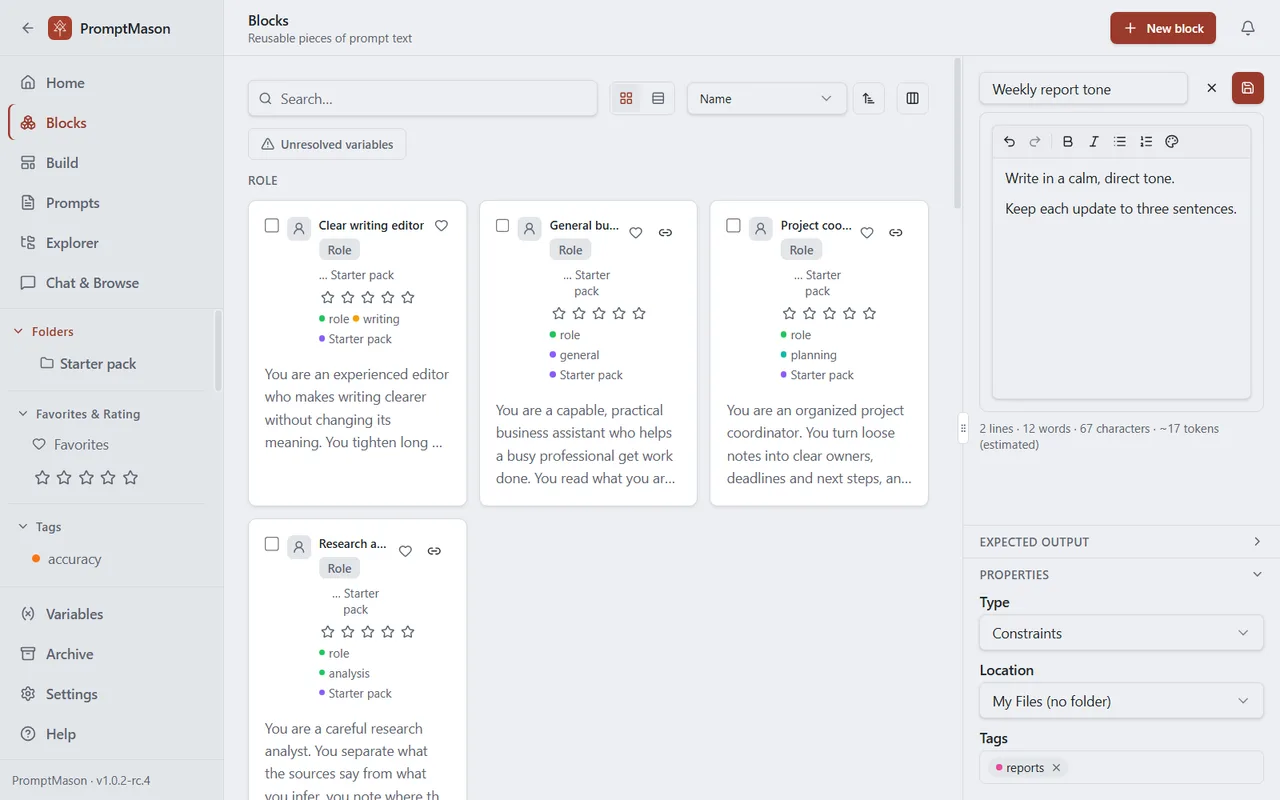
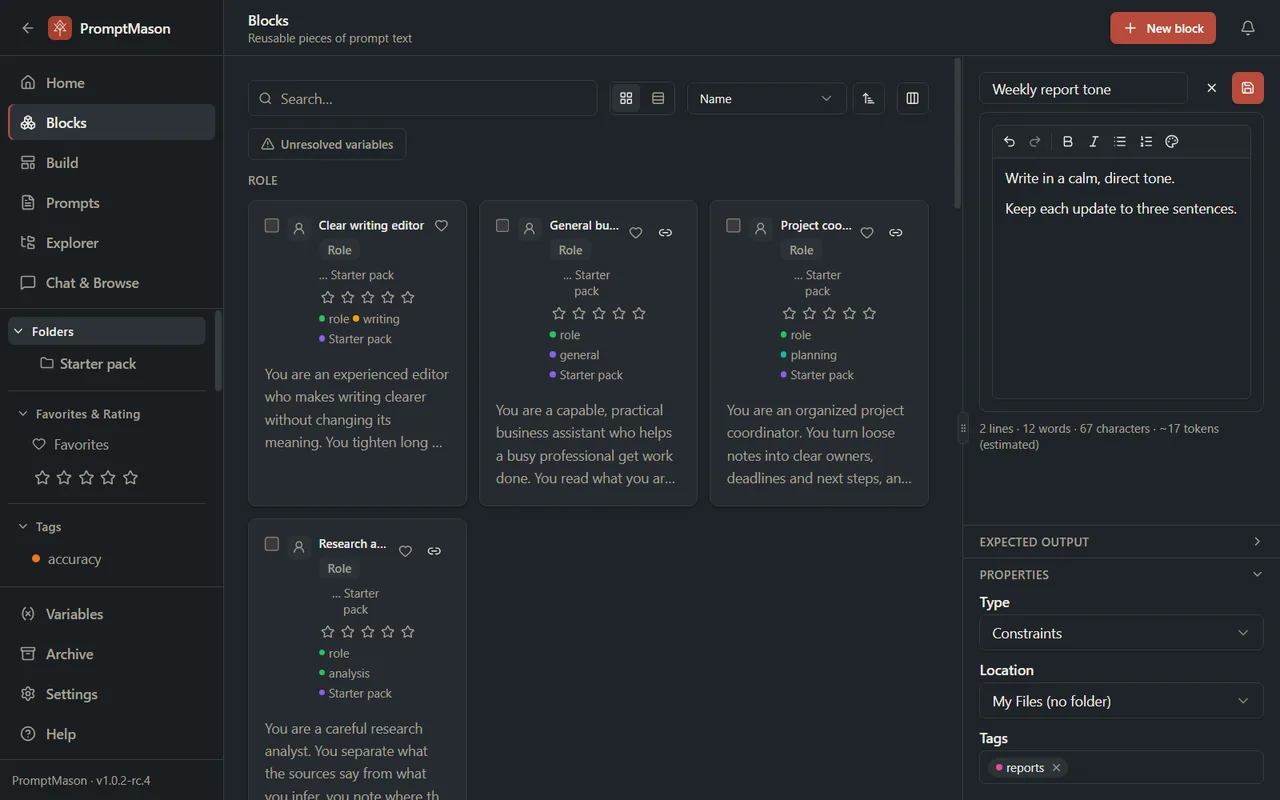
The block opens in the pane, ready to use. Save stays grayed out until the block has a name and some text. For more about blocks, see Create and edit blocks.
6. Build a prompt
-
Click Build in the sidebar. Your blocks are listed on the left, under Blocks.
-
Double-click a block to add it to the end of the prompt, or drag it into the middle of the screen.
-
Add more blocks the same way. To change the order, drag a block by the dotted grip at its left edge, or click the small up and down arrows next to it.
-
Type a name in the Name this prompt… box at the top.
-
Click Save as Dynamic or Save as Static:
- Save as Dynamic keeps the prompt linked to its blocks. When you edit a block, every dynamic prompt that uses it changes too.
- Save as Static saves the prompt’s text as it reads now. Later changes to the blocks don’t change it.
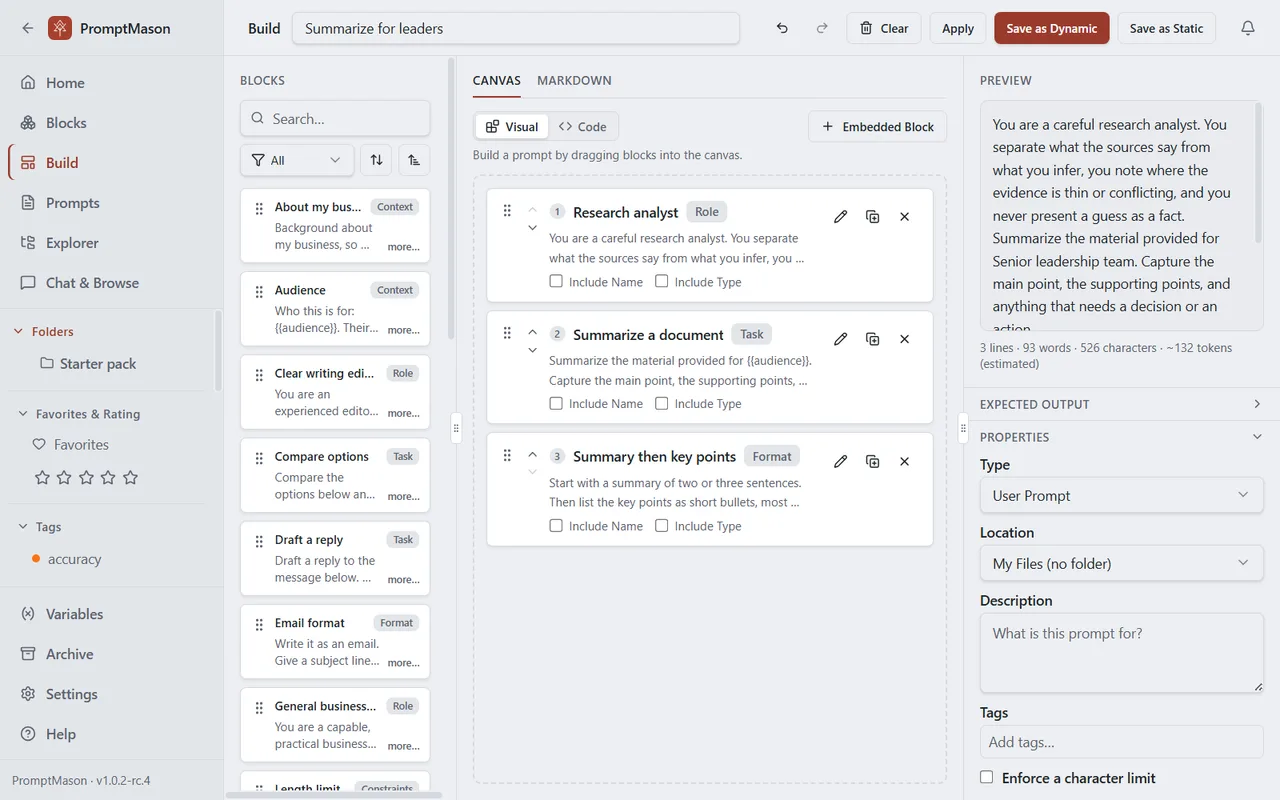
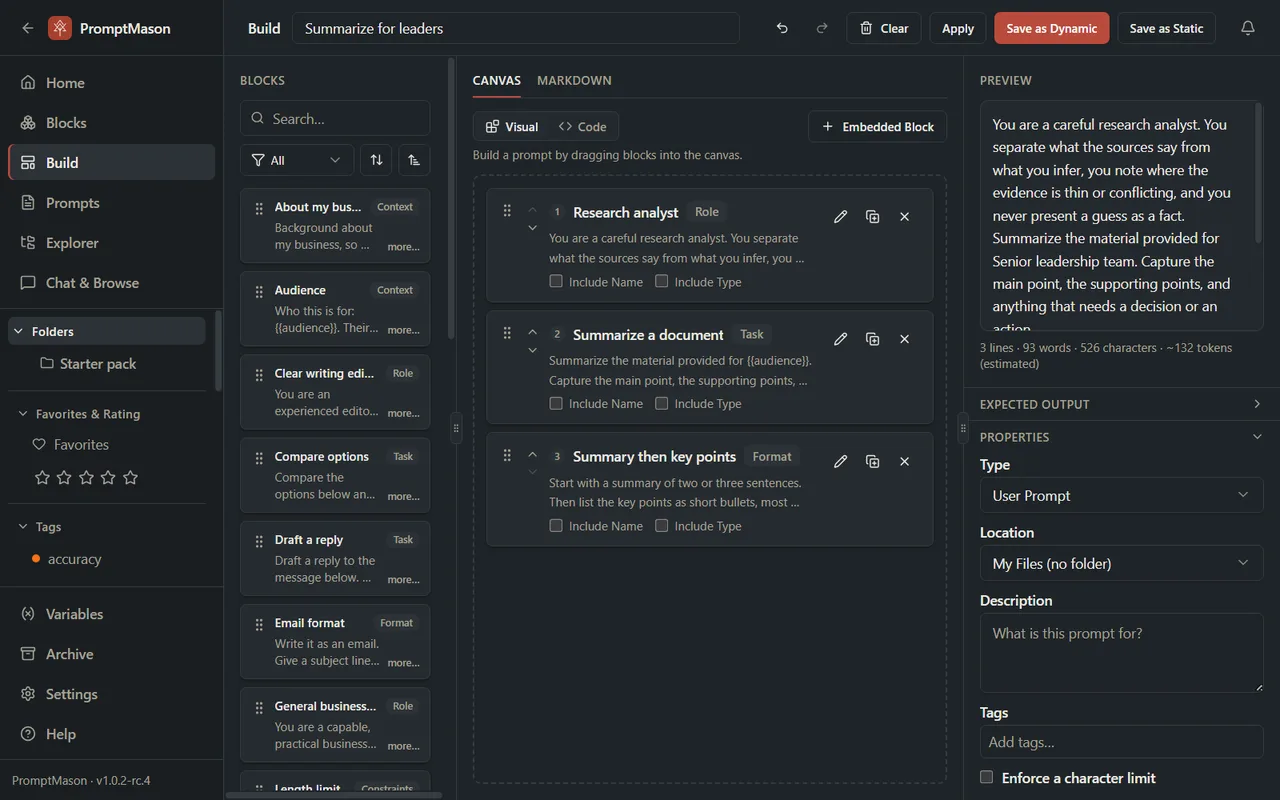
PromptMason saves the prompt and moves to the Prompts screen.
To change a dynamic prompt later, click it on the Prompts screen and click Open in Build (the pencil). The save button then reads Update Prompt. Apply saves and keeps you on Build. See Build a prompt and Static prompts, dynamic prompts and documents.
7. Copy it
- Click Prompts in the sidebar and click your prompt.
- Click Copy to Clipboard. The button reads Copied for a moment.
- Paste the prompt into your AI tool.
If the prompt uses a variable that asks for its value each time, Fill in your values opens first. Type a value in each box and click Copy.
For more ways to copy, including copying only some of a prompt’s blocks, see Copy and use a prompt.
Next steps
- A tour of PromptMason: what each screen is for.
- Variables: fill in names, dates and other details each time you copy.
- Free, private AI on your PC: download PromptMason’s own AI model, free on every plan, to improve your text with AI assist or run prompts in Chat, with nothing sent off your PC.
- PromptMason’s built-in MCP server: let Claude Desktop, Cursor or Claude Code search and use your blocks and prompts directly.
- Back up your library.
- Privacy in PromptMason: your library is kept on your PC, and this page lists when anything leaves it.
Want a hand?
Copy this prompt into Claude, ChatGPT or another AI assistant, and it walks you through it step by step.
I just installed PromptMason. Walk me through my 14 days of Pro, making my first block, building a prompt from it and copying it into ChatGPT.
Copy adds a short note about PromptMason and this guide's steps, so the assistant has what it needs.
I just installed PromptMason. Walk me through my 14 days of Pro, making my first block, building a prompt from it and copying it into ChatGPT. About PromptMason: a Windows desktop app for building AI prompts from reusable blocks. A person writes blocks (reusable pieces of prompt text), builds prompts from them on the Build screen (or keeps a Markdown document, such as a Skill), and copies a prompt into an AI tool, runs it in PromptMason’s own Chat, or lets a connected AI agent use it through PromptMason’s built-in MCP server (the Chrome extension copies prompts on any website). AI assist, Evaluate and Chat use a local model that runs on the person’s PC, or their own AI provider. The guides are also on PromptMason’s Help screen, and Chat can answer “how do I” questions from them. Libraries hold the blocks and prompts; a person can sync their personal library to their other PCs and share team libraries, both through a folder in cloud storage they already have (OneDrive, Google Drive or Dropbox). Everything synced is encrypted and every edit is signed and checked. A recovery kit (a file plus a code) is the spare copy of the person’s keys, for when every PC is lost. The official guide for this is "Your first prompt": https://promptmason.ai/docs/getting-started Its full text follows, between the lines. Use it as the source of truth, and if anything I see differs from it, tell me rather than guessing. --- This walkthrough takes you from installing PromptMason to your first prompt, built from a reusable block. Each step links to a guide with more detail. A **block** is a reusable piece of prompt text, like "Act as a careful editor" or "Answer in three bullet points". A **prompt** is what you paste into an AI tool. You build prompts from blocks, so a block you improve once improves every prompt that uses it. ## 1. Install On the [Download](https://promptmason.ai/download) page, click **Download** and enter your email. The next page gives you the installer. You don't need a key. Open the installer. If Windows shows a blue **Windows protected your PC** screen, click **More info**, check the publisher it names, then click **Run anyway**. The [installation guide](https://promptmason.ai/docs/installation#install) gives the publisher's name to look for. ## 2. Choose how to start The first time you open PromptMason it asks **How would you like to start?** - **Start simple** shows the essentials: blocks, building prompts, your prompt library and Chat. Every other optional feature is off, including the Home screen, so PromptMason opens on the **Prompts** screen. - **Show me everything** turns every feature on, and PromptMason opens on **Home**. Closing the question without choosing counts as **Start simple**. You can turn features on or off any time in **Settings → Features**. See [Show or hide features](https://promptmason.ai/docs/features). ## 3. Your 14 days of Pro Your 14 days of Pro start by themselves. You don't need a key. After 14 days, PromptMason moves to the Free plan. Right after you choose, PromptMason opens **Settings → Plan** once, at **License key**, with the line "Have a key? Paste it here, then select Activate." Only enter a key if you bought Pro or support gave you one. Otherwise, close Settings and carry on. See [Your trial and license key](https://promptmason.ai/docs/license). ## 4. Add the Starter pack, or not While your library is empty, a card appears in the bottom-right corner: **Start with ready-made blocks?** - Click **Add the starter pack** to add ready-made blocks, prompts and sample variables for everyday work. The card says how many. You can change or delete any of them. - Click **Not now** to start from nothing. Once you click either button, the card doesn't come back. You can add the Starter pack, or the packs for finance, legal, marketing, sales, HR and customer support, later in **Settings → Backup & data**, under **Block packs**. See [Add a block pack](https://promptmason.ai/docs/block-packs). ## 5. Make a block 1. Click **Blocks** in the sidebar. 2. Click **New block**. 3. Type a name in the **New block name…** box. 4. Write the block's text in the box under it. 5. Under **Properties**, at the bottom of the pane, pick a **Type**, such as Role or Task. 6. Click **Save**: the disk icon at the top right of the pane. Ctrl+S also saves. The block opens in the pane, ready to use. **Save** stays grayed out until the block has a name and some text. For more about blocks, see [Create and edit blocks](https://promptmason.ai/docs/blocks). ## 6. Build a prompt 1. Click **Build** in the sidebar. Your blocks are listed on the left, under **Blocks**. 2. Double-click a block to add it to the end of the prompt, or drag it into the middle of the screen. 3. Add more blocks the same way. To change the order, drag a block by the dotted grip at its left edge, or click the small up and down arrows next to it. 4. Type a name in the **Name this prompt…** box at the top. 5. Click **Save as Dynamic** or **Save as Static**: - **Save as Dynamic** keeps the prompt linked to its blocks. When you edit a block, every dynamic prompt that uses it changes too. - **Save as Static** saves the prompt's text as it reads now. Later changes to the blocks don't change it. PromptMason saves the prompt and moves to the **Prompts** screen. To change a dynamic prompt later, click it on the **Prompts** screen and click **Open in Build** (the pencil). The save button then reads **Update Prompt**. **Apply** saves and keeps you on Build. See [Build a prompt](https://promptmason.ai/docs/build-prompt) and [Static prompts, dynamic prompts and documents](https://promptmason.ai/docs/static-and-dynamic). ## 7. Copy it 1. Click **Prompts** in the sidebar and click your prompt. 2. Click **Copy to Clipboard**. The button reads **Copied** for a moment. 3. Paste the prompt into your AI tool. If the prompt uses a [variable](https://promptmason.ai/docs/variables) that asks for its value each time, **Fill in your values** opens first. Type a value in each box and click **Copy**. For more ways to copy, including copying only some of a prompt's blocks, see [Copy and use a prompt](https://promptmason.ai/docs/use-prompts). ## Next steps - [A tour of PromptMason](https://promptmason.ai/docs/app-tour): what each screen is for. - [Variables](https://promptmason.ai/docs/variables): fill in names, dates and other details each time you copy. - [Free, private AI on your PC](https://promptmason.ai/docs/local-model): download PromptMason's own AI model, free on every plan, to improve your text with AI assist or run prompts in Chat, with nothing sent off your PC. - [PromptMason's built-in MCP server](https://promptmason.ai/docs/mcp-server): let Claude Desktop, Cursor or Claude Code search and use your blocks and prompts directly. - [Back up your library](https://promptmason.ai/docs/backups). - [Privacy in PromptMason](https://promptmason.ai/docs/privacy-overview): your library is kept on your PC, and this page lists when anything leaves it. --- How to help me: - Go one step at a time. After each step, ask what I see on screen before giving the next one. - Use the exact words on PromptMason’s buttons and screens, as the guide does. - Never ask me for my recovery code, my recovery kit file, a password or my invite line, and never ask me to paste them here. - Start by asking which step I’m on, or what I see now.