Markdown documents and Skills
Write, save, copy and download Markdown documents, such as Skills, on the Build screen.
A Markdown document is text that PromptMason saves exactly as you write it, with no blocks and no variables. Markdown is a plain-text way of marking headings, lists and links with characters such as # and -. Use a document for anything you keep as a .md file, for example a Skill: a file of instructions an AI tool can follow.
A document is listed with your prompts on the Prompts screen, with Markdown as its kind.
Turn on the Markdown editor
Documents are written with the Markdown editor, a feature you can show or hide.
- Click Settings in the sidebar, then Features.
- Turn on Markdown editor.
With it off, you can still read, copy and download the documents you have, but you can’t write new ones or edit them.
Write a new document
- Click Build in the sidebar.
- Click the Markdown tab above the middle pane. The tabs show when you’re starting something new.
- Type a name in the name box at the top.
- Type or paste your Markdown in the large box. A new document starts on Edit.
- Click Preview to see how it looks, and Edit to go back to writing.
- Under Properties on the right, check the Type. A new document starts on Skill.
- Optional: choose a Location (a folder), and add a Description and Tags.
- Click Save.
PromptMason saves the document and opens the Prompts screen. To save and keep writing, click Apply instead.
If you switch to the Canvas tab with unsaved text, PromptMason asks Discard your changes? first. The name, description and tags carry over, and so does the Type if you chose one; otherwise the Type changes to that tab’s starting Type. The text doesn’t carry over.
Writing in the Edit view
The Edit view is a plain text box. What you type is saved exactly, character for character. A few things to know:
- The Tab key moves to the next control instead of indenting. Type spaces to indent.
- Spelling isn’t checked in this box.
- If AI assist is set up, its button shows here, in the Edit view only. See Improve text with AI assist.
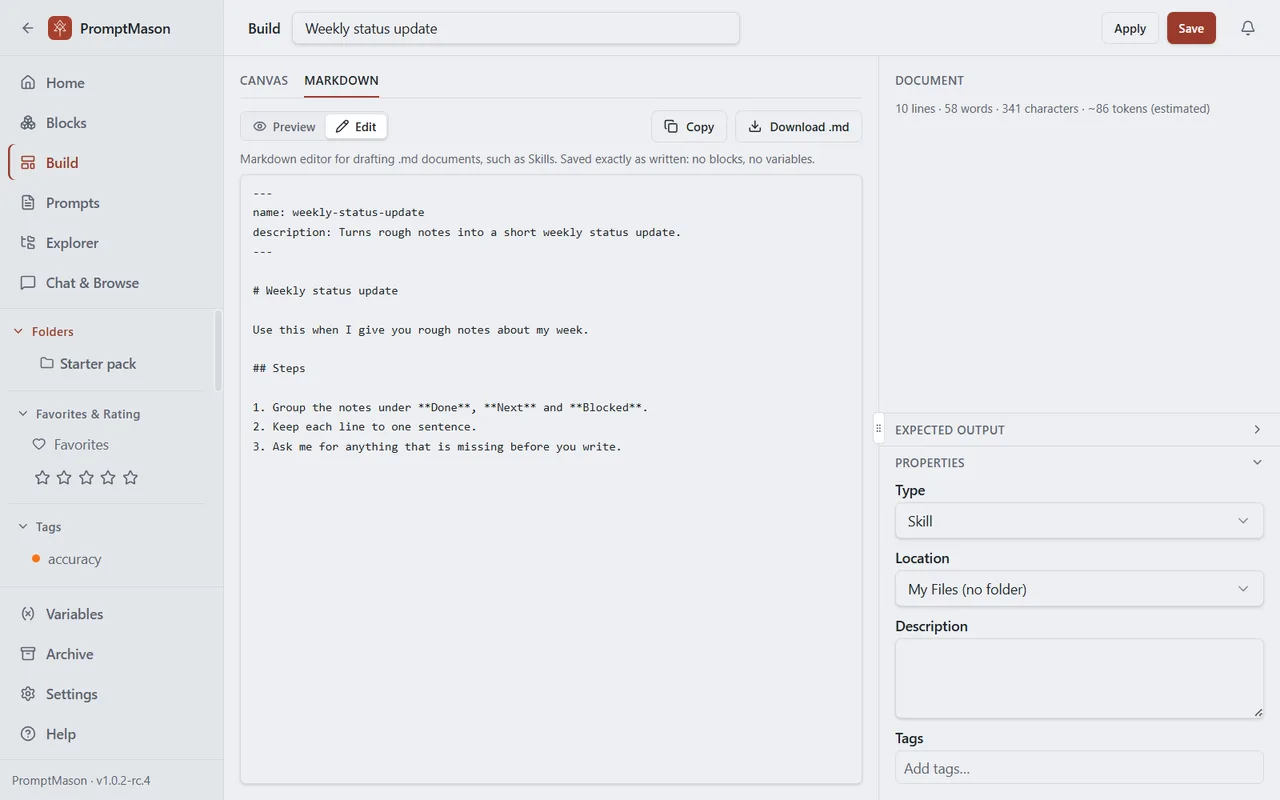
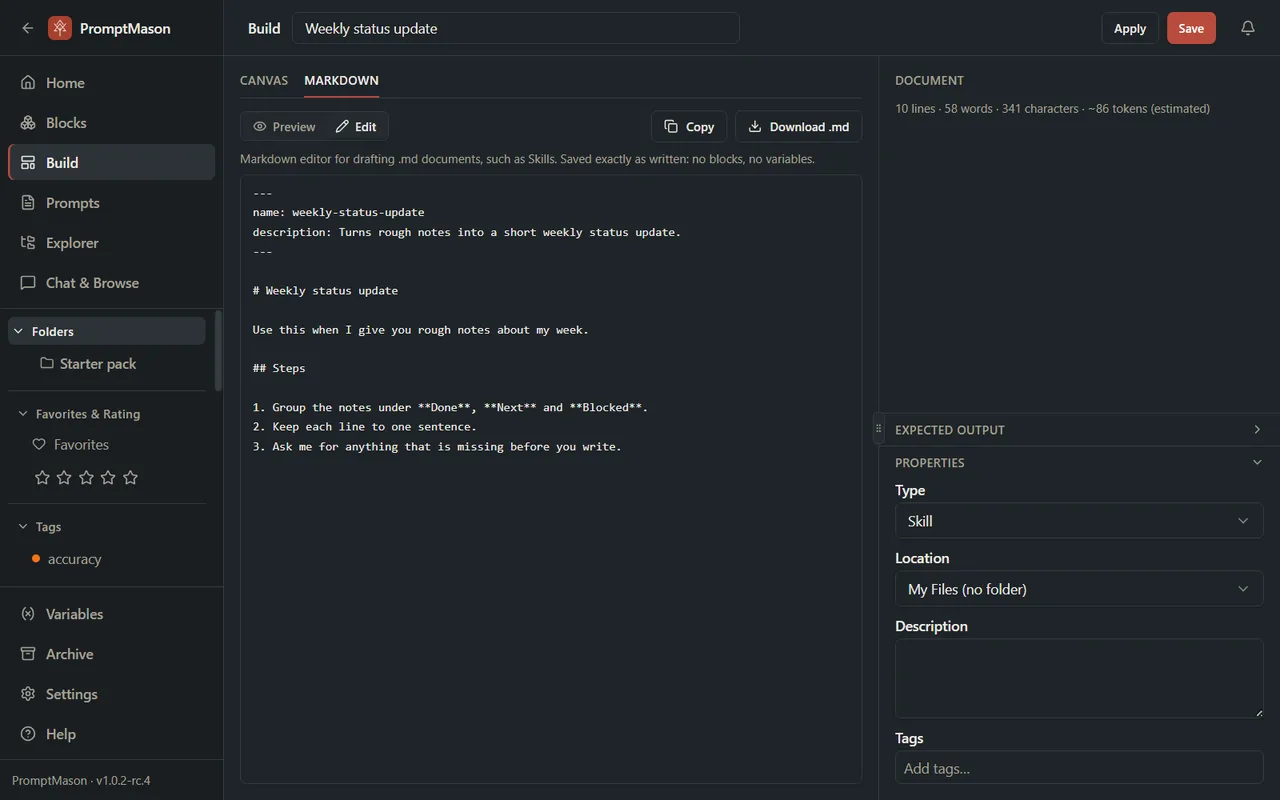
The right-hand pane, headed Document, shows the number of lines, words and characters, and an estimate of tokens (a token is about three quarters of a word).
What Preview shows
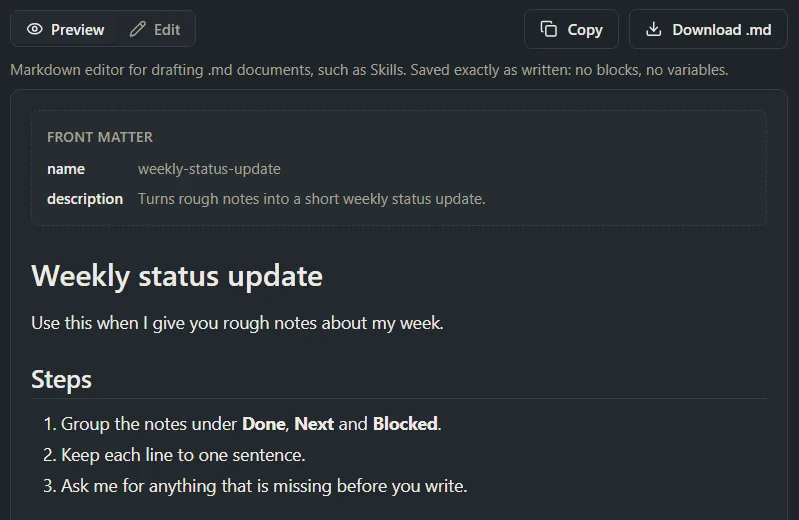
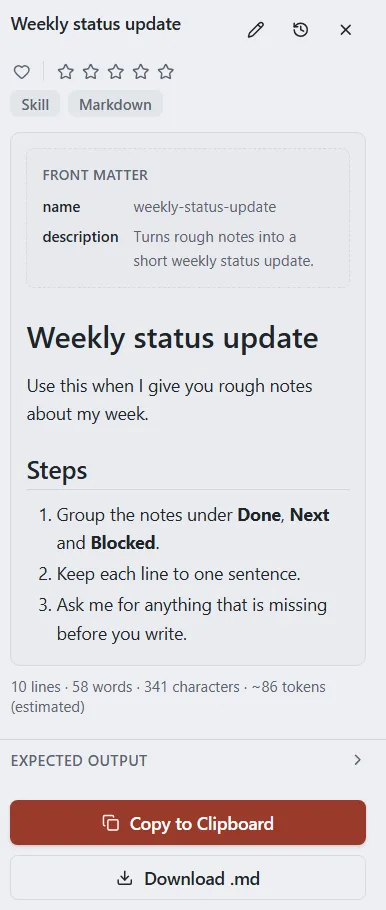
Preview shows the document as formatted Markdown: headings, lists, tables, quotes, code and links. Links open in your web browser, except links to PromptMason’s guides, which open in Help. Front matter (the settings block some files start with, between two --- lines) shows as a separate block at the top. Images aren’t loaded; their description text shows in their place.
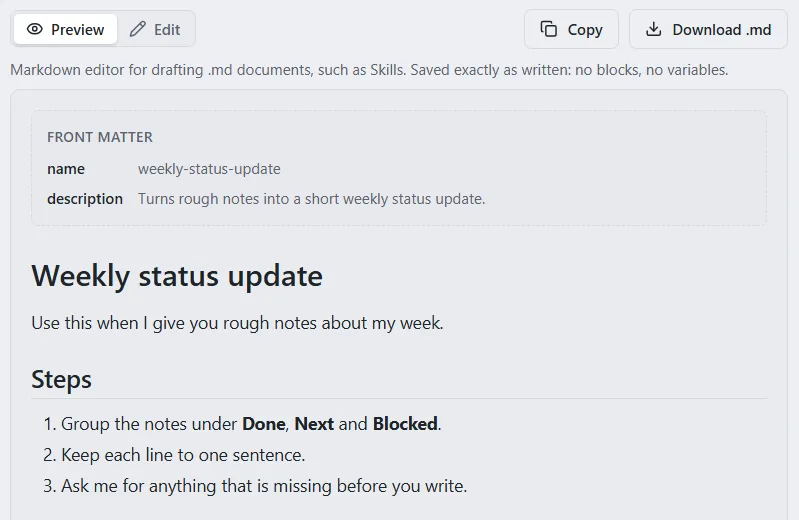
An empty document shows Nothing to show yet. Switch to Edit and start writing.
What isn’t processed
PromptMason never changes a document’s text, whether you save it, copy it or download it:
{{name}}stays as written. Variables aren’t filled in, and the Fill in your values window never opens.{{! … }}stays as written. Hidden notes are only removed from blocks and prompts.- A document has no character limit of its own.
A document can’t be turned into a prompt, and a prompt can’t be turned into a document. To use the text in a prompt, copy it and paste it into a block or a static prompt.
Copy or download a document
On the Build screen, while the document is open:
- Copy puts the Markdown on the clipboard as plain text, exactly as written.
- Download .md saves it as a
.mdfile named after the document. Choose where to save it.
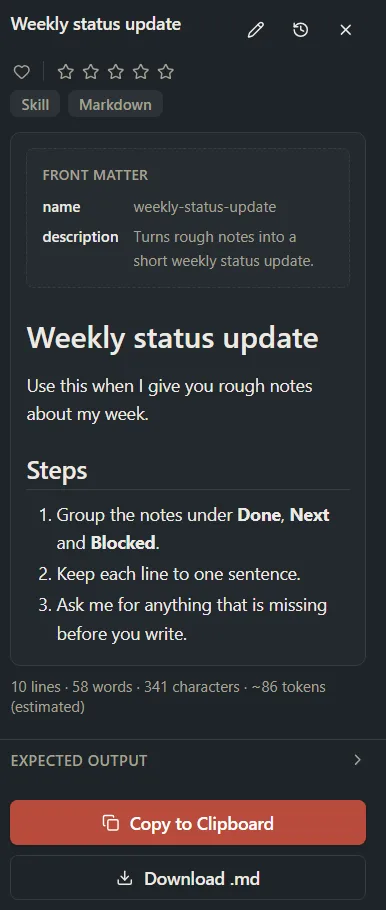
On the Prompts screen, click the document in the list, then click Copy to Clipboard or Download .md at the bottom of the right-hand pane. You can also right-click the document in the list and click Download .md.
Edit a saved document
- Click Prompts in the sidebar.
- Click the document in the list.
- Click the pencil (Edit) at the top of the right-hand pane.
- The document opens on the Build screen, on Preview. Click Edit to change the text.
- Click Update to save and go back to the Prompts screen, or Apply to save and keep working.
A saved document opens on its own, without the Canvas tab or the blocks list. To leave without saving, click Cancel.
Every save that changes the name, Type, text or tags adds a version. See Version history.
Type, Kind and Skills
Each document has a kind and a Type:
- Kind is what the item is: Static Prompt, Dynamic Prompt or Markdown. You can’t change it.
- Type is a label you choose under Properties, such as User Prompt, System Prompt or Skill. Any Type can go on any kind.
A new document starts with the Type Skill. In Chat, your documents whose Type is Skill are listed under Your skills in the Skill picker, so a chat can follow them. See Run prompts in Chat. To use a document as a skill in Chat, keep it under 20,000 characters. A longer one shows This skill is too long for a chat: keep it under 20,000 characters. Shorten it, or split it into two documents. To add your own Types, see Block types, prompt types and defaults.
Documents and the Free plan
A document counts as a prompt. On the Free plan it’s one of your 15 prompts. See Plans and limits.
Messages
| Message | What to do |
|---|---|
| Give this document a name to save it. | Type a name in the name box at the top, then save again. |
| Your library is paused | While your library is paused you can read your documents, but not edit, copy or download them. See When your library is paused. |
Save stays grayed out while the text box is empty. Type some Markdown first.
Want a hand?
Copy this prompt into Claude, ChatGPT or another AI assistant, and it walks you through it step by step.
I want to keep a Claude Skill in PromptMason as a Markdown document. Walk me through turning on the “Markdown editor”, writing and saving the document, and downloading it as a .md file.
Copy adds a short note about PromptMason and this guide's steps, so the assistant has what it needs.
I want to keep a Claude Skill in PromptMason as a Markdown document. Walk me through turning on the “Markdown editor”, writing and saving the document, and downloading it as a .md file. About PromptMason: a Windows desktop app for building AI prompts from reusable blocks. A person writes blocks (reusable pieces of prompt text), builds prompts from them on the Build screen (or keeps a Markdown document, such as a Skill), and copies a prompt into an AI tool, runs it in PromptMason’s own Chat, or lets a connected AI agent use it through PromptMason’s built-in MCP server (the Chrome extension copies prompts on any website). AI assist, Evaluate and Chat use a local model that runs on the person’s PC, or their own AI provider. The guides are also on PromptMason’s Help screen, and Chat can answer “how do I” questions from them. Libraries hold the blocks and prompts; a person can sync their personal library to their other PCs and share team libraries, both through a folder in cloud storage they already have (OneDrive, Google Drive or Dropbox). Everything synced is encrypted and every edit is signed and checked. A recovery kit (a file plus a code) is the spare copy of the person’s keys, for when every PC is lost. The official guide for this is "Markdown documents and Skills": https://promptmason.ai/docs/markdown-documents Its full text follows, between the lines. Use it as the source of truth, and if anything I see differs from it, tell me rather than guessing. --- A Markdown document is text that PromptMason saves exactly as you write it, with no blocks and no variables. Markdown is a plain-text way of marking headings, lists and links with characters such as `#` and `-`. Use a document for anything you keep as a `.md` file, for example a Skill: a file of instructions an AI tool can follow. A document is listed with your prompts on the **Prompts** screen, with **Markdown** as its kind. ## Turn on the Markdown editor Documents are written with the Markdown editor, a feature you can show or hide. 1. Click **Settings** in the sidebar, then **Features**. 2. Turn on **Markdown editor**. With it off, you can still read, copy and download the documents you have, but you can't write new ones or edit them. ## Write a new document 1. Click **Build** in the sidebar. 2. Click the **Markdown** tab above the middle pane. The tabs show when you're starting something new. 3. Type a name in the name box at the top. 4. Type or paste your Markdown in the large box. A new document starts on **Edit**. 5. Click **Preview** to see how it looks, and **Edit** to go back to writing. 6. Under **Properties** on the right, check the **Type**. A new document starts on **Skill**. 7. Optional: choose a **Location** (a folder), and add a **Description** and **Tags**. 8. Click **Save**. PromptMason saves the document and opens the **Prompts** screen. To save and keep writing, click **Apply** instead. If you switch to the **Canvas** tab with unsaved text, PromptMason asks **Discard your changes?** first. The name, description and tags carry over, and so does the Type if you chose one; otherwise the Type changes to that tab's starting Type. The text doesn't carry over. ## Writing in the Edit view The **Edit** view is a plain text box. What you type is saved exactly, character for character. A few things to know: - The Tab key moves to the next control instead of indenting. Type spaces to indent. - Spelling isn't checked in this box. - If AI assist is set up, its button shows here, in the **Edit** view only. See [Improve text with AI assist](https://promptmason.ai/docs/ai-assist). The right-hand pane, headed **Document**, shows the number of lines, words and characters, and an estimate of tokens (a token is about three quarters of a word). ## What Preview shows **Preview** shows the document as formatted Markdown: headings, lists, tables, quotes, code and links. Links open in your web browser, except links to PromptMason's guides, which open in **Help**. Front matter (the settings block some files start with, between two `---` lines) shows as a separate block at the top. Images aren't loaded; their description text shows in their place. An empty document shows **Nothing to show yet. Switch to Edit and start writing.** ## What isn't processed PromptMason never changes a document's text, whether you save it, copy it or download it: - `{{name}}` stays as written. Variables aren't filled in, and the **Fill in your values** window never opens. - `{{! … }}` stays as written. Hidden notes are only removed from blocks and prompts. - A document has no character limit of its own. A document can't be turned into a prompt, and a prompt can't be turned into a document. To use the text in a prompt, copy it and paste it into a block or a static prompt. ## Copy or download a document On the Build screen, while the document is open: - **Copy** puts the Markdown on the clipboard as plain text, exactly as written. - **Download .md** saves it as a `.md` file named after the document. Choose where to save it. On the **Prompts** screen, click the document in the list, then click **Copy to Clipboard** or **Download .md** at the bottom of the right-hand pane. You can also right-click the document in the list and click **Download .md**. ## Edit a saved document 1. Click **Prompts** in the sidebar. 2. Click the document in the list. 3. Click the pencil (**Edit**) at the top of the right-hand pane. 4. The document opens on the Build screen, on **Preview**. Click **Edit** to change the text. 5. Click **Update** to save and go back to the Prompts screen, or **Apply** to save and keep working. A saved document opens on its own, without the **Canvas** tab or the blocks list. To leave without saving, click **Cancel**. Every save that changes the name, Type, text or tags adds a version. See [Version history](https://promptmason.ai/docs/version-history). ## Type, Kind and Skills Each document has a kind and a Type: - **Kind** is what the item is: **Static Prompt**, **Dynamic Prompt** or **Markdown**. You can't change it. - **Type** is a label you choose under **Properties**, such as **User Prompt**, **System Prompt** or **Skill**. Any Type can go on any kind. A new document starts with the Type **Skill**. In Chat, your documents whose Type is **Skill** are listed under **Your skills** in the **Skill** picker, so a chat can follow them. See [Run prompts in Chat](https://promptmason.ai/docs/chat-basics). To use a document as a skill in Chat, keep it under 20,000 characters. A longer one shows **This skill is too long for a chat: keep it under 20,000 characters.** Shorten it, or split it into two documents. To add your own Types, see [Block types, prompt types and defaults](https://promptmason.ai/docs/types-and-defaults). ## Documents and the Free plan A document counts as a prompt. On the Free plan it's one of your 15 prompts. See [Plans and limits](https://promptmason.ai/docs/plans). ## Messages | Message | What to do | |---|---| | **Give this document a name to save it.** | Type a name in the name box at the top, then save again. | | **Your library is paused** | While your library is paused you can read your documents, but not edit, copy or download them. See [When your library is paused](https://promptmason.ai/docs/paused-library). | **Save** stays grayed out while the text box is empty. Type some Markdown first. --- How to help me: - Go one step at a time. After each step, ask what I see on screen before giving the next one. - Use the exact words on PromptMason’s buttons and screens, as the guide does. - Never ask me for my recovery code, my recovery kit file, a password or my invite line, and never ask me to paste them here. - Start by asking which step I’m on, or what I see now.