The Home screen
Turn on Home, search everything from it, and add, arrange and set up its widgets.
Home is a start page. At the top is a search box that looks through everything you’ve saved. Below it is a grid of widgets you choose: buttons to create new items, your recent items and favorites, numbers about your library, and charts that show how your blocks and prompts connect.
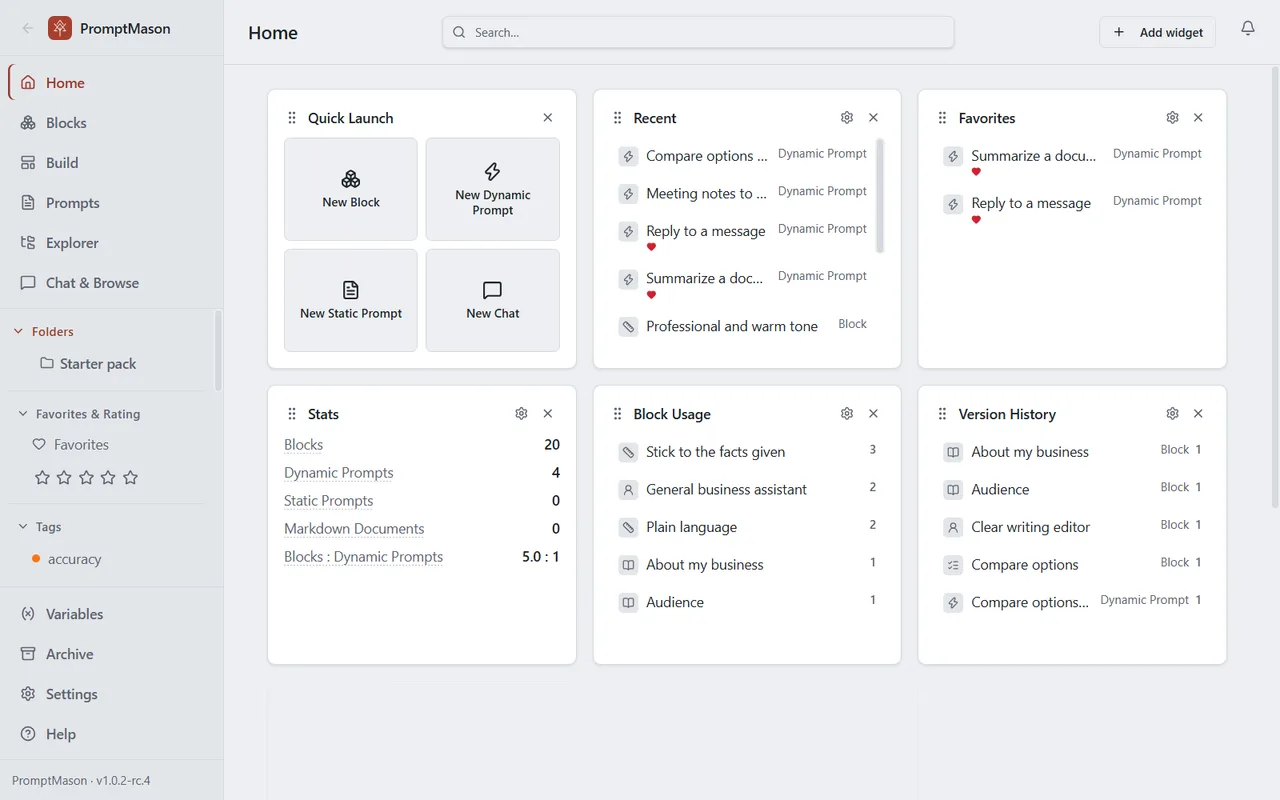
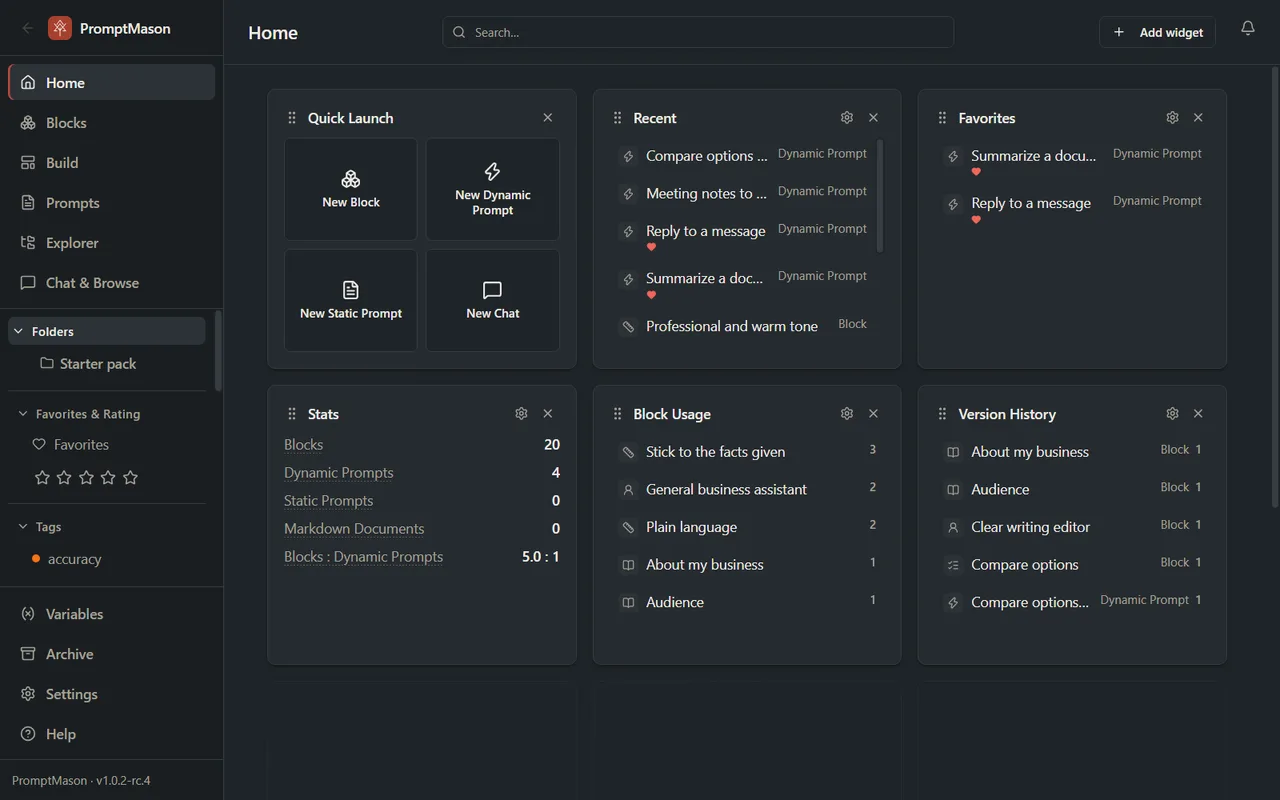
Turn Home on or off
Home is a feature you can show or hide. It’s on if you chose Show me everything when you first opened PromptMason, and off if you chose Start simple.
- Click Settings in the sidebar, then Features.
- Turn Home dashboard on.
Home now shows at the top of the sidebar, and PromptMason opens on Home each time you start it. You can also press Ctrl+8 to go to Home.
With Home off, PromptMason opens on the Prompts screen instead. Turning Home off doesn’t remove your widgets: they’re there again when you turn it back on. The other feature switches are in Settings → Features too; see Show or hide features.
Your first Home already has Quick Launch and Recent, plus Favorites if you chose Show me everything. If you chose Start simple, add Favorites with Add widget once Favorites & ratings is on.
Search from Home
Type in the Search… box at the top of Home (or press Ctrl+F) to search your blocks, prompts, documents, variables, tags, folders and archived items at once. Results are grouped, and pressing Enter or clicking a result opens it. For what it searches and the keys you can use, see Search everything from Home.
Add a widget
-
On Home, click Add widget in the top-right corner.
-
Click the widget you want.
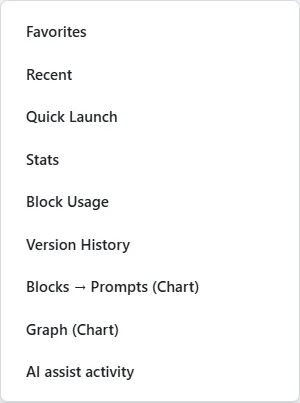
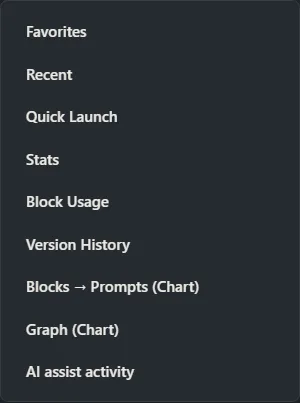
The widget goes into the first free space that fits it, reading the grid left to right, top to bottom. You can add more than one of the same widget, for example two Recent widgets sorted different ways.
Some widgets are listed only while their feature is on: Favorites (Favorites & ratings), Version History (Version history) and AI assist activity (AI assist).
If there’s no room
A widget that doesn’t fit anywhere is grayed out. If other widgets still fit, it’s also marked No room. The menu says either Some widgets need more free space. Remove a widget, or add rows or columns in Settings. or, when nothing fits, Home is full. Remove a widget, or add rows or columns in Settings.
To make room, remove a widget you don’t need (see Remove a widget), or click Open Settings → Features in the menu to make the grid bigger (see Change the grid size).
Change a widget’s settings
-
Click the gear icon in the widget’s title bar.
-
Change the settings. Each change applies and is saved straight away.
-
Click anywhere outside the settings to close them.
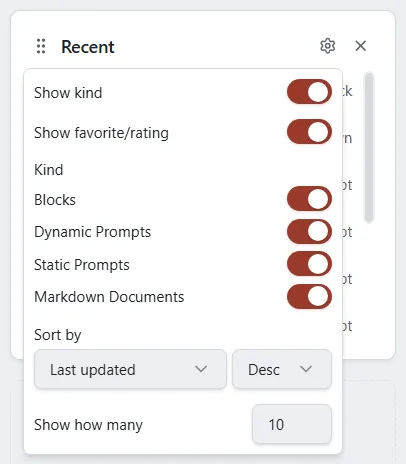
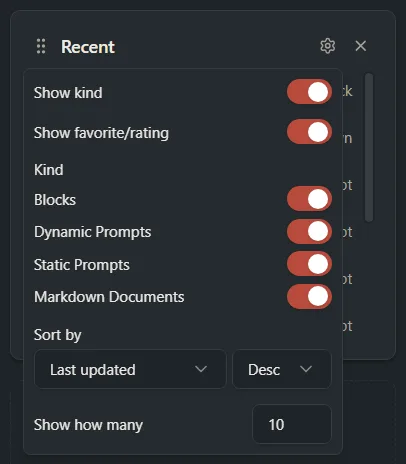
Quick Launch has no settings, so it has no gear. Each widget’s settings are listed under The widgets.
Move a widget
- Point to the grip icon at the left end of the widget’s title bar.
- Drag the widget to where you want it, then let go.
While you drag, an outline shows the space the widget would take. If the widget can’t go there, the outline turns red and says No room to move this here.
- Dropping a widget onto another widget of the same size swaps them.
- Otherwise, widgets in the way are pushed aside toward the space you’re leaving. If they can’t be pushed, they move to the nearest free space.
- To cancel a move, press Esc before you let go, or drop the widget outside the grid.
Widgets can be moved only with the mouse (or a touch screen), by the grip icon.
Resize a chart
Two widgets can be made larger or smaller: Blocks → Prompts and Graph. The others always take one space, except AI assist activity, which is always two spaces wide.
- Click the gear icon on the chart.
- Use the − and + buttons next to Width (columns) and Height (rows), or type a number and press Enter.
Other widgets are pushed aside to make room. A chart is at least 2 columns wide and 1 row high, and never larger than the grid. If there isn’t room for the new size, the size stays as it was and the settings show Not enough room on Home for this size. Remove a widget or add rows or columns in Settings → Features.
Remove a widget
Click the X at the right end of the widget’s title bar. The widget is removed straight away, without asking first. If you add it again later, it starts with its default settings.
Change the grid size
The grid starts at 3 columns and 4 rows.
-
Click Settings in the sidebar, then Features.
-
Under Home dashboard, find Home grid size.
-
Type a number in Columns (2 to 5) and Rows (2 to 12).


Columns share the width of the window. Each row has a fixed height, so more rows than fit in the window make Home scroll.
Making the grid bigger never moves a widget. Making it smaller keeps the widgets that still fit where they are and moves the rest into free spaces; a chart may be made narrower or shorter to fit. If the widgets can’t all fit, the size isn’t changed and Settings says which widgets to remove first, for example Home can’t fit all of its widgets in 3 columns × 2 rows. To use this size, remove these widgets from Home first: 2 Recent widgets.
If the message says a widget is hidden while [feature] is off, turn that feature back on in Features, remove the widget from Home, then change the size.
A widget for a feature that’s turned off (Favorites, Version History or AI assist activity) is hidden but keeps its space on the grid, so it’s back in place when you turn the feature on again. That space can look empty while still counting as taken.
The widgets
Quick Launch
Large buttons to start something new: New Block, New Dynamic Prompt, New Static Prompt and New Chat (New Chat only while the Chat feature is on).
- New Block opens the Blocks screen with a new block ready to fill in.
- New Dynamic Prompt opens an empty Build screen.
- New Static Prompt opens the Prompts screen with a new prompt ready to fill in.
- New Chat opens Chat & Browse with a new chat ready to type into.
On the Free plan, if you’re already at your limit for blocks or prompts, the Free plan limit message shows instead. See Plans and limits.
Recent
Blocks and prompts you’ve changed lately, newest first. Click one to open it.
What counts as recent is set in Settings → Blocks & prompts → Days in Recent (30 days to start with). Archived items aren’t listed.
Settings:
- Show kind: show “Block”, “Static Prompt”, “Dynamic Prompt” or “Markdown” on each row.
- Show favorite/rating: show the heart and stars under each name (only while Favorites & ratings is on).
- Kind: switches for Blocks, Dynamic Prompts, Static Prompts and Markdown Documents (the last only while the Markdown editor is on or you have a document).
- Sort by: Name, Last updated or Rating, then Asc (A to Z, oldest or lowest first) or Desc. The widget always picks the most recently changed items first; the sort only changes the order they’re shown in.
- Show how many: 1 to 100 (10 to start with).
Favorites
Blocks and prompts you’ve marked with the heart, up to the number set in Show how many (10 to start with). Click one to open it. It has the same settings as Recent. To start with it’s sorted by Name, Desc (Z to A); change Sort by to Asc for A to Z. See Tags, favorites and ratings.
Stats
Numbers about your library. Point to a label to see what it means. Choose which ones show under Stats to show in the widget’s settings:
| Stat | What it counts | Shown to start with |
|---|---|---|
| Blocks | Every block, including ones embedded in a single prompt | Yes |
| Dynamic Prompts | Prompts saved as Dynamic | Yes |
| Static Prompts | Prompts saved as Static (not Markdown documents) | Yes |
| Markdown Documents (only while the Markdown editor is on or you have a document) | Markdown documents, such as Skills | Yes |
| Blocks : Dynamic Prompts | Blocks divided by Dynamic prompts, as a size ratio | Yes |
| Blocks Reused (2+) | Library blocks used by two or more Dynamic prompts | No |
| Avg Prompts / Used Block | For library blocks used at least once, how many prompts use each, on average | No |
| % Library Reused | The share of your library blocks used by two or more prompts | No |
| Favorites | Blocks and prompts marked as favorites | No |
| Variables | Your variables | No |
A stat for a feature that’s turned off isn’t shown. A library block is one saved on the Blocks screen; an embedded block belongs to one prompt only (see Library blocks and embedded blocks).
Block Usage
Your library blocks ranked by how many prompts use each one, with the number on the right. Blocks no prompt uses are listed too, with 0. Click a block to open it.
Settings: Sort by (Desc puts the most-used first, Asc the least-used) and Show how many (5 to start with).
Version History
Blocks and prompts ranked by how many saved versions each one has. Click one to open it. Shown only while the Version history feature is on. See Version history.
Settings: Show kind, Kind, Sort by (Asc or Desc) and Show how many (5 to start with).
Blocks → Prompts
A flow chart of your library blocks on the left and the Dynamic prompts that use them on the right. Static prompts, Markdown documents and embedded blocks aren’t shown.
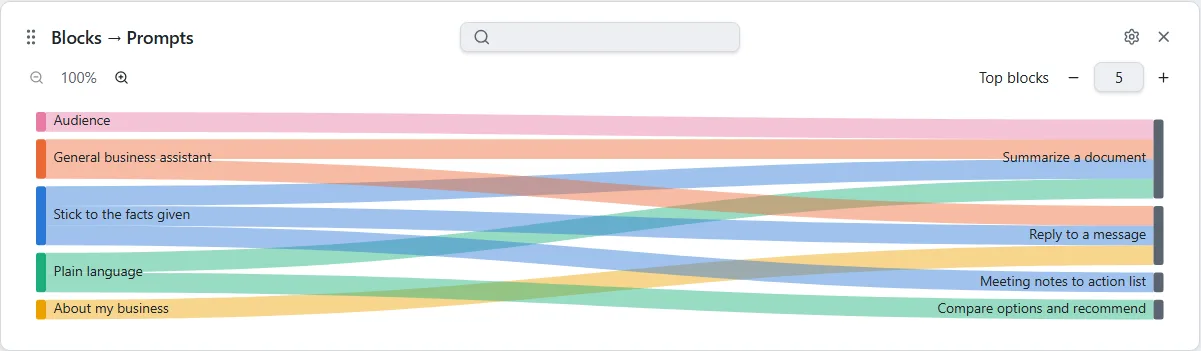
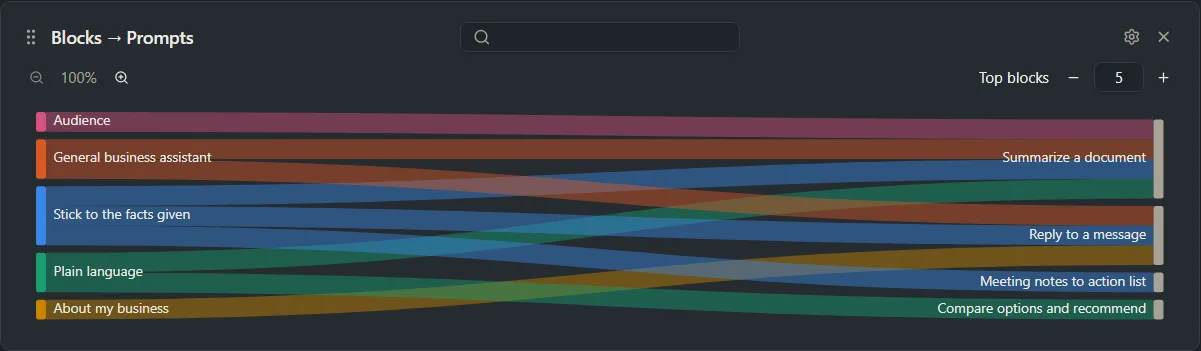
- Search: type part of a name in the box at the top of the card, then pick a block or prompt from the list (or press Enter for the first). The chart shows only the flows through it, even if it isn’t one of the top blocks. Click the X or press Escape to see the whole chart again.
- Top blocks: how many of your most-used blocks to show (5 to start with). Use − and + or type a number from 1 to 100.
- Zoom: the − and + buttons zoom from 100% to 300%. You can also hold Ctrl and turn the mouse wheel. When zoomed in, the mouse wheel scrolls the chart.
- Point to a block or prompt to fade everything not connected to it.
- Click one to keep that view. A Focused on label appears; click it, or the same item again, to clear it.
- Double-click one to open it.
Settings: Width (columns) and Height (rows) (3 × 1 to start with), and Reverse (Prompts → Blocks), which puts prompts on the left ranked by how many blocks they use. The widget is then titled Prompts → Blocks and the control reads Top prompts.
Zoom, focus and search reset when you leave Home.
Graph
A map of your library: a dot for each library block, prompt, Markdown document, chat, variable and tag, plus one Favorites dot and one dot per star rating. Lines join:
- a Dynamic prompt to each library block it uses,
- a block or prompt to each variable it uses, its tags, Favorites (if it’s a favorite) and its rating,
- a chat to each prompt it has run.
Bigger dots have more lines. Archived items and embedded blocks aren’t shown.
- Search: type part of a name in the box at the top of the card, then pick an item from the list (or press Enter for the first). The graph shows only that item and everything joined to it. Click the X or press Escape to see the whole graph again.
- Point to a dot to see its name and kind, and fade everything not connected to it.
- Click a dot to keep that view. A Focused on label appears; click it, or the same dot again, to clear it.
- Double-click a dot to open it: a block on the Blocks screen, a prompt or document on the Prompts screen, a variable on the Variables screen, a tag in Explorer, a chat on Chat & Browse.
- Drag a dot to move it. The others settle around it.
- Zoom with the buttons, or hold Ctrl and turn the mouse wheel. Fit to card shows the whole graph again.
The graph is drawn in 3D or flat:
- 3D: drag to turn the graph, right-drag to move it.
- Flat: drag the background to move around.
Settings:
- 3D: on or off. To start with, it’s on if your PC has a graphics card that can draw it, and off otherwise.
- Animate (3D only, on to start with): the graph turns slowly on its own. It stops while you hold it, point to a dot, or leave the PC alone for a while. Uses extra computer power while it turns. On a slower PC, or one without a graphics card, you may want to leave it off.
- Speed (while Animate is on): 1x to 5x.
- Show: switches for Blocks, Dynamic Prompts, Static Prompts, Markdown Documents, Chats, Variables, Tags, Favorites, Ratings and Unconnected items (dots with no lines). A switch is missing while its feature is off.
- Width (columns) and Height (rows) (2 × 2 to start with).
Focus, zoom and where you’ve moved things reset when you leave Home.
AI assist activity
How you’ve used AI assist, Evaluate and Chat. Shown only while the AI assist feature is on. It’s two spaces wide.
Settings: Period, which is This month (the default), Last 30 days or All time.
- Runs: Total, Accepted, Discarded, Failed, No decision (a suggestion you neither accepted nor discarded), Evaluated, Chat replies (once there is one), and Acceptance rate (accepted out of accepted plus discarded, once you’ve done either).
- Tokens: for each AI provider you used, how many tokens were Sent and Received (and Reasoning, if the provider reports it). A token is a small piece of text, about three quarters of a word. The heading says Tokens (includes estimates) when some numbers are PromptMason’s own estimate rather than the provider’s. No prices are shown.
- Recently improved: your last five accepted suggestions. Click one to open it.
If the numbers can’t be read, the widget says Couldn’t load AI assist activity. Go to another screen and back to Home to try again. See Improve text with AI assist.
Want a hand?
Copy this prompt into Claude, ChatGPT or another AI assistant, and it walks you through it step by step.
I want to set up the Home screen in PromptMason. Help me choose which widgets to add, arrange them on the grid, and set each one up for how I work.
Copy adds a short note about PromptMason and this guide's steps, so the assistant has what it needs.
I want to set up the Home screen in PromptMason. Help me choose which widgets to add, arrange them on the grid, and set each one up for how I work. About PromptMason: a Windows desktop app for building AI prompts from reusable blocks. A person writes blocks (reusable pieces of prompt text), builds prompts from them on the Build screen (or keeps a Markdown document, such as a Skill), and copies a prompt into an AI tool, runs it in PromptMason’s own Chat, or lets a connected AI agent use it through PromptMason’s built-in MCP server (the Chrome extension copies prompts on any website). AI assist, Evaluate and Chat use a local model that runs on the person’s PC, or their own AI provider. The guides are also on PromptMason’s Help screen, and Chat can answer “how do I” questions from them. Libraries hold the blocks and prompts; a person can sync their personal library to their other PCs and share team libraries, both through a folder in cloud storage they already have (OneDrive, Google Drive or Dropbox). Everything synced is encrypted and every edit is signed and checked. A recovery kit (a file plus a code) is the spare copy of the person’s keys, for when every PC is lost. The official guide for this is "The Home screen": https://promptmason.ai/docs/home Its full text follows, between the lines. Use it as the source of truth, and if anything I see differs from it, tell me rather than guessing. --- Home is a start page. At the top is a search box that looks through everything you've saved. Below it is a grid of widgets you choose: buttons to create new items, your recent items and favorites, numbers about your library, and charts that show how your blocks and prompts connect. ## Turn Home on or off Home is a feature you can show or hide. It's on if you chose **Show me everything** when you first opened PromptMason, and off if you chose **Start simple**. 1. Click **Settings** in the sidebar, then **Features**. 2. Turn **Home dashboard** on. **Home** now shows at the top of the sidebar, and PromptMason opens on Home each time you start it. You can also press Ctrl+8 to go to Home. With Home off, PromptMason opens on the **Prompts** screen instead. Turning Home off doesn't remove your widgets: they're there again when you turn it back on. The other feature switches are in **Settings → Features** too; see [Show or hide features](https://promptmason.ai/docs/features). Your first Home already has **Quick Launch** and **Recent**, plus **Favorites** if you chose **Show me everything**. If you chose **Start simple**, add **Favorites** with **Add widget** once Favorites & ratings is on. ## Search from Home Type in the **Search…** box at the top of Home (or press Ctrl+F) to search your blocks, prompts, documents, variables, tags, folders and archived items at once. Results are grouped, and pressing Enter or clicking a result opens it. For what it searches and the keys you can use, see [Search everything from Home](https://promptmason.ai/docs/search#search-everything-from-home). ## Add a widget 1. On Home, click **Add widget** in the top-right corner. 2. Click the widget you want. The widget goes into the first free space that fits it, reading the grid left to right, top to bottom. You can add more than one of the same widget, for example two **Recent** widgets sorted different ways. Some widgets are listed only while their feature is on: **Favorites** (Favorites & ratings), **Version History** (Version history) and **AI assist activity** (AI assist). ### If there's no room A widget that doesn't fit anywhere is grayed out. If other widgets still fit, it's also marked **No room**. The menu says either **Some widgets need more free space. Remove a widget, or add rows or columns in Settings.** or, when nothing fits, **Home is full. Remove a widget, or add rows or columns in Settings.** To make room, remove a widget you don't need (see [Remove a widget](#remove-a-widget)), or click **Open Settings → Features** in the menu to make the grid bigger (see [Change the grid size](#change-the-grid-size)). ## Change a widget's settings 1. Click the gear icon in the widget's title bar. 2. Change the settings. Each change applies and is saved straight away. 3. Click anywhere outside the settings to close them. **Quick Launch** has no settings, so it has no gear. Each widget's settings are listed under [The widgets](#the-widgets). ## Move a widget 1. Point to the grip icon at the left end of the widget's title bar. 2. Drag the widget to where you want it, then let go. While you drag, an outline shows the space the widget would take. If the widget can't go there, the outline turns red and says **No room to move this here**. - Dropping a widget onto another widget of the same size swaps them. - Otherwise, widgets in the way are pushed aside toward the space you're leaving. If they can't be pushed, they move to the nearest free space. - To cancel a move, press Esc before you let go, or drop the widget outside the grid. Widgets can be moved only with the mouse (or a touch screen), by the grip icon. ## Resize a chart Two widgets can be made larger or smaller: **Blocks → Prompts** and **Graph**. The others always take one space, except **AI assist activity**, which is always two spaces wide. 1. Click the gear icon on the chart. 2. Use the − and + buttons next to **Width (columns)** and **Height (rows)**, or type a number and press Enter. Other widgets are pushed aside to make room. A chart is at least 2 columns wide and 1 row high, and never larger than the grid. If there isn't room for the new size, the size stays as it was and the settings show **Not enough room on Home for this size. Remove a widget or add rows or columns in Settings → Features.** ## Remove a widget Click the X at the right end of the widget's title bar. The widget is removed straight away, without asking first. If you add it again later, it starts with its default settings. ## Change the grid size The grid starts at 3 columns and 4 rows. 1. Click **Settings** in the sidebar, then **Features**. 2. Under **Home dashboard**, find **Home grid size**. 3. Type a number in **Columns** (2 to 5) and **Rows** (2 to 12). Columns share the width of the window. Each row has a fixed height, so more rows than fit in the window make Home scroll. Making the grid bigger never moves a widget. Making it smaller keeps the widgets that still fit where they are and moves the rest into free spaces; a chart may be made narrower or shorter to fit. If the widgets can't all fit, the size isn't changed and Settings says which widgets to remove first, for example **Home can't fit all of its widgets in 3 columns × 2 rows. To use this size, remove these widgets from Home first: 2 Recent widgets.** If the message says a widget is **hidden while [feature] is off**, turn that feature back on in **Features**, remove the widget from Home, then change the size. A widget for a feature that's turned off (Favorites, Version History or AI assist activity) is hidden but keeps its space on the grid, so it's back in place when you turn the feature on again. That space can look empty while still counting as taken. ## The widgets ### Quick Launch Large buttons to start something new: **New Block**, **New Dynamic Prompt**, **New Static Prompt** and **New Chat** (**New Chat** only while the Chat feature is on). - **New Block** opens the **Blocks** screen with a new block ready to fill in. - **New Dynamic Prompt** opens an empty **Build** screen. - **New Static Prompt** opens the **Prompts** screen with a new prompt ready to fill in. - **New Chat** opens **Chat & Browse** with a new chat ready to type into. On the Free plan, if you're already at your limit for blocks or prompts, the Free plan limit message shows instead. See [Plans and limits](https://promptmason.ai/docs/plans). ### Recent Blocks and prompts you've changed lately, newest first. Click one to open it. What counts as recent is set in **Settings** → **Blocks & prompts** → **Days in Recent** (30 days to start with). Archived items aren't listed. Settings: - **Show kind**: show "Block", "Static Prompt", "Dynamic Prompt" or "Markdown" on each row. - **Show favorite/rating**: show the heart and stars under each name (only while Favorites & ratings is on). - **Kind**: switches for **Blocks**, **Dynamic Prompts**, **Static Prompts** and **Markdown Documents** (the last only while the Markdown editor is on or you have a document). - **Sort by**: **Name**, **Last updated** or **Rating**, then **Asc** (A to Z, oldest or lowest first) or **Desc**. The widget always picks the most recently changed items first; the sort only changes the order they're shown in. - **Show how many**: 1 to 100 (10 to start with). ### Favorites Blocks and prompts you've marked with the heart, up to the number set in **Show how many** (10 to start with). Click one to open it. It has the same settings as **Recent**. To start with it's sorted by **Name**, **Desc** (Z to A); change **Sort by** to **Asc** for A to Z. See [Tags, favorites and ratings](https://promptmason.ai/docs/tags-favorites-ratings). ### Stats Numbers about your library. Point to a label to see what it means. Choose which ones show under **Stats to show** in the widget's settings: | Stat | What it counts | Shown to start with | |---|---|---| | **Blocks** | Every block, including ones embedded in a single prompt | Yes | | **Dynamic Prompts** | Prompts saved as Dynamic | Yes | | **Static Prompts** | Prompts saved as Static (not Markdown documents) | Yes | | **Markdown Documents** (only while the Markdown editor is on or you have a document) | Markdown documents, such as Skills | Yes | | **Blocks : Dynamic Prompts** | Blocks divided by Dynamic prompts, as a size ratio | Yes | | **Blocks Reused (2+)** | Library blocks used by two or more Dynamic prompts | No | | **Avg Prompts / Used Block** | For library blocks used at least once, how many prompts use each, on average | No | | **% Library Reused** | The share of your library blocks used by two or more prompts | No | | **Favorites** | Blocks and prompts marked as favorites | No | | **Variables** | Your variables | No | A stat for a feature that's turned off isn't shown. A library block is one saved on the **Blocks** screen; an embedded block belongs to one prompt only (see [Library blocks and embedded blocks](https://promptmason.ai/docs/embedded-blocks)). ### Block Usage Your library blocks ranked by how many prompts use each one, with the number on the right. Blocks no prompt uses are listed too, with 0. Click a block to open it. Settings: **Sort by** (**Desc** puts the most-used first, **Asc** the least-used) and **Show how many** (5 to start with). ### Version History Blocks and prompts ranked by how many saved versions each one has. Click one to open it. Shown only while the Version history feature is on. See [Version history](https://promptmason.ai/docs/version-history). Settings: **Show kind**, **Kind**, **Sort by** (**Asc** or **Desc**) and **Show how many** (5 to start with). ### Blocks → Prompts A flow chart of your library blocks on the left and the Dynamic prompts that use them on the right. Static prompts, Markdown documents and embedded blocks aren't shown. - **Search**: type part of a name in the box at the top of the card, then pick a block or prompt from the list (or press Enter for the first). The chart shows only the flows through it, even if it isn't one of the top blocks. Click the **X** or press Escape to see the whole chart again. - **Top blocks**: how many of your most-used blocks to show (5 to start with). Use − and + or type a number from 1 to 100. - **Zoom**: the − and + buttons zoom from 100% to 300%. You can also hold Ctrl and turn the mouse wheel. When zoomed in, the mouse wheel scrolls the chart. - **Point to** a block or prompt to fade everything not connected to it. - **Click** one to keep that view. A **Focused on** label appears; click it, or the same item again, to clear it. - **Double-click** one to open it. Settings: **Width (columns)** and **Height (rows)** (3 × 1 to start with), and **Reverse (Prompts → Blocks)**, which puts prompts on the left ranked by how many blocks they use. The widget is then titled **Prompts → Blocks** and the control reads **Top prompts**. Zoom, focus and search reset when you leave Home. ### Graph A map of your library: a dot for each library block, prompt, Markdown document, chat, variable and tag, plus one **Favorites** dot and one dot per star rating. Lines join: - a Dynamic prompt to each library block it uses, - a block or prompt to each variable it uses, its tags, **Favorites** (if it's a favorite) and its rating, - a chat to each prompt it has run. Bigger dots have more lines. Archived items and embedded blocks aren't shown. - **Search**: type part of a name in the box at the top of the card, then pick an item from the list (or press Enter for the first). The graph shows only that item and everything joined to it. Click the **X** or press Escape to see the whole graph again. - **Point to** a dot to see its name and kind, and fade everything not connected to it. - **Click** a dot to keep that view. A **Focused on** label appears; click it, or the same dot again, to clear it. - **Double-click** a dot to open it: a block on the **Blocks** screen, a prompt or document on the **Prompts** screen, a variable on the **Variables** screen, a tag in **Explorer**, a chat on **Chat & Browse**. - **Drag** a dot to move it. The others settle around it. - **Zoom** with the buttons, or hold Ctrl and turn the mouse wheel. **Fit to card** shows the whole graph again. The graph is drawn in 3D or flat: - **3D**: drag to turn the graph, right-drag to move it. - **Flat**: drag the background to move around. Settings: - **3D**: on or off. To start with, it's on if your PC has a graphics card that can draw it, and off otherwise. - **Animate** (3D only, on to start with): the graph turns slowly on its own. It stops while you hold it, point to a dot, or leave the PC alone for a while. **Uses extra computer power while it turns. On a slower PC, or one without a graphics card, you may want to leave it off.** - **Speed** (while Animate is on): **1x** to **5x**. - **Show**: switches for **Blocks**, **Dynamic Prompts**, **Static Prompts**, **Markdown Documents**, **Chats**, **Variables**, **Tags**, **Favorites**, **Ratings** and **Unconnected items** (dots with no lines). A switch is missing while its feature is off. - **Width (columns)** and **Height (rows)** (2 × 2 to start with). Focus, zoom and where you've moved things reset when you leave Home. ### AI assist activity How you've used AI assist, Evaluate and Chat. Shown only while the AI assist feature is on. It's two spaces wide. Settings: **Period**, which is **This month** (the default), **Last 30 days** or **All time**. - **Runs**: **Total**, **Accepted**, **Discarded**, **Failed**, **No decision** (a suggestion you neither accepted nor discarded), **Evaluated**, **Chat replies** (once there is one), and **Acceptance rate** (accepted out of accepted plus discarded, once you've done either). - **Tokens**: for each AI provider you used, how many tokens were **Sent** and **Received** (and **Reasoning**, if the provider reports it). A token is a small piece of text, about three quarters of a word. The heading says **Tokens (includes estimates)** when some numbers are PromptMason's own estimate rather than the provider's. No prices are shown. - **Recently improved**: your last five accepted suggestions. Click one to open it. If the numbers can't be read, the widget says **Couldn't load AI assist activity.** Go to another screen and back to Home to try again. See [Improve text with AI assist](https://promptmason.ai/docs/ai-assist). --- How to help me: - Go one step at a time. After each step, ask what I see on screen before giving the next one. - Use the exact words on PromptMason’s buttons and screens, as the guide does. - Never ask me for my recovery code, my recovery kit file, a password or my invite line, and never ask me to paste them here. - Start by asking which step I’m on, or what I see now.