Built-in MCP
Your prompt library, inside Claude Desktop, Claude Code and Cursor
PromptMason has an MCP server built in, so your AI agent can search, fill in and build on your prompt library directly. No copy-pasting, nothing extra to install.
In Claude Desktop
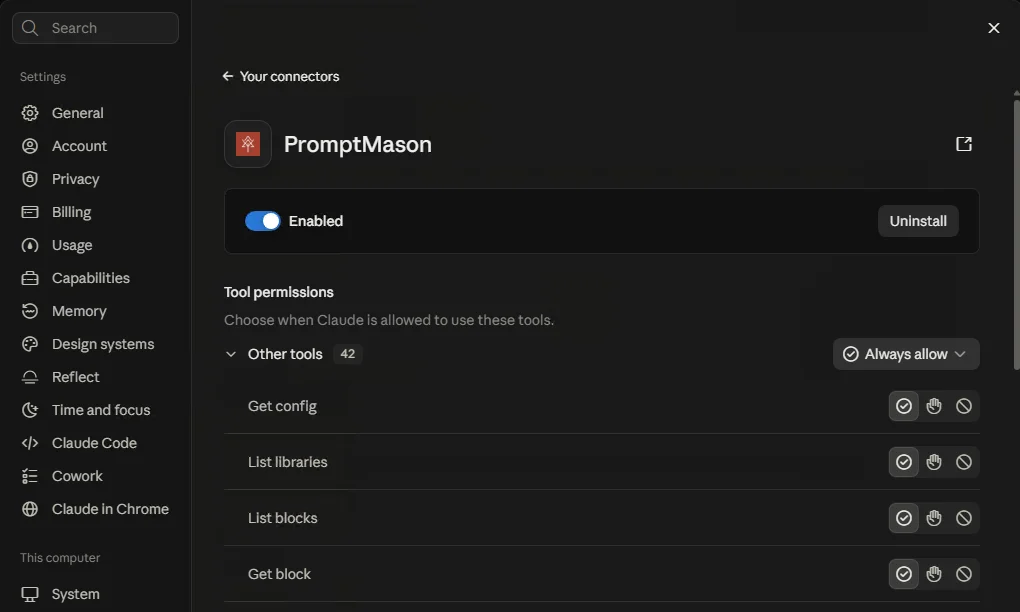
Once it’s added, PromptMason is one of Claude Desktop’s connectors, with the library tools Claude can use and a switch for each.
What your AI agent can do
Find what you need
Search across your blocks and prompts by name, content, or type, right from the chat.
Fill in and resolve a prompt
Hand it a prompt and its variables, and it gets back the fully resolved text, ready to send. No copy-pasting between apps.
Create new blocks
Turn something drafted in chat into a reusable block, saved straight into your library.
An example, in chat
Ask in plain words. Your AI agent picks the right PromptMason tool, PromptMason does the work, and the result comes back into the conversation, without you opening PromptMason.
- “Find my PromptMason prompts about meeting notes.”
- “Fill in my Reply to a message prompt for this email and use it.”
- “Save this as a new block called Polite decline, type Task.”
- “Build a prompt from my Research analyst and Summary then key points blocks.”
Access modes
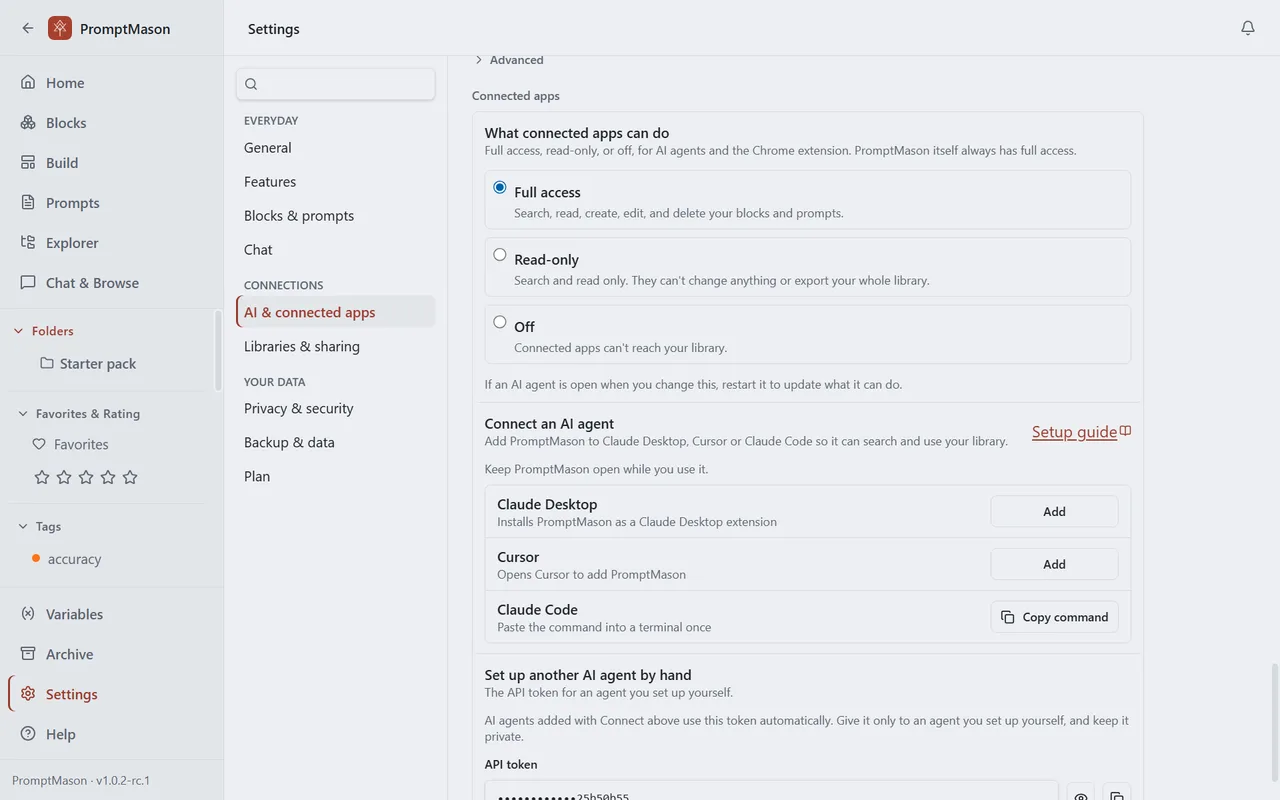
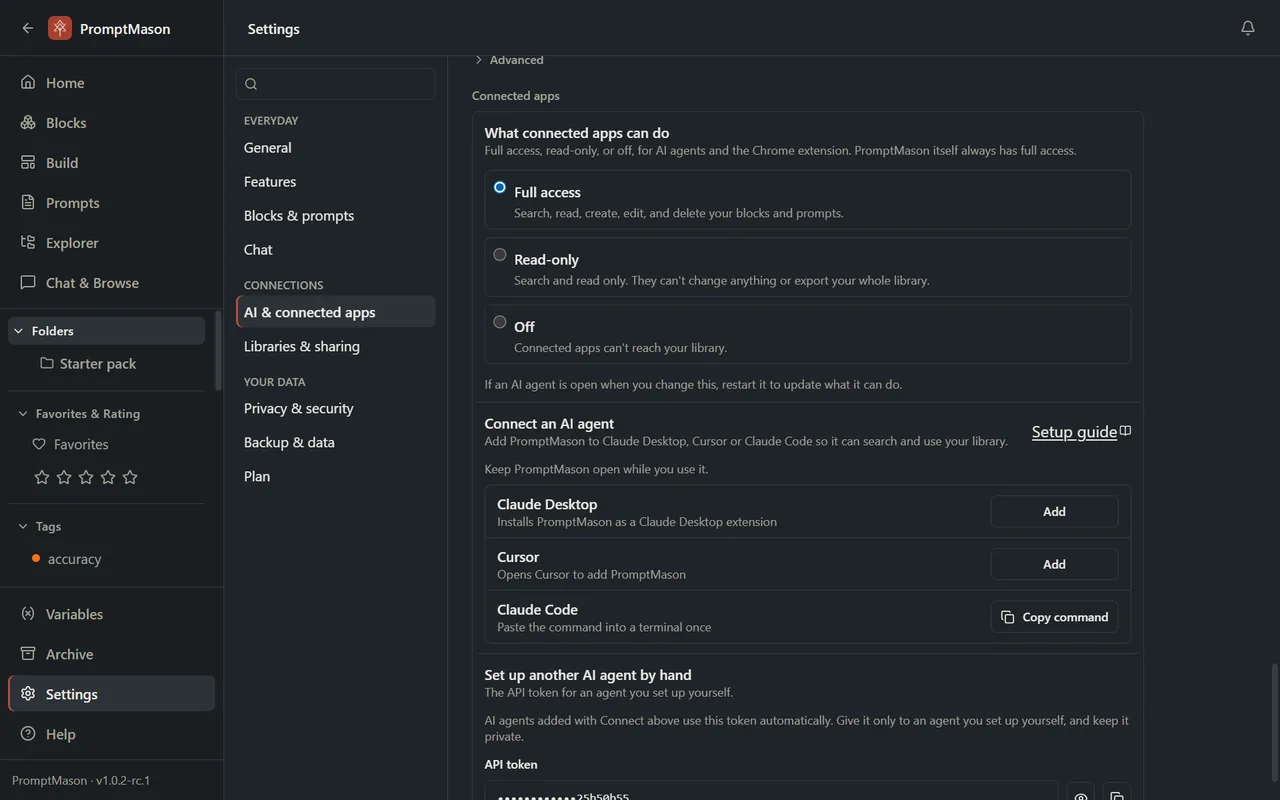
Set in the same Connected apps settings, under “What connected apps can do,” this controls what any connected AI agent is allowed to do with your library.
- Full access
- Your AI agent can read your library and create, edit, or delete blocks and prompts, the same things you can do in the app.
- Read-only
- Your AI agent can search and read your library, but can’t change anything.
- Off
- No AI agent can reach your library until you turn this back on.
How to connect
- 1
Install PromptMason and open it.
- 2
Go to Settings → AI & connected apps and find “Connect an AI agent.”
- 3
Click Add next to your AI agent. For Claude Code, click Copy command and paste it into a terminal once.
- 4
Finish in your AI agent by clicking Install. Claude Desktop shows a security notice for extensions installed from a file. That’s expected.
- 5
Keep PromptMason open while you use your AI agent.
For details, see the step-by-step setup guide, including what the Claude Desktop security notice means.
Works with Claude Desktop, Claude Code, and Cursor today. Run into a problem connecting? See troubleshooting the AI agent connection.