Troubleshooting
Common problems in PromptMason, what each message means, and what to do about it.
This page collects common problems, grouped by where they happen. Each one says what to do. If your problem isn’t here, see Get help.
Installing and starting
Windows protected your PC
Windows shows this blue screen for apps it hasn’t seen often yet. Click More info, then Run anyway. See Install, update and remove.
Could not load workspace data
PromptMason shows a card with this heading, the error, and a Retry button.
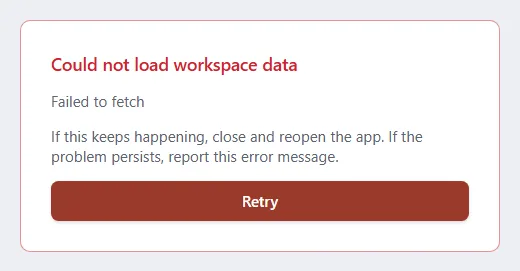
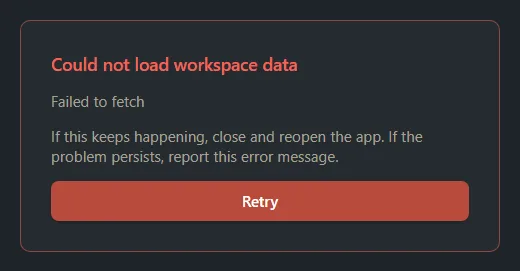
- Click Retry.
- If the card comes back, close PromptMason and open it again.
- If the error says a folder was copied from a different machine or Windows user, see The data folder was copied to another PC.
- If it keeps happening, email support@promptmason.ai with the exact error text. See Get help.
Update PromptMason to open your library
Instead of the app, PromptMason shows a card with this title and the text “Your library was saved by a newer version of PromptMason, so this version can’t open it. Nothing in it was changed. Update PromptMason to open it.”
This happens when an older version was installed over a newer one that had already upgraded your library. Going back to an older version isn’t supported.
- Click the button on the card: Check for updates, Download update or Restart to update, depending on the update status shown above it.
- When PromptMason restarts on the latest version, your library opens as it was.
See Install, update and remove.
PromptMason failed to start
If the message asks whether another copy of PromptMason is running, open Task Manager (Ctrl+Shift+Esc), end any PromptMason task, then open PromptMason again. If it still won’t start, restart your PC. If that doesn’t help, email support@promptmason.ai with the exact message.
PromptMason is locked and I forgot the password
The lock screen (“PromptMason is locked”) asks for the App Lock password you set in Settings → Privacy & security. Click Forgot password? and use your recovery kit to choose a new password. See If you forget your password.
Saving and editing
The Save button is grayed out
Save stays grayed out until the item has what it needs, and while it’s saving. PromptMason doesn’t show a message, so check this list:
| Where | Save works once |
|---|---|
| Blocks, new block | the block has a name and some text |
| Blocks, editing a block | the name and the text aren’t empty |
| Prompts, New static prompt | the prompt has a name and some text |
| Prompts, editing a static prompt | the name isn’t empty |
| Build, a prompt | the prompt has at least one block, and every Embedded Block card you added has a name, a type and text. If the prompt has no name, clicking save shows “Give this prompt a name to save it.” |
| Build, Markdown tab | the document has some text. If it has no name, clicking save shows “Give this document a name to save it.” |
| Build, Edit block window | the block has a name and some text |
| Variables | the name is filled in, has no { or }, and you’ve changed something |
The guides for each screen have more: Create and edit blocks, Build a prompt, Markdown documents and Skills, Variables.
I can’t edit, create or copy anything
If the banner at the top says Your library is paused., you’re on the Free plan with more than 25 blocks or more than 15 prompts. While paused, you can still read, search and delete, but you can’t edit, create or copy. See When your library is paused for the ways out.
A “Free plan limit” message when I create something
The Free plan holds up to 25 blocks and 15 prompts, across every library on this PC, archived items included. Delete items you don’t need (deleted items don’t count), or upgrade to Pro. See Plans and limits.
“You can view this library but not change it.”
The item is in a team library where you’re a reader. Ask the library’s primary owner to make you an editor. See Team libraries.
Prompts
A prompt shows [Block removed] or [Block unavailable]
A dynamic prompt shows a placeholder where one of its blocks should be, with a warning under the preview.
[Block removed: name]means the block was deleted. Restore it from Archive, on the Recently deleted tab, within 30 days; in a team library, only an owner can restore it. Or take the block out of the prompt on Build. See Archive, delete and restore and Build a prompt.[Block unavailable]means the block is in a team library this PC can’t reach right now. It comes back when the library’s folder is reachable again. See Sync problems.
If the warning says “Includes archived block”, the block is archived but its text is still in the prompt. Restore it from Archive if you want to edit it, or take it out of the prompt on Build.
A variable shows as {{name}} or [Name] in what I copied
{{name}}with a warning “Unresolved variable” means no variable has that name. Click Create variable “name” in the warning, or create it on the Variables screen, or fix the spelling in the text. To find every block and prompt with this problem, click Unresolved variables in the toolbar of Blocks, Prompts or Explorer, or click Show them on the Variables screen. If you don’t see Variables in the sidebar, turn it on in Settings → Features.[Name]means a variable that asks each time was left empty and has no default. Copy again and type a value in Fill in your values.
See Variables.
AI assist, Evaluate and Chat
There’s no AI assist or Evaluate button
Both buttons show only when the AI assist feature is on in Settings → Features, and an AI is set up: the local model downloaded, or an API key added. See Set up AI. Evaluate shows only while you’re not editing.
AI assist shows an error
A card headed “AI assist didn’t work” appears in the corner of the window, with the error and a button Open Settings → AI & connected apps. Your text isn’t changed. The card closes by itself after about 15 seconds, or sooner if you click its X. To read the message again, run AI assist again.
| Message starts with | What to do |
|---|---|
| “Set up AI assist first” | Download the local model, or add an API key, in Settings → AI & connected apps. See Set up AI. |
| “Add an API key for…” or “Enter a model name for…” | Open Settings → AI & connected apps and finish setting up that provider. |
| “…didn’t respond within…” | Wait a moment and try again. |
| “Couldn’t connect to…” | Check your internet connection, and the server address if you use your own AI server. If you’re on a work network, check its proxy settings with whoever manages it. |
| “…returned an error”, or another message in the provider’s own words | The AI provider refused the request. The message gives its reason or an error code, for example a wrong key or no credit left. Fix it with the provider, or choose another provider. |
| “AI assist works on text up to…” | Shorten the text and try again. |
| “This … is too long to evaluate…” (from Evaluate) | Shorten the text and try again. |
See Improve text with AI assist.
Chat says “Set up AI to start chatting”
Chat needs the local model or an AI provider. Click Download the free local model. It opens Settings → AI & connected apps at the local model, where you download it. To use an AI provider instead, add your API key in the same place. See Run prompts in Chat.
The local model won’t download or won’t start
Open Settings → AI & connected apps and read the message on the Local model (private) card.
| Message | What to do |
|---|---|
| “The local model needs at least 4 cores and 8 GB.” | This PC can’t run the local model. Use an AI provider with your own API key instead. |
| “Can’t reach the download server…” or “The download keeps getting interrupted…” | Check your internet connection, then click Try again. The download carries on from where it stopped. |
| “The download server couldn’t be reached from this network…” | A work or school network may block it. Check with whoever manages the network. |
| “There isn’t enough free space on this computer…” | Free up the space the message names, then try again. |
| “…security software on this computer blocked it…” | Allow PromptMason in your security software, then try again. |
| “…doesn’t have enough free memory…” | Close some programs and try again. |
| “The local model’s download is damaged…” | Click Remove, then download it again. |
See Free, private AI on your PC for every message.
Connected apps
The Chrome extension can’t reach PromptMason
The extension works only while PromptMason is open on the same PC.
| The extension says | What to do |
|---|---|
| “Can’t reach the PromptMason desktop app.” | Open PromptMason, then close the extension’s window and open it again. |
| “Your extension token wasn’t accepted.” | In PromptMason, click Settings, then AI & connected apps. Under Chrome extension, copy the extension token and paste it into the extension. |
| “PromptMason is turned off for connected apps.” | In Settings → AI & connected apps, under What connected apps can do, choose Full access or Read-only. |
| A message that your library is paused | See When your library is paused. |
See The Chrome extension.
My AI agent can’t reach PromptMason
PromptMason must be open for Claude Desktop, Cursor or Claude Code to use your library, and an agent that was open when you changed What connected apps can do needs restarting. For what each message means, see Troubleshooting MCP connections.
Libraries, sync and backups
A sync message in Notifications
Messages such as Can’t reach the library folder or The library folder is read-only come with a button for the next step. Sync problems explains each one.
Your last backup didn’t finish
Click Open backup settings in the notification. Check that the backup folder is available, for example that the drive is plugged in, then click Back up now. Backups run only while PromptMason is open. See Backups.
Moving to another PC
The data folder was copied to another PC
Copying PromptMason’s data folder to another PC, or to another Windows account, doesn’t work. Your library is encrypted with a key that only the original Windows account on the original PC can open, so the new PC shows Could not load workspace data. Your data isn’t lost.
Use one of these instead:
- Export and import: on the original PC, click Settings → Backup & data and click Export. On the new PC, click Import… in the same place and choose the file. See Export and import. Team libraries aren’t in the file. To have them on the new PC, see Team libraries.
- Sync: use your personal library on both PCs. See Use your library on a second PC.
License
My license key won’t activate
| Message | What to do |
|---|---|
| “PromptMason couldn’t reach the license server…” | Check your internet connection and try again. |
| “That key wasn’t found…” | Copy the whole key again and paste it. |
| “This key is already in use on as many computers as it allows…” | On the other computer, click Settings → Plan, then Advanced, then Remove license. Then activate here. |
| “This key has expired or been cancelled…” | Buy PromptMason Pro to get a new key. See Pricing. |
| “That key isn’t a PromptMason key.” | Check you copied the key you got when you bought Pro. |
See Your trial and license key.
“Couldn’t verify your license”
PromptMason hasn’t been able to check your license over the internet for 3 days or more. Your plan stays as it was until 14 days without a check; after that, the Free limits apply until a check works. Connect to the internet: PromptMason checks again on its own, or you can click Check again in Settings → Plan. See How your license is checked.
More help
See Get help for the help prompt on every guide, and what to send to support@promptmason.ai.
Want a hand?
Copy this prompt into Claude, ChatGPT or another AI assistant, and it walks you through it step by step.
Something isn't working in PromptMason. I'll tell you what I clicked and the exact message I see; help me work out what's wrong and fix it.
Copy adds a short note about PromptMason and this guide's steps, so the assistant has what it needs.
Something isn't working in PromptMason. I'll tell you what I clicked and the exact message I see; help me work out what's wrong and fix it. About PromptMason: a Windows desktop app for building AI prompts from reusable blocks. A person writes blocks (reusable pieces of prompt text), builds prompts from them on the Build screen (or keeps a Markdown document, such as a Skill), and copies a prompt into an AI tool, runs it in PromptMason’s own Chat, or lets a connected AI agent use it through PromptMason’s built-in MCP server (the Chrome extension copies prompts on any website). AI assist, Evaluate and Chat use a local model that runs on the person’s PC, or their own AI provider. The guides are also on PromptMason’s Help screen, and Chat can answer “how do I” questions from them. Libraries hold the blocks and prompts; a person can sync their personal library to their other PCs and share team libraries, both through a folder in cloud storage they already have (OneDrive, Google Drive or Dropbox). Everything synced is encrypted and every edit is signed and checked. A recovery kit (a file plus a code) is the spare copy of the person’s keys, for when every PC is lost. The official guide for this is "Troubleshooting": https://promptmason.ai/docs/troubleshooting Its full text follows, between the lines. Use it as the source of truth, and if anything I see differs from it, tell me rather than guessing. --- This page collects common problems, grouped by where they happen. Each one says what to do. If your problem isn't here, see [Get help](https://promptmason.ai/docs/get-help). ## Installing and starting ### Windows protected your PC Windows shows this blue screen for apps it hasn't seen often yet. Click **More info**, then **Run anyway**. See [Install, update and remove](https://promptmason.ai/docs/installation). ### Could not load workspace data PromptMason shows a card with this heading, the error, and a **Retry** button. 1. Click **Retry**. 2. If the card comes back, close PromptMason and open it again. 3. If the error says a folder was copied from a different machine or Windows user, see [The data folder was copied to another PC](#the-data-folder-was-copied-to-another-pc). 4. If it keeps happening, email support@promptmason.ai with the exact error text. See [Get help](https://promptmason.ai/docs/get-help). ### Update PromptMason to open your library Instead of the app, PromptMason shows a card with this title and the text "Your library was saved by a newer version of PromptMason, so this version can’t open it. Nothing in it was changed. Update PromptMason to open it." This happens when an older version was installed over a newer one that had already upgraded your library. Going back to an older version isn't supported. 1. Click the button on the card: **Check for updates**, **Download update** or **Restart to update**, depending on the update status shown above it. 2. When PromptMason restarts on the latest version, your library opens as it was. See [Install, update and remove](https://promptmason.ai/docs/installation#update). ### PromptMason failed to start If the message asks whether another copy of PromptMason is running, open Task Manager (Ctrl+Shift+Esc), end any **PromptMason** task, then open PromptMason again. If it still won't start, restart your PC. If that doesn't help, email support@promptmason.ai with the exact message. ### PromptMason is locked and I forgot the password The lock screen ("PromptMason is locked") asks for the App Lock password you set in **Settings → Privacy & security**. Click **Forgot password?** and use your recovery kit to choose a new password. See [If you forget your password](https://promptmason.ai/docs/app-lock#if-you-forget-your-password). ## Saving and editing ### The Save button is grayed out Save stays grayed out until the item has what it needs, and while it's saving. PromptMason doesn't show a message, so check this list: | Where | Save works once | |---|---| | Blocks, new block | the block has a name and some text | | Blocks, editing a block | the name and the text aren't empty | | Prompts, **New static prompt** | the prompt has a name and some text | | Prompts, editing a static prompt | the name isn't empty | | Build, a prompt | the prompt has at least one block, and every **Embedded Block** card you added has a name, a type and text. If the prompt has no name, clicking save shows "Give this prompt a name to save it." | | Build, **Markdown** tab | the document has some text. If it has no name, clicking save shows "Give this document a name to save it." | | Build, **Edit block** window | the block has a name and some text | | Variables | the name is filled in, has no `{` or `}`, and you've changed something | The guides for each screen have more: [Create and edit blocks](https://promptmason.ai/docs/blocks), [Build a prompt](https://promptmason.ai/docs/build-prompt), [Markdown documents and Skills](https://promptmason.ai/docs/markdown-documents), [Variables](https://promptmason.ai/docs/variables). ### I can't edit, create or copy anything If the banner at the top says **Your library is paused.**, you're on the Free plan with more than 25 blocks or more than 15 prompts. While paused, you can still read, search and delete, but you can't edit, create or copy. See [When your library is paused](https://promptmason.ai/docs/paused-library) for the ways out. ### A "Free plan limit" message when I create something The Free plan holds up to 25 blocks and 15 prompts, across every library on this PC, archived items included. Delete items you don't need (deleted items don't count), or upgrade to Pro. See [Plans and limits](https://promptmason.ai/docs/plans). ### "You can view this library but not change it." The item is in a team library where you're a reader. Ask the library's primary owner to make you an editor. See [Team libraries](https://promptmason.ai/docs/team-libraries). ## Prompts ### A prompt shows [Block removed] or [Block unavailable] A dynamic prompt shows a placeholder where one of its blocks should be, with a warning under the preview. - **`[Block removed: name]`** means the block was deleted. Restore it from **Archive**, on the **Recently deleted** tab, within 30 days; in a team library, only an owner can restore it. Or take the block out of the prompt on Build. See [Archive, delete and restore](https://promptmason.ai/docs/archive-and-delete) and [Build a prompt](https://promptmason.ai/docs/build-prompt). - **`[Block unavailable]`** means the block is in a team library this PC can't reach right now. It comes back when the library's folder is reachable again. See [Sync problems](https://promptmason.ai/docs/sync-problems). If the warning says "Includes archived block", the block is archived but its text is still in the prompt. Restore it from **Archive** if you want to edit it, or take it out of the prompt on Build. ### A variable shows as {{name}} or [Name] in what I copied - `{{name}}` with a warning "Unresolved variable" means no variable has that name. Click **Create variable “name”** in the warning, or create it on the **Variables** screen, or fix the spelling in the text. To find every block and prompt with this problem, click **Unresolved variables** in the toolbar of **Blocks**, **Prompts** or **Explorer**, or click **Show them** on the **Variables** screen. If you don't see Variables in the sidebar, turn it on in **Settings → Features**. - `[Name]` means a variable that asks each time was left empty and has no default. Copy again and type a value in **Fill in your values**. See [Variables](https://promptmason.ai/docs/variables). ## AI assist, Evaluate and Chat ### There's no AI assist or Evaluate button Both buttons show only when the **AI assist** feature is on in **Settings → Features**, and an AI is set up: the local model downloaded, or an API key added. See [Set up AI](https://promptmason.ai/docs/ai-setup). Evaluate shows only while you're not editing. ### AI assist shows an error A card headed "AI assist didn't work" appears in the corner of the window, with the error and a button **Open Settings → AI & connected apps**. Your text isn't changed. The card closes by itself after about 15 seconds, or sooner if you click its X. To read the message again, run AI assist again. | Message starts with | What to do | |---|---| | "Set up AI assist first" | Download the local model, or add an API key, in **Settings → AI & connected apps**. See [Set up AI](https://promptmason.ai/docs/ai-setup). | | "Add an API key for…" or "Enter a model name for…" | Open **Settings → AI & connected apps** and finish setting up that provider. | | "…didn't respond within…" | Wait a moment and try again. | | "Couldn't connect to…" | Check your internet connection, and the server address if you use your own AI server. If you're on a work network, check its proxy settings with whoever manages it. | | "…returned an error", or another message in the provider's own words | The AI provider refused the request. The message gives its reason or an error code, for example a wrong key or no credit left. Fix it with the provider, or choose another provider. | | "AI assist works on text up to…" | Shorten the text and try again. | | "This … is too long to evaluate…" (from **Evaluate**) | Shorten the text and try again. | See [Improve text with AI assist](https://promptmason.ai/docs/ai-assist). ### Chat says "Set up AI to start chatting" Chat needs the local model or an AI provider. Click **Download the free local model**. It opens **Settings → AI & connected apps** at the local model, where you download it. To use an AI provider instead, add your API key in the same place. See [Run prompts in Chat](https://promptmason.ai/docs/chat-basics). ### The local model won't download or won't start Open **Settings → AI & connected apps** and read the message on the **Local model (private)** card. | Message | What to do | |---|---| | "The local model needs at least 4 cores and 8 GB." | This PC can't run the local model. Use an AI provider with your own API key instead. | | "Can't reach the download server…" or "The download keeps getting interrupted…" | Check your internet connection, then click **Try again**. The download carries on from where it stopped. | | "The download server couldn't be reached from this network…" | A work or school network may block it. Check with whoever manages the network. | | "There isn't enough free space on this computer…" | Free up the space the message names, then try again. | | "…security software on this computer blocked it…" | Allow PromptMason in your security software, then try again. | | "…doesn't have enough free memory…" | Close some programs and try again. | | "The local model's download is damaged…" | Click **Remove**, then download it again. | See [Free, private AI on your PC](https://promptmason.ai/docs/local-model) for every message. ## Connected apps ### The Chrome extension can't reach PromptMason The extension works only while PromptMason is open on the same PC. | The extension says | What to do | |---|---| | "Can't reach the PromptMason desktop app." | Open PromptMason, then close the extension's window and open it again. | | "Your extension token wasn't accepted." | In PromptMason, click **Settings**, then **AI & connected apps**. Under **Chrome extension**, copy the extension token and paste it into the extension. | | "PromptMason is turned off for connected apps." | In **Settings → AI & connected apps**, under **What connected apps can do**, choose **Full access** or **Read-only**. | | A message that your library is paused | See [When your library is paused](https://promptmason.ai/docs/paused-library). | See [The Chrome extension](https://promptmason.ai/docs/chrome-extension). ### My AI agent can't reach PromptMason PromptMason must be open for Claude Desktop, Cursor or Claude Code to use your library, and an agent that was open when you changed **What connected apps can do** needs restarting. For what each message means, see [Troubleshooting MCP connections](https://promptmason.ai/docs/mcp-troubleshooting). ## Libraries, sync and backups ### A sync message in Notifications Messages such as **Can’t reach the library folder** or **The library folder is read-only** come with a button for the next step. [Sync problems](https://promptmason.ai/docs/sync-problems) explains each one. ### Your last backup didn’t finish Click **Open backup settings** in the notification. Check that the backup folder is available, for example that the drive is plugged in, then click **Back up now**. Backups run only while PromptMason is open. See [Backups](https://promptmason.ai/docs/backups). ## Moving to another PC ### The data folder was copied to another PC Copying PromptMason's data folder to another PC, or to another Windows account, doesn't work. Your library is encrypted with a key that only the original Windows account on the original PC can open, so the new PC shows **Could not load workspace data**. Your data isn't lost. Use one of these instead: - **Export and import:** on the original PC, click **Settings → Backup & data** and click **Export**. On the new PC, click **Import…** in the same place and choose the file. See [Export and import](https://promptmason.ai/docs/export-import). Team libraries aren't in the file. To have them on the new PC, see [Team libraries](https://promptmason.ai/docs/team-libraries). - **Sync:** use your personal library on both PCs. See [Use your library on a second PC](https://promptmason.ai/docs/second-pc). ## License ### My license key won't activate | Message | What to do | |---|---| | "PromptMason couldn't reach the license server…" | Check your internet connection and try again. | | "That key wasn't found…" | Copy the whole key again and paste it. | | "This key is already in use on as many computers as it allows…" | On the other computer, click **Settings → Plan**, then **Advanced**, then **Remove license**. Then activate here. | | "This key has expired or been cancelled…" | Buy PromptMason Pro to get a new key. See [Pricing](https://promptmason.ai/pricing). | | "That key isn't a PromptMason key." | Check you copied the key you got when you bought Pro. | See [Your trial and license key](https://promptmason.ai/docs/license). ### "Couldn't verify your license" PromptMason hasn't been able to check your license over the internet for 3 days or more. Your plan stays as it was until 14 days without a check; after that, the Free limits apply until a check works. Connect to the internet: PromptMason checks again on its own, or you can click **Check again** in **Settings → Plan**. See [How your license is checked](https://promptmason.ai/docs/license#how-your-license-is-checked). ## More help See [Get help](https://promptmason.ai/docs/get-help) for the help prompt on every guide, and what to send to support@promptmason.ai. --- How to help me: - Go one step at a time. After each step, ask what I see on screen before giving the next one. - Use the exact words on PromptMason’s buttons and screens, as the guide does. - Never ask me for my recovery code, my recovery kit file, a password or my invite line, and never ask me to paste them here. - Start by asking which step I’m on, or what I see now.